ANAVEM
Languagefr
How to Restore Classic File Explorer with Ribbon in Windows 11

How to Restore Classic File Explorer with Ribbon in Windows 11

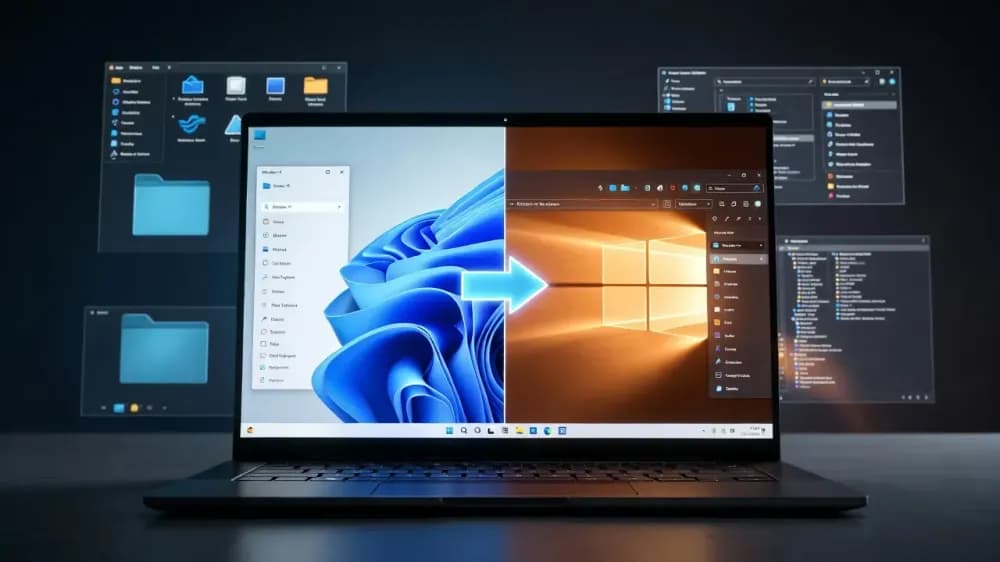
Learn three proven methods to bring back the Windows 10-style File Explorer with ribbon interface in Windows 11, including registry modifications and third-party tools.

Emanuel DE ALMEIDAEmanuel DE ALMEIDA
March 18, 2026 12 min 5
easywindows11 7 steps 12 min

Why Restore the Classic File Explorer Ribbon in Windows 11?

Windows 11 introduced a streamlined File Explorer interface that removed the traditional ribbon toolbar, replacing it with a simplified command bar. While Microsoft designed this change to modernize the user experience, many users find the classic ribbon more efficient for file management tasks.

The classic ribbon interface provides immediate access to advanced file operations, detailed view options, and comprehensive sharing tools without requiring additional clicks or menu navigation. For users who manage large numbers of files daily, the ribbon's organized tabs (Home, Share, View) offer faster workflow completion compared to the modern interface's hidden menus.

What Methods Work for Restoring Classic File Explorer?

This tutorial covers three proven approaches to restore the Windows 10-style File Explorer with full ribbon functionality. The first method provides immediate temporary access through Windows Tools, perfect for occasional use. The second method uses Explorer Patcher, a reliable third-party tool that permanently restores the classic interface system-wide. The third method involves direct registry modifications for advanced users, though this approach has limitations on newer Windows 11 versions.

Each method has different advantages: the Windows Tools approach requires no system modifications, Explorer Patcher offers the most comprehensive restoration with ongoing updates, and registry modifications provide direct system-level control for users comfortable with advanced Windows customization.

Related: Change User Profile Folder Name in Windows 11 25H2

Related: How to Add 'Turn Off Display' to Windows 11 Context Menu

Related: How to Remove Recommended Section from Windows 11 Start Menu

Implementation Guide

Full Procedure

01

Create a System Restore Point

Before making any system modifications, create a restore point to safely revert changes if needed.

Press Win + R, type sysdm.cpl, and press Enter. Click the System Protection tab, then click Create.

Name: Classic Explorer Restore Point
Description: Before modifying File Explorer interface

Click Create and wait for the process to complete. This typically takes 2-3 minutes.

Pro tip: Always create restore points before registry modifications. Windows Update can sometimes override these changes, and you'll want a quick way back.

Verification: Open System Properties again and confirm your restore point appears in the list with today's date.

02

Access Classic Explorer via Windows Tools (Quick Method)

The fastest way to access the classic ribbon interface is through the Windows Tools folder. This method doesn't require any system modifications.

Right-click the Start button and select Run. Type the following command:

shell:Administrative Tools

Press Enter. This opens the Windows Tools folder. Double-click This PC to launch File Explorer with the classic ribbon interface.

Alternatively, you can navigate manually: Start Menu > All Apps > Windows Tools > This PC

Warning: This method only provides temporary access. Each time you open a new Explorer window normally, it will use the modern interface.

Verification: Look for the classic ribbon with tabs like Home, Share, and View at the top of the Explorer window. The ribbon should be fully expanded by default.

03

Create Desktop Shortcut for Classic Explorer

Create a permanent shortcut that always opens the classic File Explorer interface.

Right-click on your desktop and select New > Shortcut. In the location field, enter:

%windir%\explorer.exe /e,::{20D04FE0-3AEA-1069-A2D8-08002B30309D}

Click Next and name the shortcut Classic File Explorer. Click Finish.

To customize the icon, right-click the shortcut, select Properties, click Change Icon, and browse to:

%SystemRoot%\System32\imageres.dll

Select an appropriate folder icon (typically icon #3 or #4).

Pro tip: Pin this shortcut to your taskbar by right-clicking it and selecting "Pin to taskbar" for quick access.

Verification: Double-click the shortcut. It should open File Explorer with the classic ribbon interface showing all traditional tabs.

04

Download and Install Explorer Patcher

Explorer Patcher is the most reliable third-party solution for permanently restoring the classic File Explorer interface in Windows 11.

Open your web browser and navigate to the official GitHub repository:

https://github.com/valinet/ExplorerPatcher

Click on Releases on the right side, then download the latest ep_setup.exe file. As of March 2026, the current version is typically 22621.x.x or higher.

Right-click the downloaded file and select Run as administrator. The installation is automatic and requires no user interaction.

Warning: Windows Defender may flag this as potentially unwanted software. This is a false positive, but always download from the official GitHub repository to ensure authenticity.

The system will automatically restart Explorer.exe during installation. Your taskbar may briefly disappear and reappear.

Verification: After installation, open any File Explorer window. You should immediately see the classic ribbon interface with all traditional tabs restored.

05

Configure Explorer Patcher Settings

Customize Explorer Patcher to fine-tune your classic File Explorer experience.

Right-click on the taskbar and look for Properties in the context menu (this option is added by Explorer Patcher). If you don't see it, press Win + R and run:

rundll32.exe C:\Windows\dxgi.dll,ZZGUI

In the Explorer Patcher settings window, navigate to File Explorer section. Configure these key settings:

Control interface: Classic ribbon
Disable modern context menu: Enabled
Hide search bar: Optional (your preference)
Show ribbon by default: Enabled

Click Restart File Explorer to apply changes immediately.

Pro tip: Enable "Disable modern context menu" to get the full classic Windows 10 experience, including the traditional right-click menus.

Verification: Open File Explorer and right-click on a file. You should see the classic context menu instead of the modern Windows 11 version.

06

Registry Method for Advanced Users

For users who prefer direct registry modifications, this method enables classic Explorer through Windows Registry changes.

Warning: This method may not work on Windows 11 22H2 and later versions, as Microsoft has disabled some registry fixes. Use Explorer Patcher for more reliable results.

Press Win + R, type regedit, and press Enter. Navigate to:

HKEY_CURRENT_USER\Software\Classes\CLSID

Right-click in the right pane and create a new key named:

{d93ed569-3b3e-4bff-8355-3c44f6a52bb5}

Inside this key, create another key named InprocServer32. In the InprocServer32 key, double-click the (Default) value and leave it empty (delete any existing value).

Close Registry Editor and restart Windows Explorer by pressing Ctrl + Shift + Esc, finding Windows Explorer in the process list, right-clicking it, and selecting Restart.

Verification: Open File Explorer. If successful, you'll see the classic ribbon interface. If not, the modern interface indicates this method doesn't work on your Windows 11 version.

07

Troubleshoot Common Issues

Address the most common problems when restoring classic File Explorer functionality.

Issue 1: Explorer Patcher not working after Windows Update

Download the latest version from GitHub and reinstall. Windows Updates can sometimes break third-party modifications.

Issue 2: Registry method reverted

Windows 11 22H2+ automatically removes these registry entries. Switch to Explorer Patcher for permanent solution.

Issue 3: Performance issues or crashes

Uninstall Explorer Patcher by running:

ep_setup.exe /uninstall

Then restart your computer and try a clean installation.

Issue 4: Classic ribbon appears but modern context menus remain

In Explorer Patcher settings, ensure "Disable modern context menu" is enabled, then restart File Explorer.

Pro tip: If you experience any system instability, use the System Restore Point you created in Step 1 to quickly revert all changes.

Verification: Test each solution by opening multiple File Explorer windows and right-clicking various files to ensure consistent classic behavior.

Frequently Asked Questions

Does Explorer Patcher work with the latest Windows 11 updates in 2026?+
Yes, Explorer Patcher is actively maintained and regularly updated to work with the latest Windows 11 builds. The developer typically releases compatibility updates within days of major Windows updates. Always download the latest version from the official GitHub repository to ensure compatibility with your Windows 11 version.
Will restoring the classic File Explorer ribbon affect system performance or stability?+
Explorer Patcher has minimal impact on system performance when properly installed. The tool modifies only the user interface elements without affecting core Windows functionality. However, like any system modification, there's a small risk of conflicts with future Windows updates, which is why creating a restore point is recommended before installation.
Can I uninstall Explorer Patcher if I change my mind about the classic interface?+
Yes, Explorer Patcher can be completely uninstalled using the command 'ep_setup.exe /uninstall' run as administrator. This removes all modifications and restores the default Windows 11 File Explorer interface. The uninstallation process is clean and doesn't leave residual files or registry entries that could affect system stability.
Why doesn't the registry modification method work on newer Windows 11 versions?+
Microsoft disabled several registry-based UI modifications starting with Windows 11 22H2 to maintain interface consistency and security. The company actively patches registry keys that restore classic interfaces, making these modifications temporary at best. This is why third-party tools like Explorer Patcher are more reliable for permanent classic interface restoration.
Is it safe to use third-party tools like Explorer Patcher on a work computer?+
While Explorer Patcher is generally safe and well-maintained, using third-party system modification tools on corporate computers may violate IT policies and could interfere with enterprise management software. Always check with your IT department before installing such tools on work computers. For personal computers, the risk is minimal when downloading from official sources.
Emanuel DE ALMEIDA
Written by

Emanuel DE ALMEIDA

Microsoft MCSA-certified Cloud Architect | Fortinet-focused. I modernize cloud, hybrid & on-prem infrastructure for reliability, security, performance and cost control - sharing field-tested ops & troubleshooting.

Discussion

Share your thoughts and insights

You must be logged in to comment.

Loading comments...