ANAVEM
Languagefr
Windows Event Viewer displaying system telemetry logs on a professional IT workstation
Event ID 1101InformationWinlogonWindows

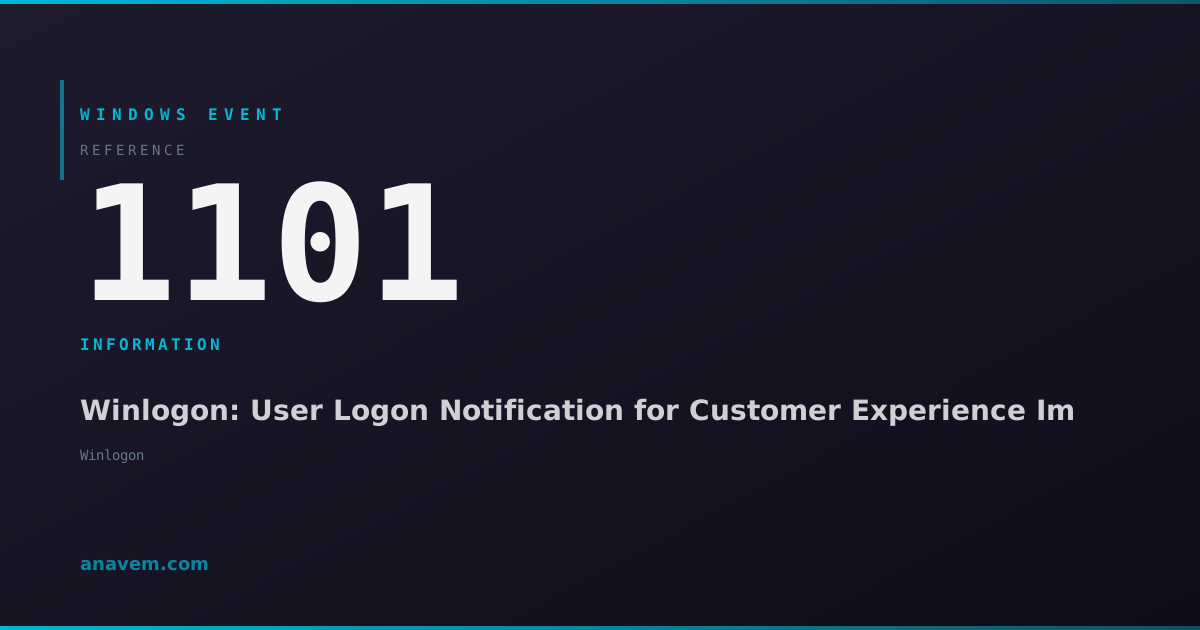
Windows Event ID 1101 – Winlogon: User Logon Notification for Customer Experience Improvement Program

Event ID 1101 from Winlogon indicates user logon notifications for the Customer Experience Improvement Program (CEIP). This informational event tracks user sessions for telemetry purposes.

Emanuel DE ALMEIDAEmanuel DE ALMEIDA
18 March 20269 min read 0
Event ID 1101Winlogon 5 methods 9 min
Event Reference

What This Event Means

Windows Event ID 1101 represents a core component of Microsoft's Customer Experience Improvement Program telemetry infrastructure. When users log into Windows systems, the Winlogon process generates this event to notify telemetry services about the new user session. The event serves as a trigger point for various background telemetry collection processes that gather anonymized usage data.

The event structure includes standard Windows event fields plus specific data elements related to the user session. Key information captured includes the user's Security Identifier (SID), logon session ID, authentication package used, and logon type classification. This data helps Microsoft understand how users interact with Windows systems while maintaining privacy through data anonymization techniques.

From a system administration perspective, Event ID 1101 provides valuable insights into user logon patterns and system usage. High-frequency environments like terminal servers or shared workstations will generate numerous instances of this event throughout the day. The event timing can help administrators correlate user activity with system performance metrics and identify potential authentication bottlenecks.

Modern Windows versions in 2026 have enhanced the telemetry framework to be more transparent and configurable. Administrators can control telemetry levels through Group Policy, registry settings, or the Windows Settings interface. However, completely disabling telemetry may prevent certain Windows features from functioning optimally, making Event ID 1101 monitoring important for maintaining system health visibility.

Applies to

Windows 10Windows 11Windows Server 2019/2022
Analysis

Possible Causes

  • Normal user logon to Windows desktop or server systems
  • Customer Experience Improvement Program (CEIP) service activation during logon
  • Terminal Services or Remote Desktop Protocol (RDP) session establishment
  • Fast User Switching between multiple user accounts
  • Service account logons when CEIP is enabled for service contexts
  • Scheduled task execution under user context with telemetry enabled
  • Windows Hello or biometric authentication completion
Resolution Methods

Troubleshooting Steps

01

Verify Event Details in Event Viewer

Open Event Viewer to examine the specific details of Event ID 1101 occurrences:

  1. Press Windows + R, type eventvwr.msc, and press Enter
  2. Navigate to Windows LogsApplication
  3. In the Actions pane, click Filter Current Log
  4. Enter 1101 in the Event IDs field and click OK
  5. Double-click any Event ID 1101 entry to view detailed information
  6. Review the General tab for event description and the Details tab for XML data
  7. Note the User SID, Process ID, and any additional context information

Use PowerShell to query multiple events efficiently:

Get-WinEvent -FilterHashtable @{LogName='Application'; Id=1101} -MaxEvents 50 | Format-Table TimeCreated, Id, LevelDisplayName, Message -Wrap
Pro tip: Export events to CSV for analysis: Get-WinEvent -FilterHashtable @{LogName='Application'; Id=1101} | Export-Csv -Path C:\temp\event1101.csv -NoTypeInformation
02

Monitor User Logon Patterns

Analyze Event ID 1101 patterns to understand user behavior and system usage:

  1. Create a PowerShell script to track logon frequency:
$StartTime = (Get-Date).AddDays(-7)
$Events = Get-WinEvent -FilterHashtable @{LogName='Application'; Id=1101; StartTime=$StartTime}
$GroupedEvents = $Events | Group-Object {$_.TimeCreated.Date} | Sort-Object Name
$GroupedEvents | Select-Object Name, Count | Format-Table -AutoSize
  1. Set up a scheduled task to run this analysis weekly
  2. Compare patterns with security logs to correlate authentication events
  3. Use Event Viewer custom views to create a dedicated 1101 monitoring view:
  4. Right-click Custom ViewsCreate Custom View
  5. Select By logApplication
  6. Enter 1101 in Event IDs field
  7. Name the view "CEIP Logon Notifications" and save
Pro tip: Correlate Event ID 1101 with Event ID 4624 (successful logon) in Security logs for complete user session tracking.
03

Configure Telemetry Settings

Adjust Windows telemetry settings to control Event ID 1101 generation:

  1. Open Group Policy Editor (gpedit.msc) for local policy changes
  2. Navigate to Computer ConfigurationAdministrative TemplatesWindows ComponentsData Collection and Preview Builds
  3. Double-click Allow Telemetry policy
  4. Configure telemetry level (0=Security, 1=Basic, 2=Enhanced, 3=Full)
  5. Apply changes and run gpupdate /force

For registry-based configuration:

Set-ItemProperty -Path "HKLM:\SOFTWARE\Policies\Microsoft\Windows\DataCollection" -Name "AllowTelemetry" -Value 1 -Type DWord

Verify current telemetry settings:

Get-ItemProperty -Path "HKLM:\SOFTWARE\Policies\Microsoft\Windows\DataCollection" -Name "AllowTelemetry" -ErrorAction SilentlyContinue
  1. Restart the system or restart the Diagnostic Policy Service:
Restart-Service -Name "DPS" -Force
Warning: Setting telemetry to Security level (0) may disable some Windows features and prevent automatic driver updates.
04

Analyze Telemetry Service Dependencies

Investigate the services and processes responsible for generating Event ID 1101:

  1. Check the Diagnostic Policy Service status:
Get-Service -Name "DPS" | Format-List Name, Status, StartType, ServiceType
  1. Examine Connected User Experiences and Telemetry service:
Get-Service -Name "DiagTrack" | Format-List *
  1. Review service dependencies and related processes:
Get-WmiObject -Class Win32_Service -Filter "Name='DiagTrack'" | Select-Object Name, State, StartMode, ProcessId
  1. Monitor real-time telemetry activity using Process Monitor:
  2. Download and run ProcMon from Microsoft Sysinternals
  3. Set filters for Process Name contains "svchost" and Path contains "telemetry"
  4. Observe file and registry access patterns during user logon
  5. Check Windows Event Forwarding configuration if in enterprise environment:
wecutil es | ForEach-Object { wecutil gs $_ }
Pro tip: Use sc query DiagTrack to quickly check telemetry service status from command line.
05

Enterprise Monitoring and Alerting Setup

Implement comprehensive monitoring for Event ID 1101 in enterprise environments:

  1. Create a PowerShell monitoring script for automated analysis:
$LogName = "Application"
$EventID = 1101
$Hours = 24
$StartTime = (Get-Date).AddHours(-$Hours)

$Events = Get-WinEvent -FilterHashtable @{
    LogName = $LogName
    Id = $EventID
    StartTime = $StartTime
} -ErrorAction SilentlyContinue

if ($Events) {
    $EventCount = $Events.Count
    $UniqueUsers = ($Events | ForEach-Object { $_.UserId } | Sort-Object -Unique).Count
    
    Write-Output "Event ID 1101 Summary (Last $Hours hours):"
    Write-Output "Total Events: $EventCount"
    Write-Output "Unique Users: $UniqueUsers"
    Write-Output "Average Events per Hour: $([math]::Round($EventCount/$Hours, 2))"
}
  1. Set up Windows Event Forwarding for centralized collection:
  2. Configure source computers with: winrm quickconfig
  3. On collector server, run: wecutil cs subscription.xml
  4. Create subscription XML file targeting Event ID 1101
  5. Implement SIEM integration using Windows Event Log API
  6. Configure alerting thresholds for unusual logon patterns
  7. Create dashboard visualizations for telemetry event trends
Pro tip: Use Task Scheduler to run monitoring scripts every hour and email results to administrators.

Overview

Event ID 1101 from the Winlogon source fires during user logon processes as part of Windows Customer Experience Improvement Program (CEIP) telemetry collection. This event appears in the Application log whenever a user successfully logs into a Windows system and the CEIP service is active. The event contains minimal data but serves as a marker for Microsoft's telemetry systems to track user engagement patterns.

This event is completely normal and indicates healthy system operation. It fires once per user logon session and is directly tied to Windows telemetry services. The event typically contains basic session information including user SID, logon type, and timestamp data. System administrators often see this event in high-volume environments where multiple users log in throughout the day.

The event is part of Microsoft's broader data collection framework introduced in Windows 10 and refined through 2026 updates. It works alongside other telemetry events to provide Microsoft with usage statistics while maintaining user privacy through anonymized data collection. Understanding this event helps administrators distinguish between normal telemetry operations and actual system issues.

Frequently Asked Questions

What does Windows Event ID 1101 mean and should I be concerned?+
Event ID 1101 from Winlogon is a normal informational event that indicates user logon notifications for Microsoft's Customer Experience Improvement Program (CEIP). This event is completely benign and shows that Windows telemetry services are functioning correctly. You should not be concerned about this event as it represents normal system operation. The event fires once per user logon session and helps Microsoft collect anonymized usage statistics to improve Windows. If you see this event frequently, it simply means users are logging into your system regularly, which is expected behavior.
Can I disable Event ID 1101 from appearing in my event logs?+
While you cannot completely disable Event ID 1101 without affecting Windows functionality, you can reduce its frequency by adjusting telemetry settings. Navigate to Settings → Privacy & Security → Diagnostics & feedback and set telemetry to 'Required diagnostic data' (minimum level). Alternatively, use Group Policy to configure 'Allow Telemetry' to level 1 (Basic). However, completely disabling telemetry may prevent Windows Update, Microsoft Defender, and other services from working optimally. For enterprise environments, consider using Event Log filtering or SIEM rules to exclude these informational events from critical alerting while maintaining system functionality.
How can I use Event ID 1101 for user activity monitoring?+
Event ID 1101 provides valuable insights for user activity monitoring when combined with other logon events. Use PowerShell to correlate these events with Security log Event ID 4624 (successful logon) to build comprehensive user session tracking. Create custom Event Viewer filters or PowerShell scripts to analyze logon patterns, identify peak usage times, and detect unusual activity. The event timestamp and user SID information help administrators understand system utilization patterns. For automated monitoring, set up scheduled tasks that query these events and generate reports showing daily/weekly logon trends, which is particularly useful for capacity planning and security auditing.
Why am I seeing multiple Event ID 1101 entries for the same user?+
Multiple Event ID 1101 entries for the same user can occur due to several legitimate scenarios. Fast User Switching generates separate events for each switch, Remote Desktop sessions create individual events per connection, and some applications may trigger additional telemetry notifications during the session. Service accounts running under user context also generate these events when telemetry is enabled. Terminal Server environments commonly show numerous 1101 events as users connect and disconnect throughout the day. This is normal behavior and indicates active user engagement with the system. To analyze patterns, use PowerShell to group events by user SID and timestamp to understand the specific logon scenarios in your environment.
How does Event ID 1101 relate to Windows privacy and data collection?+
Event ID 1101 is directly tied to Windows telemetry and privacy settings configured through the Customer Experience Improvement Program. The event represents Microsoft's data collection framework that gathers anonymized usage statistics to improve Windows functionality. Users can control this through Privacy settings, choosing between Required, Optional, or Enhanced diagnostic data levels. The event itself contains minimal personally identifiable information, primarily session metadata and timing data. In 2026, Microsoft has enhanced transparency around telemetry collection, providing clearer controls and documentation about what data is collected. Enterprise administrators can use Group Policy to standardize telemetry levels across their organization while maintaining compliance with privacy regulations.
Documentation

References (2)

Emanuel DE ALMEIDA
Written by

Emanuel DE ALMEIDA

Senior IT Journalist & Cloud Architect

Microsoft MCSA-certified Cloud Architect | Fortinet-focused. I modernize cloud, hybrid & on-prem infrastructure for reliability, security, performance and cost control - sharing field-tested ops & troubleshooting.

Discussion

Share your thoughts and insights

You must be logged in to comment.

Loading comments...