ANAVEM
Languagefr
Windows Event Viewer displaying Event ID 1104 system shutdown events on a monitoring dashboard
Event ID 1104InformationMicrosoft-Windows-EventlogWindows

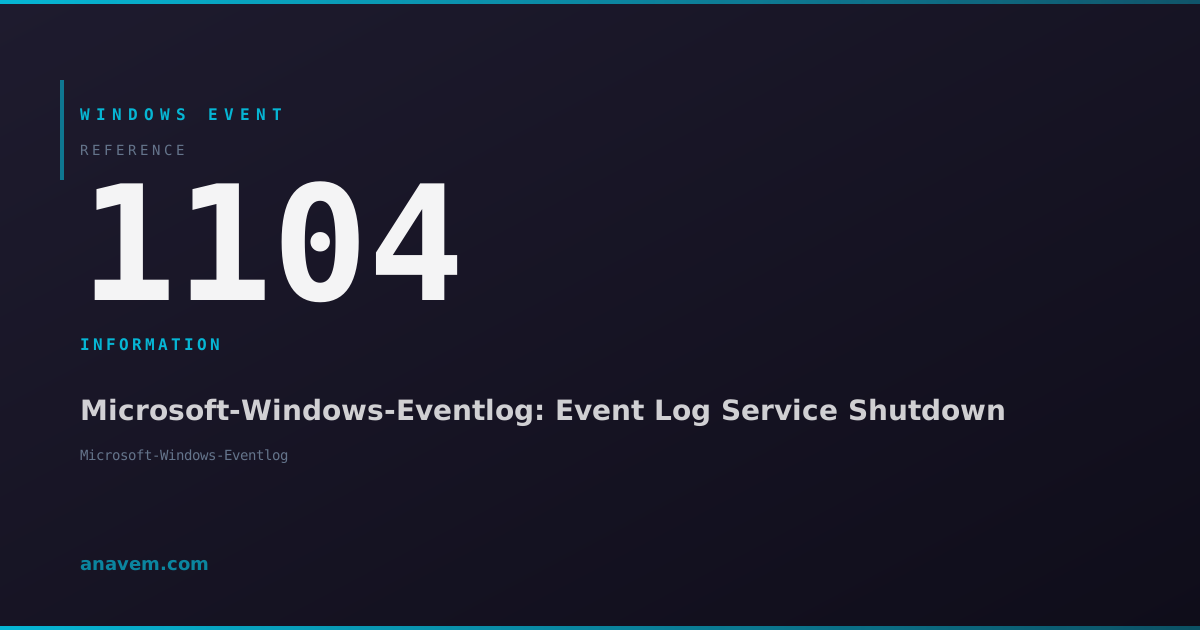
Windows Event ID 1104 – Microsoft-Windows-Eventlog: Event Log Service Shutdown

Event ID 1104 indicates the Windows Event Log service is shutting down, typically during system shutdown, restart, or service maintenance operations.

Emanuel DE ALMEIDAEmanuel DE ALMEIDA
18 March 20267 min read 0
Event ID 1104Microsoft-Windows-Eventlog 5 methods 7 min
Event Reference

What This Event Means

Event ID 1104 represents the Windows Event Log service's graceful shutdown notification. When Windows initiates a shutdown sequence, the Event Log service receives a stop signal and logs this final informational message before terminating its processes. This event serves as the last recorded entry in the System log before logging capabilities become unavailable.

The Event Log service (EventLog) manages all Windows event logging functionality, including writing events to log files, managing log retention policies, and providing event query interfaces. When this service shuts down, all event logging ceases until the service restarts during the next boot cycle. Event ID 1104 provides administrators with a definitive timestamp marking when event logging stopped.

This event becomes particularly important in enterprise environments where continuous monitoring and audit trails are required. Security teams rely on Event ID 1104 to identify gaps in logging coverage and ensure compliance with regulatory requirements. The event also helps troubleshoot scenarios where applications report missing log entries or when investigating potential security incidents that occurred during system transitions.

In Windows Server 2025 and Windows 11 24H2, Microsoft enhanced the Event Log service with improved shutdown handling and better integration with modern power management features. These improvements ensure Event ID 1104 appears consistently even during fast startup scenarios and hybrid shutdown operations.

Applies to

Windows 10Windows 11Windows Server 2019/2022/2025
Analysis

Possible Causes

  • Normal system shutdown or restart operations initiated by users or administrators
  • Scheduled maintenance tasks that require system reboots
  • Windows Update installations requiring system restarts
  • Manual stopping of the Windows Event Log service through Services console or PowerShell
  • Group Policy-enforced system shutdowns or restarts
  • Power management events triggering system hibernation or shutdown
  • Critical system errors forcing emergency shutdowns
  • Service dependency changes requiring Event Log service restart
Resolution Methods

Troubleshooting Steps

01

Verify Event Details in Event Viewer

Open Event Viewer to examine the Event ID 1104 details and surrounding events:

  1. Press Windows + R, type eventvwr.msc, and press Enter
  2. Navigate to Windows LogsSystem
  3. Filter the log by clicking Filter Current Log in the Actions pane
  4. Enter 1104 in the Event IDs field and click OK
  5. Double-click the Event ID 1104 entry to view details
  6. Check the timestamp and correlate with other shutdown events (1074, 6006, 6008)
  7. Review the General tab for basic information and Details tab for XML data

Look for patterns in shutdown frequency and timing. Multiple Event ID 1104 entries in short succession may indicate system instability or forced restarts.

02

Query Event Logs with PowerShell

Use PowerShell to analyze Event ID 1104 occurrences and correlate with other system events:

# Get recent Event ID 1104 entries
Get-WinEvent -FilterHashtable @{LogName='System'; Id=1104} -MaxEvents 20 | Format-Table TimeCreated, Id, LevelDisplayName, Message -AutoSize

# Correlate with shutdown events
$shutdownEvents = Get-WinEvent -FilterHashtable @{LogName='System'; Id=1074,1104,6006,6008} -MaxEvents 50
$shutdownEvents | Sort-Object TimeCreated -Descending | Format-Table TimeCreated, Id, LevelDisplayName, Message -AutoSize

# Export shutdown timeline for analysis
$shutdownEvents | Export-Csv -Path "C:\temp\shutdown_timeline.csv" -NoTypeInformation

This method provides comprehensive shutdown event correlation and helps identify patterns in system behavior.

03

Monitor Event Log Service Status

Check the Event Log service configuration and status to ensure proper operation:

# Check Event Log service status
Get-Service -Name EventLog | Format-List Name, Status, StartType, ServiceType

# View service dependencies
Get-Service -Name EventLog -DependentServices
Get-Service -Name EventLog -RequiredServices

# Check service configuration in registry
Get-ItemProperty -Path "HKLM\SYSTEM\CurrentControlSet\Services\EventLog" | Select-Object Start, Type, ErrorControl

Verify the service is configured for automatic startup and examine any dependency issues that might affect shutdown behavior. The Event Log service should have a Start value of 2 (automatic) in the registry.

04

Analyze System Shutdown Patterns

Create comprehensive reports to identify shutdown patterns and potential issues:

# Generate shutdown frequency report
$last30Days = (Get-Date).AddDays(-30)
$shutdowns = Get-WinEvent -FilterHashtable @{LogName='System'; Id=1104; StartTime=$last30Days}

# Group by date to identify shutdown frequency
$shutdowns | Group-Object {$_.TimeCreated.Date} | Sort-Object Name | Format-Table Name, Count -AutoSize

# Check for unexpected shutdowns (Event ID 6008)
$unexpectedShutdowns = Get-WinEvent -FilterHashtable @{LogName='System'; Id=6008; StartTime=$last30Days} -ErrorAction SilentlyContinue
if ($unexpectedShutdowns) {
    Write-Host "Unexpected shutdowns detected:" -ForegroundColor Yellow
    $unexpectedShutdowns | Format-Table TimeCreated, Message -AutoSize
}

This analysis helps identify whether shutdowns are planned or unexpected, and can reveal system stability issues requiring attention.

05

Configure Advanced Event Log Monitoring

Set up proactive monitoring for Event Log service shutdowns and system events:

# Create custom event log view for shutdown monitoring
$filterXML = @"


"@

# Query using custom filter
Get-WinEvent -FilterXml $filterXML -MaxEvents 50 | Format-Table TimeCreated, Id, LevelDisplayName, Message -AutoSize

For enterprise monitoring, configure Windows Event Forwarding (WEF) to centralize Event ID 1104 collection:

  1. Open Group Policy Management Console
  2. Navigate to Computer ConfigurationAdministrative TemplatesWindows ComponentsEvent Forwarding
  3. Enable Configure target Subscription Manager
  4. Set the collector server URL: Server=http://collector.domain.com:5985/wsman/SubscriptionManager/WEC

Create subscription filters to collect shutdown events across your infrastructure for centralized analysis and alerting.

Overview

Event ID 1104 fires when the Windows Event Log service (EventLog) begins its shutdown process. This informational event appears in the System log whenever the service terminates, whether during normal system shutdown, restart operations, or manual service stops. The event marks the final entry before the Event Log service becomes unavailable, making it a critical timestamp for forensic analysis and system troubleshooting.

This event typically appears alongside other shutdown-related events like Event ID 1074 (system shutdown initiated) and Event ID 6006 (Event Log service stopped). System administrators use Event ID 1104 to verify proper Event Log service termination and identify unexpected service interruptions. The event contains minimal data but serves as a reliable indicator of when logging capabilities ceased on the system.

Understanding Event ID 1104 helps administrators distinguish between planned maintenance shutdowns and unexpected system failures. The event's timestamp becomes particularly valuable when correlating system events across multiple servers or investigating incidents that occurred near shutdown periods.

Frequently Asked Questions

What does Event ID 1104 mean and when does it appear?+
Event ID 1104 indicates the Windows Event Log service is shutting down. It appears whenever the system shuts down, restarts, or when the Event Log service is manually stopped. This informational event serves as the final log entry before event logging capabilities become unavailable. It's a normal part of the shutdown process and typically appears alongside other shutdown-related events like Event ID 1074 and 6006.
Is Event ID 1104 something to worry about?+
Event ID 1104 is generally not a cause for concern as it's an informational event indicating normal Event Log service shutdown. However, frequent occurrences might indicate system instability, unexpected restarts, or power issues. You should investigate if you see multiple Event ID 1104 entries in short succession without corresponding planned shutdowns, or if they're accompanied by Event ID 6008 (unexpected shutdown) entries.
How can I distinguish between planned and unplanned shutdowns using Event ID 1104?+
Event ID 1104 alone doesn't indicate whether a shutdown was planned or unplanned. You need to correlate it with other events: Event ID 1074 indicates a planned shutdown with user/reason information, while Event ID 6008 indicates an unexpected shutdown. Planned shutdowns show a sequence of 1074 → 1104 → 6006, while unexpected shutdowns typically show 1104 followed by 6008 on the next boot.
Can I prevent Event ID 1104 from appearing in my logs?+
You cannot and should not prevent Event ID 1104 from appearing, as it's a critical system event that indicates Event Log service shutdown. This event is essential for audit trails, forensic analysis, and system monitoring. Attempting to suppress it would create gaps in your event logs and potentially violate compliance requirements. Instead, focus on understanding why shutdowns occur if they seem excessive.
How do I use Event ID 1104 for troubleshooting system issues?+
Use Event ID 1104 as a timestamp marker to identify when event logging stopped. Correlate it with application errors, performance issues, or security events that occurred before the shutdown. Check the time gap between Event ID 1104 and the next boot events (Event ID 6005) to identify long shutdown times. Compare shutdown patterns across multiple systems to identify infrastructure issues. Use PowerShell queries to analyze shutdown frequency and identify trends that might indicate hardware problems or software conflicts.
Documentation

References (2)

Emanuel DE ALMEIDA
Written by

Emanuel DE ALMEIDA

Senior IT Journalist & Cloud Architect

Microsoft MCSA-certified Cloud Architect | Fortinet-focused. I modernize cloud, hybrid & on-prem infrastructure for reliability, security, performance and cost control - sharing field-tested ops & troubleshooting.

Discussion

Share your thoughts and insights

You must be logged in to comment.

Loading comments...