ANAVEM
Languagefr
Windows Device Manager showing driver errors and warning indicators on a professional workstation monitor
Event ID 21ErrorSystemWindows

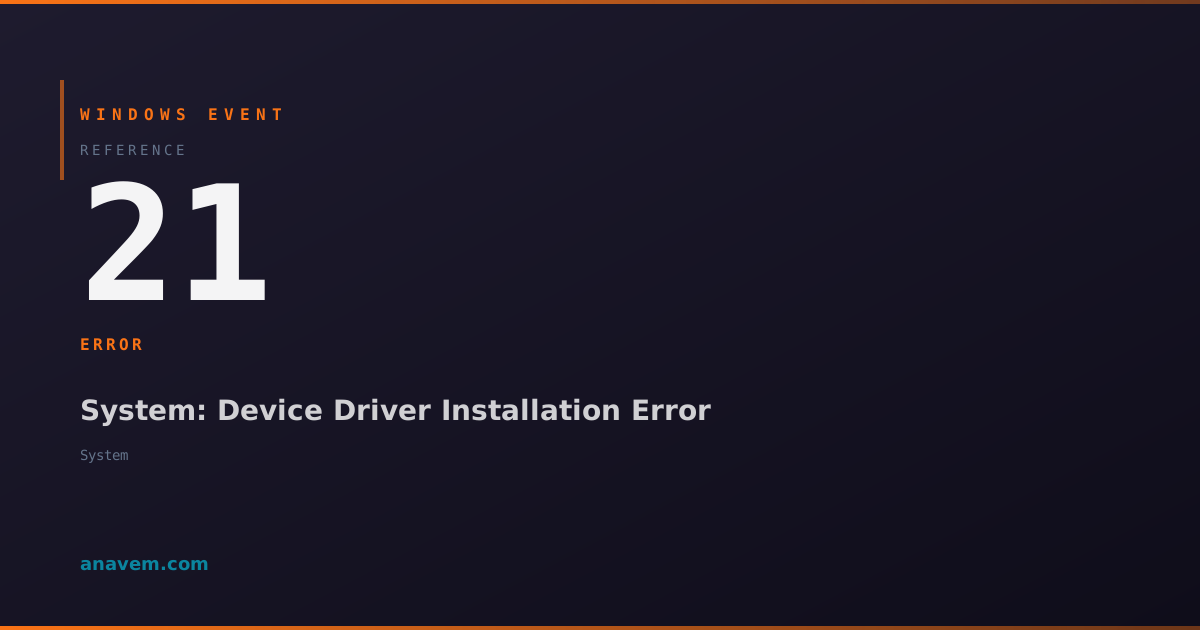
Windows Event ID 21 – System: Device Driver Installation Error

Event ID 21 indicates a device driver installation failure or compatibility issue. This system-level error occurs when Windows cannot properly load or initialize a hardware driver during boot or device enumeration.

Emanuel DE ALMEIDAEmanuel DE ALMEIDA
18 March 20269 min read 0
Event ID 21System 5 methods 9 min
Event Reference

What This Event Means

Windows Event ID 21 represents a critical system error that occurs when the operating system fails to properly initialize or load a device driver. This error is generated by the Windows kernel during the driver loading process, typically during system startup, hardware enumeration, or when new devices are detected by Plug and Play services.

The event originates from the Windows Driver Framework (WDF) or legacy driver subsystems when they encounter fatal errors during driver initialization routines. Common scenarios include driver signature verification failures, missing driver dependencies, hardware compatibility issues, or corrupted driver files. The error can also manifest when drivers attempt to access hardware resources that are already in use or unavailable.

In Windows 11 and Server 2025 environments, this event has become more prevalent due to enhanced security measures like Driver Signature Enforcement and Windows Defender Application Control policies. Legacy drivers that worked in previous Windows versions may trigger Event ID 21 when they fail modern security validation checks.

The event description typically contains valuable diagnostic information including the driver file name, device hardware ID, and specific error codes (such as STATUS_DEVICE_CONFIGURATION_ERROR or STATUS_INSUFFICIENT_RESOURCES). This information is essential for identifying the problematic driver and determining appropriate remediation steps.

Applies to

Windows 10Windows 11Windows Server 2019/2022/2025
Analysis

Possible Causes

  • Corrupted or missing driver files preventing proper initialization
  • Driver signature verification failures due to unsigned or improperly signed drivers
  • Hardware compatibility issues between legacy devices and modern Windows versions
  • Insufficient system resources (memory, I/O ports) required by the driver
  • Conflicting drivers attempting to control the same hardware device
  • Registry corruption affecting driver configuration entries
  • Windows Defender Application Control blocking driver installation
  • Outdated drivers incompatible with recent Windows updates
  • Hardware failures causing driver initialization timeouts
  • Power management conflicts preventing proper device enumeration
Resolution Methods

Troubleshooting Steps

01

Analyze Event Details and Identify Problematic Driver

Start by examining the complete event details to identify the specific driver causing the failure.

  1. Open Event ViewerWindows LogsSystem
  2. Filter for Event ID 21 using the filter option
  3. Double-click the most recent Event ID 21 entry
  4. Note the driver name, device instance ID, and error code in the description
  5. Use PowerShell to gather additional driver information:
Get-WinEvent -FilterHashtable @{LogName='System'; Id=21} -MaxEvents 5 | Format-List TimeCreated, Id, LevelDisplayName, Message

# Get detailed driver information
Get-WindowsDriver -Online | Where-Object {$_.Driver -like "*problematic_driver_name*"}

# Check driver store for issues
pnputil /enum-drivers | findstr "problematic_driver_name"

Document the driver name and associated hardware for the next troubleshooting steps.

02

Update or Reinstall the Problematic Driver

Replace the failing driver with an updated version or perform a clean reinstallation.

  1. Open Device Manager (devmgmt.msc)
  2. Locate devices with warning or error icons
  3. Right-click the problematic device → Update driver
  4. If automatic update fails, download the latest driver from the manufacturer
  5. For manual installation, use PowerShell:
# Remove the problematic driver
pnputil /delete-driver oem##.inf /uninstall /force

# Install new driver
pnputil /add-driver C:\path\to\new_driver.inf /install

# Verify installation
Get-PnpDevice | Where-Object {$_.Status -eq "Error"}
Pro tip: Always create a system restore point before driver updates in case the new driver causes additional issues.
  1. Restart the system and verify Event ID 21 no longer appears
  2. Check device functionality to ensure proper operation
03

Disable Driver Signature Enforcement Temporarily

If the driver is unsigned but known to be safe, temporarily disable signature enforcement for testing.

Warning: Only disable signature enforcement for trusted drivers. This reduces system security.
  1. Open an elevated Command Prompt
  2. Disable signature enforcement:
bcdedit /set testsigning on
bcdedit /set nointegritychecks on
  1. Restart the system
  2. Install the driver through Device Manager or PowerShell
  3. Verify the driver loads without Event ID 21
  4. Re-enable signature enforcement for security:
bcdedit /set testsigning off
bcdedit /set nointegritychecks off

For Windows 11 systems with Secure Boot, you may need to disable Secure Boot temporarily in UEFI settings. Always re-enable security features after driver installation.

04

Check and Repair System File Integrity

Corrupted system files can cause driver loading failures. Perform comprehensive system integrity checks.

  1. Run System File Checker in an elevated Command Prompt:
sfc /scannow
  1. If SFC finds issues, run DISM to repair the Windows image:
DISM /Online /Cleanup-Image /CheckHealth
DISM /Online /Cleanup-Image /ScanHealth
DISM /Online /Cleanup-Image /RestoreHealth
  1. Check driver store integrity:
# Verify driver store
pnputil /enum-drivers | findstr "ERROR"

# Check for driver conflicts
Get-WindowsDriver -Online | Where-Object {$_.BootCritical -eq $true} | Format-Table Driver, Version, Date
  1. Rebuild driver database if corruption is detected:
pnputil /export-pnpstate pnpstate.pnp
pnputil /delete-driver * /uninstall /force
pnputil /add-driver C:\Windows\System32\DriverStore\FileRepository\*.inf /subdirs /install

Restart the system after repairs and monitor for Event ID 21 recurrence.

05

Advanced Registry Analysis and Driver Conflict Resolution

Perform deep analysis of driver registry entries and resolve complex conflicts.

  1. Export current driver configuration for backup:
reg export HKLM\SYSTEM\CurrentControlSet\Services driver_backup.reg
reg export HKLM\SYSTEM\CurrentControlSet\Enum enum_backup.reg
  1. Analyze driver registry entries:
# Check for orphaned driver entries
Get-ChildItem "HKLM:\SYSTEM\CurrentControlSet\Services" | Where-Object {$_.GetValue("ImagePath") -like "*problematic_driver*"}

# Identify driver dependencies
$driverKey = "HKLM:\SYSTEM\CurrentControlSet\Services\DriverName"
Get-ItemProperty $driverKey -Name "DependOnService" -ErrorAction SilentlyContinue
  1. Check for hardware resource conflicts:
# View resource allocation
Get-WmiObject -Class Win32_SystemDriver | Where-Object {$_.State -eq "Stopped"} | Format-Table Name, State, Status

# Check device conflicts
Get-WmiObject -Class Win32_PnPEntity | Where-Object {$_.Status -ne "OK"} | Format-Table Name, Status, DeviceID
  1. Clean orphaned registry entries:
reg delete "HKLM\SYSTEM\CurrentControlSet\Services\ProblematicDriver" /f
reg delete "HKLM\SYSTEM\CurrentControlSet\Enum\ROOT\LEGACY_PROBLEMATICDRIVER" /f
Warning: Registry modifications can cause system instability. Always backup registry keys before deletion.
  1. Force hardware re-enumeration:
# Trigger device re-enumeration
$devcon = "C:\Windows\System32\devcon.exe"
& $devcon rescan
& $devcon restart *

Overview

Event ID 21 fires when Windows encounters a critical failure during device driver initialization or installation. This system-level error typically appears in the System log during boot sequences, hardware detection phases, or when new devices are connected to the system. The event indicates that a driver failed to load properly, couldn't initialize its associated hardware, or encountered compatibility issues with the current Windows version.

This event commonly occurs after Windows updates, hardware changes, or when legacy drivers conflict with newer system components. Unlike informational driver events, Event ID 21 represents actual failures that can impact system stability and hardware functionality. The error often correlates with missing device functionality, system crashes, or boot failures.

System administrators frequently encounter this event in enterprise environments where standardized hardware configurations clash with automatic driver updates, or when deploying images across diverse hardware platforms. The event provides crucial diagnostic information through its description field, which typically includes the driver name, device instance, and specific error codes that guide troubleshooting efforts.

Frequently Asked Questions

What does Windows Event ID 21 specifically indicate?+
Event ID 21 indicates a critical device driver failure during initialization or loading. This system-level error occurs when Windows cannot properly load a driver due to corruption, compatibility issues, signature problems, or resource conflicts. The event typically includes the driver name and specific error codes that help identify the root cause.
Can Event ID 21 cause system crashes or boot failures?+
Yes, Event ID 21 can lead to system instability, especially if the failing driver is critical for boot processes or essential hardware components. Boot-critical drivers that fail to load may cause blue screen errors, system hangs, or prevent Windows from starting properly. Non-critical driver failures typically result in device malfunction without affecting overall system stability.
How do I identify which specific driver is causing Event ID 21?+
The event description contains the driver name, device instance ID, and error details. Use Event Viewer to examine the full event details, or run 'Get-WinEvent -FilterHashtable @{LogName='System'; Id=21} -MaxEvents 5 | Format-List Message' in PowerShell. The message field typically includes the problematic driver filename and associated hardware device information.
Why does Event ID 21 occur more frequently after Windows updates?+
Windows updates often include enhanced security measures, updated driver frameworks, or changes to hardware abstraction layers that can cause compatibility issues with existing drivers. Legacy drivers may fail signature verification, encounter API changes, or conflict with updated system components. Additionally, Windows Update may install generic drivers that conflict with manufacturer-specific drivers already installed.
Is it safe to disable driver signature enforcement to resolve Event ID 21?+
Disabling driver signature enforcement should only be done temporarily and with trusted drivers. While it may resolve immediate driver loading issues, it reduces system security by allowing potentially malicious or unstable drivers to load. Always re-enable signature enforcement after installing the driver, and consider obtaining properly signed drivers from the hardware manufacturer instead.
Documentation

References (2)

Emanuel DE ALMEIDA
Written by

Emanuel DE ALMEIDA

Senior IT Journalist & Cloud Architect

Microsoft MCSA-certified Cloud Architect | Fortinet-focused. I modernize cloud, hybrid & on-prem infrastructure for reliability, security, performance and cost control - sharing field-tested ops & troubleshooting.

Discussion

Share your thoughts and insights

You must be logged in to comment.

Loading comments...