ANAVEM
Languagefr
Windows Event Viewer displaying application hang detection events on a system administrator's monitoring setup
Event ID 22WarningApplication ErrorWindows

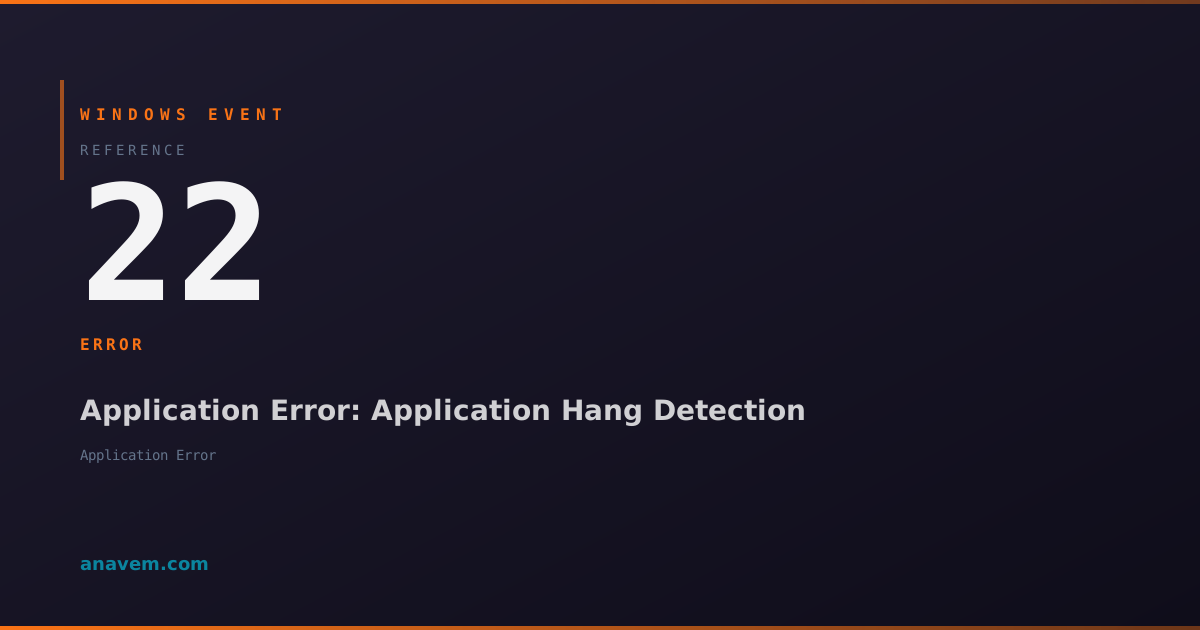
Windows Event ID 22 – Application Error: Application Hang Detection

Event ID 22 indicates Windows has detected an application hang or unresponsive program. This event fires when applications stop responding to user input or system messages for extended periods.

Emanuel DE ALMEIDAEmanuel DE ALMEIDA
18 March 20269 min read 0
Event ID 22Application Error 5 methods 9 min
Event Reference

What This Event Means

Windows Event ID 22 represents the operating system's detection of application hang conditions, a critical component of Windows' application responsiveness monitoring system. This event occurs when the Windows hang detection mechanism determines that an application has stopped processing messages from its message queue for an extended period, typically exceeding the 5-second default threshold.

The hang detection process works by sending test messages to application windows and monitoring their response times. When applications fail to process these messages within the configured timeout, Windows considers them hung and generates Event ID 22. This mechanism helps distinguish between applications that are legitimately busy performing long-running operations and those that have truly become unresponsive due to deadlocks, infinite loops, or resource contention.

The event data includes valuable diagnostic information such as the application executable name, process identifier, thread information, and hang duration. This data proves invaluable for troubleshooting application stability issues, identifying patterns of problematic software, and making informed decisions about application deployment and maintenance. In Windows Server environments, this event helps administrators monitor critical service applications and implement proactive measures to maintain system stability.

Modern Windows versions have enhanced hang detection capabilities, including improved timeout calculations and better integration with Windows Error Reporting. The 2026 updates to Windows 11 and Server 2025 include refined hang detection algorithms that reduce false positives while maintaining accurate detection of genuine application hangs.

Applies to

Windows 10Windows 11Windows Server 2019/2022/2025
Analysis

Possible Causes

  • Application deadlocks where threads are waiting indefinitely for resources
  • Infinite loops in application code preventing message processing
  • High CPU usage by background threads blocking the main UI thread
  • Memory pressure causing excessive paging and application slowdown
  • Network or disk I/O operations blocking the main application thread
  • Third-party plugins or extensions causing application instability
  • Insufficient system resources (RAM, CPU) for application requirements
  • Driver conflicts affecting application performance
  • Antivirus software interfering with application execution
  • Windows registry corruption affecting application startup or operation
Resolution Methods

Troubleshooting Steps

01

Check Event Viewer for Hang Details

Start by examining the specific Event ID 22 entries to identify the problematic application and hang patterns.

  1. Open Event Viewer by pressing Win + R, typing eventvwr.msc, and pressing Enter
  2. Navigate to Windows LogsApplication
  3. Filter the log by clicking Filter Current Log in the Actions pane
  4. Enter 22 in the Event IDs field and click OK
  5. Review recent Event ID 22 entries, noting the application name, process ID, and hang duration
  6. Look for patterns such as specific applications hanging repeatedly or hangs occurring at particular times

Use PowerShell to query hang events programmatically:

Get-WinEvent -FilterHashtable @{LogName='Application'; Id=22} -MaxEvents 50 | Select-Object TimeCreated, Id, LevelDisplayName, Message | Format-Table -Wrap
Pro tip: Export hang events to CSV for trend analysis using Export-Csv -Path C:\temp\hangs.csv -NoTypeInformation
02

Monitor Application Performance with Task Manager

Use Task Manager and Performance Monitor to identify resource constraints causing application hangs.

  1. Open Task Manager by pressing Ctrl + Shift + Esc
  2. Click the Processes tab and sort by CPU usage to identify high-usage applications
  3. Monitor the Memory column to check for applications consuming excessive RAM
  4. Switch to the Performance tab to view overall system resource utilization
  5. If memory usage is consistently above 80%, consider adding RAM or closing unnecessary applications
  6. Use Resource Monitor (accessible from Task Manager's Performance tab) for detailed I/O analysis

Create a PowerShell script to monitor problematic processes:

# Monitor specific application performance
$ProcessName = "YourAppName"
while ($true) {
    $Process = Get-Process -Name $ProcessName -ErrorAction SilentlyContinue
    if ($Process) {
        $CPUTime = $Process.CPU
        $Memory = [math]::Round($Process.WorkingSet64/1MB, 2)
        Write-Host "$(Get-Date): CPU: $CPUTime, Memory: ${Memory}MB"
    }
    Start-Sleep -Seconds 5
}
Warning: High CPU or memory usage doesn't always indicate the cause of hangs. Look for applications that show 0% CPU but remain unresponsive.
03

Configure Application Hang Timeout Settings

Adjust Windows hang detection timeouts to reduce false positives or increase sensitivity based on your environment needs.

  1. Open Registry Editor by pressing Win + R, typing regedit, and pressing Enter
  2. Navigate to HKEY_CURRENT_USER\Control Panel\Desktop
  3. Look for or create the following DWORD values:
    • HungAppTimeout - Time in milliseconds before considering an app hung (default: 5000)
    • WaitToKillAppTimeout - Time to wait before force-closing hung apps (default: 20000)
  4. Double-click each value to modify the timeout periods
  5. Restart the affected applications or log off and back on for changes to take effect

Use PowerShell to check current timeout settings:

# Check current hang timeout settings
$DesktopKey = "HKCU:\Control Panel\Desktop"
Get-ItemProperty -Path $DesktopKey -Name "HungAppTimeout", "WaitToKillAppTimeout" -ErrorAction SilentlyContinue

Set timeouts programmatically:

# Increase hang timeout to 10 seconds
Set-ItemProperty -Path "HKCU:\Control Panel\Desktop" -Name "HungAppTimeout" -Value 10000 -Type DWord
# Increase kill timeout to 30 seconds
Set-ItemProperty -Path "HKCU:\Control Panel\Desktop" -Name "WaitToKillAppTimeout" -Value 30000 -Type DWord
Pro tip: Increasing timeouts reduces false hang detection but may make the system feel less responsive. Test changes in a non-production environment first.
04

Analyze Application Dumps and Windows Error Reporting

Generate and analyze memory dumps of hanging applications to identify root causes.

  1. Enable automatic dump collection by navigating to Control PanelSystem and SecuritySystemAdvanced system settings
  2. Click Settings under Startup and Recovery
  3. Ensure Write debugging information is set to Small memory dump or Kernel memory dump
  4. Configure Windows Error Reporting to collect hang dumps:
    • Navigate to HKEY_LOCAL_MACHINE\SOFTWARE\Microsoft\Windows\Windows Error Reporting\LocalDumps
    • Create a new key named after your problematic application (e.g., "notepad.exe")
    • Add DWORD values: DumpType (2 for full dump), DumpCount (10), DumpFolder (REG_EXPAND_SZ pointing to dump location)

Use PowerShell to configure dump collection:

# Configure dump collection for a specific application
$AppName = "problematic-app.exe"
$DumpPath = "HKLM:\SOFTWARE\Microsoft\Windows\Windows Error Reporting\LocalDumps\$AppName"
New-Item -Path $DumpPath -Force
Set-ItemProperty -Path $DumpPath -Name "DumpType" -Value 2 -Type DWord
Set-ItemProperty -Path $DumpPath -Name "DumpCount" -Value 10 -Type DWord
Set-ItemProperty -Path $DumpPath -Name "DumpFolder" -Value "C:\CrashDumps" -Type ExpandString

Manually create a dump of a hanging process:

# Create dump using ProcDump (SysInternals tool)
procdump.exe -ma -h notepad.exe C:\dumps\notepad_hang.dmp
Warning: Full memory dumps can be very large. Ensure adequate disk space and consider privacy implications when collecting dumps.
05

Implement Proactive Monitoring and Alerting

Set up automated monitoring to detect and respond to application hang patterns before they impact users.

  1. Create a PowerShell script to monitor Event ID 22 occurrences and send alerts:
# Hang monitoring script
param(
    [int]$ThresholdMinutes = 60,
    [int]$MaxHangs = 5,
    [string]$EmailTo = "admin@company.com",
    [string]$SMTPServer = "mail.company.com"
)

$StartTime = (Get-Date).AddMinutes(-$ThresholdMinutes)
$HangEvents = Get-WinEvent -FilterHashtable @{
    LogName='Application'
    Id=22
    StartTime=$StartTime
} -ErrorAction SilentlyContinue

if ($HangEvents.Count -ge $MaxHangs) {
    $Subject = "Alert: $($HangEvents.Count) application hangs detected on $env:COMPUTERNAME"
    $Body = $HangEvents | Select-Object TimeCreated, Message | ConvertTo-Html | Out-String
    Send-MailMessage -To $EmailTo -Subject $Subject -Body $Body -SmtpServer $SMTPServer -BodyAsHtml
}
  1. Schedule the script using Task Scheduler:
    • Open Task Scheduler and create a new task
    • Set trigger to run every 30 minutes
    • Configure action to run PowerShell with your monitoring script
  2. Use Windows Performance Toolkit (WPT) for advanced hang analysis:
# Install WPT and create custom hang detection
wpa.exe -i hang_trace.etl -profile hang_analysis.wpaProfile

Create a custom Event Log view for hang tracking:

<QueryList>
  <Query Id="0" Path="Application">
    <Select Path="Application">*[System[(EventID=22) and TimeCreated[timediff(@SystemTime) &lt;= 86400000]]]</Select>
  </Query>
</QueryList>
Pro tip: Combine hang monitoring with application restart automation to minimize user impact. Use tools like SCOM or custom PowerShell DSC configurations for enterprise environments.

Overview

Event ID 22 from the Application Error source fires when Windows detects that an application has become unresponsive or hung. This event is part of Windows' application hang detection mechanism, which monitors running processes for responsiveness to user interface messages and system calls. When an application fails to respond within the configured timeout period (typically 5 seconds for user interface operations), Windows generates this event and may display the familiar "Program Not Responding" dialog.

This event appears in the Application log and provides crucial diagnostic information including the hung application's process name, process ID, and hang duration. The event helps administrators identify problematic applications, track application stability patterns, and troubleshoot performance issues across Windows environments. In enterprise settings, monitoring Event ID 22 patterns can reveal applications that consistently hang, helping prioritize software updates or replacements.

The hang detection system operates at the Windows message loop level, monitoring applications that have registered windows with the system. Applications that don't respond to WM_NULL messages or other system queries within the timeout threshold trigger this event. Understanding this event is essential for maintaining application stability and user experience in Windows environments.

Frequently Asked Questions

What does Windows Event ID 22 mean and when should I be concerned?+
Event ID 22 indicates that Windows has detected an application hang - when a program stops responding to user input or system messages for more than 5 seconds (default timeout). You should be concerned when you see frequent Event ID 22 entries for the same application, as this suggests underlying stability issues. Occasional hangs might be normal for resource-intensive applications, but patterns of repeated hangs indicate problems that need investigation. Monitor for applications that hang multiple times per day or cause system-wide performance degradation.
How can I prevent applications from triggering Event ID 22 hang detection?+
Prevent application hangs by ensuring adequate system resources (RAM, CPU), keeping applications updated, and avoiding resource-intensive operations on the main UI thread. Configure applications to perform long-running tasks on background threads while keeping the UI responsive. Increase hang timeout values in the registry if legitimate operations take longer than 5 seconds. For custom applications, implement proper threading, use async/await patterns, and add progress indicators for long operations. Regular system maintenance including disk cleanup, registry cleaning, and driver updates also helps prevent hang conditions.
Can Event ID 22 cause system crashes or data loss?+
Event ID 22 itself doesn't cause system crashes - it's a warning that an application has become unresponsive. However, the underlying conditions causing hangs (memory leaks, resource exhaustion, deadlocks) can potentially lead to system instability if left unaddressed. Hung applications may prevent proper shutdown procedures, potentially causing data loss in unsaved work. Windows may force-terminate hung applications after the configured timeout, which could result in data loss if the application hasn't saved recent changes. Always save work frequently and investigate recurring hang patterns to prevent more serious issues.
Why do I see Event ID 22 for applications that appear to be working normally?+
Applications may appear functional while still triggering Event ID 22 because hang detection operates at the Windows message loop level, which is separate from the application's core functionality. An application might continue processing data or network requests while failing to respond to UI messages, creating a hang condition. This commonly occurs when applications perform blocking operations on the main thread, use inefficient UI updates, or have poorly designed message handling. The application may resume normal operation after the hang timeout, making the issue less visible to users but still detectable by Windows monitoring.
How do I correlate Event ID 22 with other system events to identify root causes?+
Correlate Event ID 22 with other events by examining timestamps and looking for related system events. Check for Event ID 1000 (Application Error) or Event ID 1001 (Windows Error Reporting) occurring around the same time, which might indicate application crashes following hangs. Look for Event ID 2004 (Resource Exhaustion) or performance counter events indicating memory or CPU pressure. Examine Event ID 7034 (Service Control Manager) for service failures that might affect application stability. Use PowerShell to query multiple event logs simultaneously and create timeline analysis. Tools like Windows Performance Analyzer can help correlate system performance metrics with hang events for comprehensive root cause analysis.
Documentation

References (2)

Emanuel DE ALMEIDA
Written by

Emanuel DE ALMEIDA

Senior IT Journalist & Cloud Architect

Microsoft MCSA-certified Cloud Architect | Fortinet-focused. I modernize cloud, hybrid & on-prem infrastructure for reliability, security, performance and cost control - sharing field-tested ops & troubleshooting.

Discussion

Share your thoughts and insights

You must be logged in to comment.

Loading comments...