ANAVEM
Languagefr
Windows Event Viewer displaying system error logs on a professional monitoring dashboard
Event ID 24582ErrorUnknownWindows

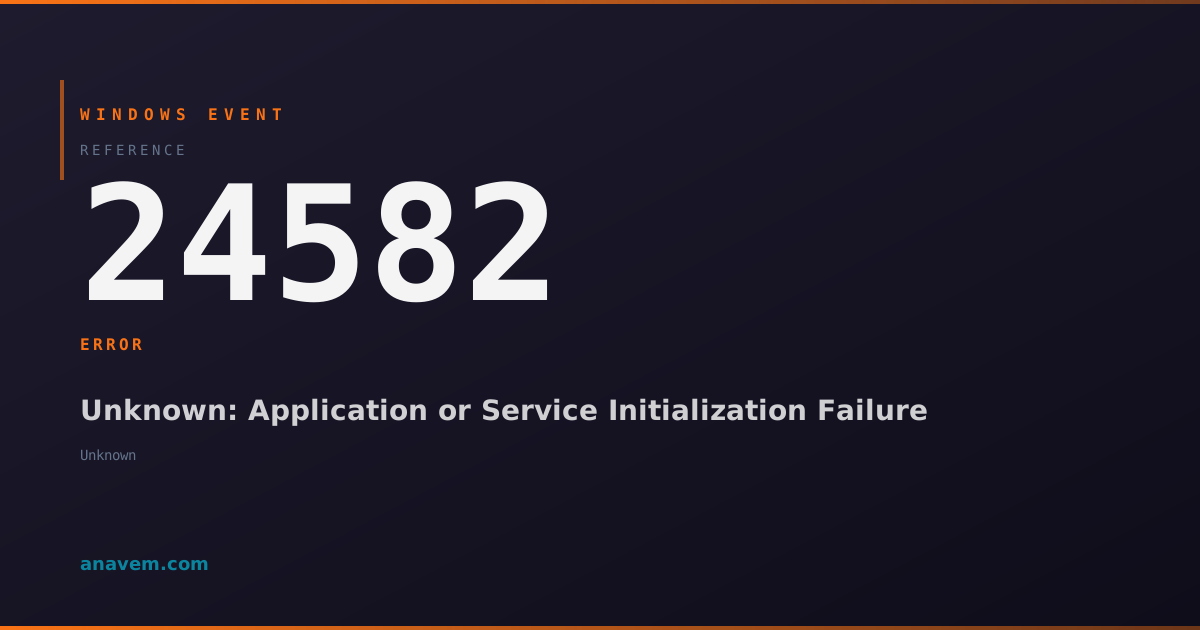
Windows Event ID 24582 – Unknown: Application or Service Initialization Failure

Event ID 24582 indicates a critical initialization failure in an application or service component during system startup or service launch, requiring immediate investigation to identify the failing component.

Emanuel DE ALMEIDAEmanuel DE ALMEIDA
18 March 202612 min read 0
Event ID 24582Unknown 5 methods 12 min
Event Reference

What This Event Means

Event ID 24582 occurs during the critical initialization phase of Windows components, applications, or services. When Windows attempts to load a component during system startup or service initialization, the component must complete several mandatory steps including memory allocation, dependency verification, registry access, and system resource acquisition. If any of these steps fail catastrophically, the component generates Event ID 24582 before terminating.

The "Unknown" source classification indicates that the failing component could not properly register its identity with the Windows Event Log service. This typically happens when the component experiences memory corruption, missing dependencies, or security context failures that prevent normal event logging procedures. The event often contains additional data in hexadecimal format that can help identify the specific component or failure mode.

This event is particularly significant because it occurs during initialization rather than normal runtime operation. Components that fail during initialization often leave the system in an unstable state, potentially causing cascading failures in dependent services or applications. The timing of these failures—typically during boot or service startup—makes them critical for system stability and requires immediate investigation to prevent system-wide issues.

Applies to

Windows 10Windows 11Windows Server 2019/2022/2025
Analysis

Possible Causes

  • Corrupted system files or missing DLL dependencies required for component initialization
  • Registry corruption affecting component configuration or startup parameters
  • Memory allocation failures during component loading due to insufficient system resources
  • Security context or permission issues preventing component access to required system resources
  • Hardware driver initialization failures during system boot sequence
  • Third-party application or service conflicts during startup phase
  • Windows Update installation failures leaving components in inconsistent states
  • Malware or security software interference with legitimate component initialization
Resolution Methods

Troubleshooting Steps

01

Analyze Event Details and System Context

Start by examining the complete event details to identify timing patterns and associated events:

  1. Open Event ViewerWindows LogsSystem
  2. Filter for Event ID 24582 using the following PowerShell command:
Get-WinEvent -FilterHashtable @{LogName='System'; Id=24582} -MaxEvents 20 | Format-Table TimeCreated, Id, LevelDisplayName, Message -Wrap
  1. Check the Application log for correlating events:
Get-WinEvent -FilterHashtable @{LogName='Application'; StartTime=(Get-Date).AddHours(-2)} | Where-Object {$_.LevelDisplayName -eq 'Error'} | Format-Table TimeCreated, Id, ProviderName, Message -Wrap
  1. Document the exact time stamps and look for patterns in event occurrence
  2. Check if events correlate with system boot times or specific service startup sequences
Pro tip: Event ID 24582 often appears in clusters during boot sequences. Look for the first occurrence to identify the root cause component.
02

Verify System File Integrity and Dependencies

Run comprehensive system file checks to identify corrupted components causing initialization failures:

  1. Open an elevated Command Prompt and run System File Checker:
sfc /scannow
  1. Check the SFC log for specific file corruption details:
Get-Content $env:windir\Logs\CBS\CBS.log | Select-String "\[SR\]" | Select-Object -Last 20
  1. Run DISM to repair the Windows image if SFC finds unfixable errors:
DISM /Online /Cleanup-Image /RestoreHealth
  1. Verify critical system services are properly registered:
Get-Service | Where-Object {$_.Status -eq 'Stopped' -and $_.StartType -eq 'Automatic'} | Format-Table Name, Status, StartType
  1. Check for missing or corrupted DLL files in system directories
Warning: Always create a system restore point before running DISM repair operations, as they can affect system stability if interrupted.
03

Investigate Registry Configuration and Startup Programs

Examine registry entries and startup configurations that might cause initialization failures:

  1. Check the Services registry key for corrupted entries:
Get-ChildItem "HKLM:\SYSTEM\CurrentControlSet\Services" | Where-Object {$_.GetValue('Start') -eq 2} | Select-Object PSChildName, @{Name='ImagePath';Expression={$_.GetValue('ImagePath')}}
  1. Verify startup program registry entries:
Get-ItemProperty "HKLM:\SOFTWARE\Microsoft\Windows\CurrentVersion\Run" | Format-List
  1. Check for problematic startup entries in user-specific locations:
Get-ItemProperty "HKCU:\SOFTWARE\Microsoft\Windows\CurrentVersion\Run" | Format-List
  1. Use MSConfig to temporarily disable non-essential startup items:
msconfig
  1. Navigate to the Services tab and enable Hide all Microsoft services, then disable remaining services one by one to isolate the problematic component
  2. Restart the system after each change to identify which component triggers Event ID 24582
Pro tip: Use Process Monitor (ProcMon) during startup to capture real-time file and registry access attempts by failing components.
04

Analyze Memory Dumps and Advanced Diagnostics

Perform advanced diagnostic procedures to identify the specific failing component:

  1. Enable memory dump collection for initialization failures:
Set-ItemProperty -Path "HKLM:\SYSTEM\CurrentControlSet\Control\CrashControl" -Name "CrashDumpEnabled" -Value 2
  1. Configure Windows Error Reporting to capture detailed failure information:
Set-ItemProperty -Path "HKLM:\SOFTWARE\Microsoft\Windows\Windows Error Reporting" -Name "DontShowUI" -Value 0
  1. Use Windows Performance Analyzer (WPA) to trace boot performance:
wpr -start GeneralProfile -start CPU -start DiskIO
  1. After reproducing the issue, stop tracing and analyze:
wpr -stop C:\temp\boot_trace.etl
  1. Check Application and System event logs for additional error details using advanced filtering:
Get-WinEvent -FilterHashtable @{LogName='System','Application'; Level=1,2; StartTime=(Get-Date).AddDays(-1)} | Group-Object Id | Sort-Object Count -Descending | Select-Object -First 10
  1. If available, analyze crash dump files using WinDbg or similar tools to identify the exact failure point
Warning: Memory dump analysis requires advanced knowledge of Windows internals. Consider engaging Microsoft Support for complex initialization failure scenarios.
05

Clean Boot Analysis and Component Isolation

Perform systematic component isolation to identify the specific cause of initialization failures:

  1. Configure a clean boot environment to eliminate third-party interference:
Set-Service -Name "Themes" -StartupType Disabled
  1. Create a comprehensive startup log for analysis:
bcdedit /set bootlog yes
  1. Boot into Safe Mode and check if Event ID 24582 still occurs:
bcdedit /set safeboot minimal
  1. If the issue persists in Safe Mode, examine core Windows components:
Get-WindowsFeature | Where-Object {$_.InstallState -eq 'InstallPending' -or $_.InstallState -eq 'InstallFailed'}
  1. Use System Configuration to perform selective startup testing:
  2. Enable services and startup items incrementally until Event ID 24582 reappears
  3. Once identified, investigate the specific component using dependency analysis:
Get-Service -Name "ServiceName" | Select-Object -ExpandProperty ServicesDependedOn
  1. Document findings and create a system restore point before implementing permanent fixes
  2. Remove the clean boot configuration after testing:
bcdedit /deletevalue safeboot
Pro tip: Keep detailed logs of each component tested during isolation. This documentation proves invaluable for future troubleshooting and helps identify patterns in component failures.

Overview

Event ID 24582 represents a critical initialization failure that occurs when an application, service, or system component fails to start properly during Windows boot or service startup sequences. This event typically fires when a component encounters fatal errors during its initialization phase, preventing it from loading correctly into memory or establishing required system connections.

The event appears in the System or Application logs and often correlates with service startup failures, driver initialization problems, or application crashes during system boot. Unlike standard service failure events, Event ID 24582 specifically indicates initialization-phase failures rather than runtime crashes, making it particularly important for diagnosing boot-time and startup issues.

This event commonly appears on systems running Windows 10 version 22H2 and later, Windows 11, and Windows Server 2019/2022/2025 environments. The "Unknown" source designation occurs when the failing component cannot properly identify itself to the Windows Event Log service, often due to the severity of the initialization failure or corrupted component metadata.

Frequently Asked Questions

What does Event ID 24582 specifically indicate in Windows systems?+
Event ID 24582 indicates a critical initialization failure in an application, service, or system component during Windows startup or service launch sequences. The event occurs when a component fails to complete its initialization phase, which includes memory allocation, dependency verification, and system resource acquisition. The "Unknown" source designation means the failing component could not properly identify itself to the Windows Event Log service, typically due to severe initialization failures or corrupted component metadata.
Why does Event ID 24582 show "Unknown" as the event source?+
The "Unknown" source appears when the failing component cannot properly register its identity with the Windows Event Log service during the initialization failure. This happens when components experience memory corruption, missing dependencies, or security context failures that prevent normal event logging procedures. The component fails so early in its initialization process that it cannot establish proper communication with the event logging subsystem to identify itself.
How can I identify which specific component is causing Event ID 24582?+
To identify the failing component, examine the event's additional data in hexadecimal format, check timestamps against boot logs, and use Process Monitor during startup to capture real-time component loading attempts. Perform selective startup testing by disabling non-essential services and startup programs incrementally until the event stops occurring. The boot log (enabled with 'bcdedit /set bootlog yes') often contains additional details about component loading failures that correlate with Event ID 24582 occurrences.
Is Event ID 24582 related to hardware or software issues?+
Event ID 24582 can indicate both hardware and software issues. Software-related causes include corrupted system files, registry corruption, missing DLL dependencies, and third-party application conflicts. Hardware-related causes typically involve driver initialization failures, memory allocation problems due to faulty RAM, or hardware component malfunctions that prevent proper driver loading. The distinction often becomes clear through systematic troubleshooting, starting with software diagnostics like SFC and DISM scans before moving to hardware testing.
Can Event ID 24582 cause system instability or crashes?+
Yes, Event ID 24582 can significantly impact system stability because it occurs during critical initialization phases. Components that fail during initialization often leave the system in an unstable state, potentially causing cascading failures in dependent services or applications. Since these failures typically occur during boot or service startup sequences, they can prevent essential system functions from loading properly, leading to reduced functionality, application crashes, or in severe cases, system boot failures requiring Safe Mode recovery.
Documentation

References (2)

Emanuel DE ALMEIDA
Written by

Emanuel DE ALMEIDA

Senior IT Journalist & Cloud Architect

Microsoft MCSA-certified Cloud Architect | Fortinet-focused. I modernize cloud, hybrid & on-prem infrastructure for reliability, security, performance and cost control - sharing field-tested ops & troubleshooting.

Discussion

Share your thoughts and insights

You must be logged in to comment.

Loading comments...