ANAVEM
Languagefr
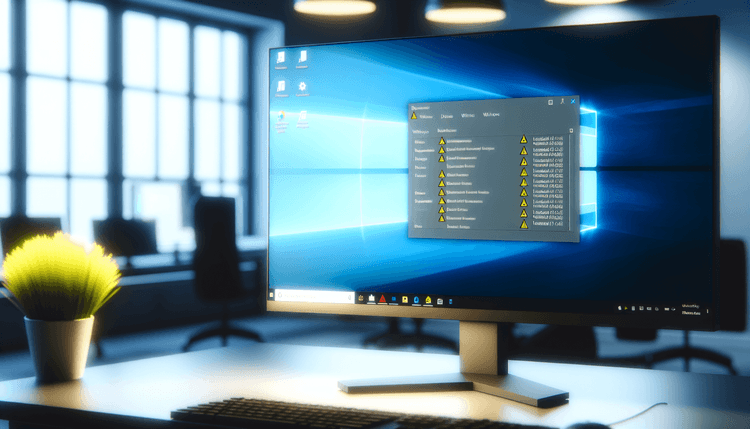
Windows Device Manager showing hardware device with error warning triangle indicating Event ID 43 failure
Event ID 43ErrorKernel-PnPWindows

Windows Event ID 43 – Kernel-PnP: Device Installation Failure

Event ID 43 from Kernel-PnP indicates a critical device installation or driver failure. This error occurs when Windows cannot properly initialize a hardware device, typically due to driver issues, hardware conflicts, or corrupted device configurations.

Emanuel DE ALMEIDAEmanuel DE ALMEIDA
18 March 20269 min read 0
Event ID 43Kernel-PnP 5 methods 9 min
Event Reference

What This Event Means

Event ID 43 originates from the Windows Kernel-Mode Plug and Play Manager, a critical system component that handles hardware device detection, configuration, and management. When this event occurs, it signifies that the PnP manager has encountered an unrecoverable error while attempting to start or operate a specific hardware device. The error typically results in the device being marked as failed in Device Manager with the generic message "Windows has stopped this device because it has reported problems."

The underlying mechanism involves the PnP manager's device enumeration process, where it queries each device for its capabilities, loads appropriate drivers, and establishes communication channels. Event ID 43 triggers when any step in this process fails catastrophically. This could happen during initial device detection, driver binding, resource allocation, or during normal operation when a device suddenly stops responding to system requests.

The event carries significant implications for system administrators because it often indicates deeper issues beyond simple driver problems. Hardware degradation, power supply issues, USB controller failures, or even motherboard problems can manifest as Event ID 43 errors. The event's persistence after standard troubleshooting steps often points to hardware replacement needs or complex driver conflicts requiring advanced diagnostic techniques.

Modern Windows versions in 2026 have enhanced PnP error reporting, providing more detailed information in the event description, including specific error codes and device instance IDs that help pinpoint the exact failure point in the device initialization sequence.

Applies to

Windows 10Windows 11Windows Server 2019/2022/2025
Analysis

Possible Causes

  • Corrupted or incompatible device drivers preventing proper device initialization
  • Hardware failure or degradation causing the device to malfunction during operation
  • Power supply issues affecting device stability, particularly with high-power USB devices
  • Windows Update conflicts that break existing driver compatibility
  • Registry corruption in device-specific configuration entries
  • USB controller or hub failures affecting connected devices
  • Resource conflicts between multiple devices competing for the same system resources
  • Firmware bugs in the device itself causing communication failures with Windows
  • Security software blocking device drivers from loading properly
  • System file corruption affecting the PnP subsystem components
Resolution Methods

Troubleshooting Steps

01

Check Event Viewer and Device Manager Details

Start by examining the complete event details and correlating with Device Manager status to identify the specific failing device.

  1. Open Event Viewer by pressing Win + R, typing eventvwr.msc, and pressing Enter
  2. Navigate to Windows LogsSystem
  3. Filter for Event ID 43 using the filter option in the right panel
  4. Double-click the most recent Event ID 43 entry to view full details
  5. Note the device instance ID and any error codes in the event description
  6. Open Device Manager by right-clicking This PCPropertiesDevice Manager
  7. Look for devices with yellow warning triangles or red X marks
  8. Right-click the problematic device and select Properties
  9. Check the Device Status section for specific error messages
  10. Note the device's Hardware ID from the Details tab

Use PowerShell to get detailed event information:

Get-WinEvent -FilterHashtable @{LogName='System'; Id=43} -MaxEvents 5 | Format-List TimeCreated, Id, LevelDisplayName, Message
Pro tip: The device instance ID in the event details directly corresponds to the device in Device Manager, making correlation straightforward.
02

Update or Reinstall Device Drivers

Driver issues are the most common cause of Event ID 43 errors. This method addresses driver corruption and compatibility problems.

  1. In Device Manager, right-click the failing device
  2. Select Update driver and choose Search automatically for drivers
  3. If Windows finds no updates, visit the manufacturer's website for the latest drivers
  4. If updating doesn't work, right-click the device and select Uninstall device
  5. Check Delete the driver software for this device if the option appears
  6. Click Uninstall and restart the computer
  7. After restart, Windows will attempt to reinstall the device automatically
  8. If automatic installation fails, manually install the downloaded manufacturer drivers

Use PowerShell to check driver details:

Get-WmiObject Win32_PnPEntity | Where-Object {$_.Status -eq "Error"} | Select-Object Name, DeviceID, Status

For advanced driver management, use Device Manager command line:

pnputil /enum-drivers
Warning: Always create a system restore point before uninstalling critical system drivers like graphics or network adapters.
03

Run Hardware Troubleshooters and System Scans

Windows includes built-in troubleshooters that can automatically detect and resolve common hardware issues causing Event ID 43.

  1. Open Settings by pressing Win + I
  2. Navigate to SystemTroubleshootOther troubleshooters
  3. Run the Hardware and Devices troubleshooter
  4. Follow the on-screen instructions and apply any recommended fixes
  5. Open Command Prompt as Administrator
  6. Run System File Checker to repair corrupted system files:
sfc /scannow
  1. After SFC completes, run DISM to repair the Windows image:
DISM /Online /Cleanup-Image /RestoreHealth
  1. Check for Windows Updates in SettingsWindows Update
  2. Install any available updates and restart the system
  3. Verify the device status in Device Manager after restart

Use PowerShell to check system health:

Get-ComputerInfo | Select-Object WindowsVersion, TotalPhysicalMemory
Pro tip: The Hardware and Devices troubleshooter in Windows 11 2026 includes enhanced AI-powered diagnostics that can identify complex hardware conflicts.
04

Check Power Management and USB Settings

Power management issues frequently cause Event ID 43, especially with USB devices and external hardware.

  1. In Device Manager, expand Universal Serial Bus controllers
  2. Right-click each USB Root Hub and select Properties
  3. Go to the Power Management tab
  4. Uncheck Allow the computer to turn off this device to save power
  5. Click OK and repeat for all USB Root Hubs
  6. For the failing device, access its Properties in Device Manager
  7. Check the Power Management tab and disable power saving if available
  8. Open Control PanelPower Options
  9. Click Change plan settings for your active power plan
  10. Click Change advanced power settings
  11. Expand USB settingsUSB selective suspend setting
  12. Set both options to Disabled
  13. Apply changes and restart the computer

Use PowerShell to check power settings:

powercfg /query SCHEME_CURRENT SUB_USB

Check USB device power consumption:

Get-WmiObject Win32_USBHub | Select-Object Name, DeviceID, Status
Warning: Disabling USB selective suspend may increase power consumption on laptops but often resolves intermittent device failures.
05

Registry Cleanup and Advanced Diagnostics

When standard methods fail, registry corruption or deep system issues may require advanced troubleshooting techniques.

  1. Create a system restore point before proceeding
  2. Press Win + R, type regedit, and press Enter
  3. Navigate to HKEY_LOCAL_MACHINE\SYSTEM\CurrentControlSet\Enum
  4. Locate the device instance ID from the Event ID 43 details
  5. Right-click the device key and select Export to backup
  6. Delete the problematic device key (only if you have a backup)
  7. Restart the computer to force device re-enumeration
  8. Open Command Prompt as Administrator and run device cleanup:
pnputil /delete-driver oem*.inf /uninstall /force
  1. Use PowerShell to check for phantom devices:
$env:DEVMGR_SHOW_NONPRESENT_DEVICES = 1
Start-Process devmgmt.msc
  1. In Device Manager, click ViewShow hidden devices
  2. Remove any grayed-out duplicate devices
  3. Run Windows Memory Diagnostic to check for RAM issues:
mdsched.exe
  1. Check Event Viewer for additional hardware errors after restart
  2. Consider running manufacturer-specific diagnostic tools
Warning: Registry editing can cause system instability. Always backup registry keys before deletion and ensure you have a system restore point.

Overview

Event ID 43 from the Kernel-PnP (Plug and Play) subsystem represents one of the most common hardware-related errors in Windows environments. This event fires when the Windows Plug and Play manager encounters a critical failure during device enumeration, driver loading, or device initialization processes. The event typically appears in the System log and indicates that a hardware device has stopped working or failed to start properly.

This error is particularly significant because it directly impacts hardware functionality and can affect system stability. The Kernel-PnP subsystem is responsible for managing all hardware devices connected to the system, from USB peripherals to internal components like graphics cards and network adapters. When Event ID 43 occurs, it means Windows has detected a problem severe enough to disable the affected device entirely.

The event commonly manifests in Device Manager with a yellow warning triangle or a device showing as disabled. System administrators frequently encounter this error after Windows updates, driver installations, or hardware changes. Understanding the root cause requires examining the event details, device manager status, and related system logs to determine whether the issue stems from driver corruption, hardware failure, or configuration conflicts.

Frequently Asked Questions

What does Windows Event ID 43 mean and why does it occur?+
Event ID 43 from Kernel-PnP indicates that Windows has stopped a hardware device because it reported problems during operation. This occurs when the Plug and Play manager detects a critical failure in device communication, driver loading, or hardware functionality. The most common causes include corrupted drivers, hardware degradation, power supply issues, or conflicts between devices. When this event fires, the affected device typically appears with a yellow warning triangle in Device Manager and stops functioning until the underlying issue is resolved.
How can I identify which specific device is causing Event ID 43?+
To identify the problematic device, examine the Event ID 43 details in Event Viewer, which contains the device instance ID and hardware information. Cross-reference this with Device Manager by looking for devices with warning symbols or error status. You can also use PowerShell command 'Get-WmiObject Win32_PnPEntity | Where-Object {$_.Status -eq "Error"}' to list all devices with error status. The device instance ID in the event log directly corresponds to the device entry in the registry under HKLM\SYSTEM\CurrentControlSet\Enum, providing a definitive match.
Can Event ID 43 indicate hardware failure or is it always a software issue?+
Event ID 43 can indicate both hardware and software problems. While driver corruption and compatibility issues are common software-related causes, the event can also signal genuine hardware failure, power supply problems, or physical connection issues. Hardware-related causes include failing USB ports, degraded graphics cards, faulty network adapters, or intermittent connections. To distinguish between hardware and software issues, try the device on another computer, test with different cables or ports, and monitor if the error persists after driver reinstallation and system file repairs.
Why does Event ID 43 sometimes appear after Windows updates?+
Windows updates can trigger Event ID 43 when they install newer driver versions that are incompatible with existing hardware, modify system files that affect device communication, or change power management policies. Feature updates particularly can alter the driver model or introduce new security restrictions that prevent older drivers from loading properly. Additionally, updates may reset device configurations or modify registry entries that were previously customized for specific hardware. To resolve update-related Event ID 43 errors, try rolling back to previous drivers, checking Windows Update for newer compatible drivers, or using System Restore to revert to a pre-update state.
What should I do if Event ID 43 persists after trying standard troubleshooting methods?+
If Event ID 43 persists after driver updates, system scans, and power management adjustments, consider advanced diagnostics including hardware testing with manufacturer tools, checking for BIOS/UEFI updates, running memory diagnostics, and examining system temperatures for overheating issues. Registry corruption may require manual cleanup of device entries under HKLM\SYSTEM\CurrentControlSet\Enum. If the device works in Safe Mode but fails in normal mode, security software or system services may be interfering. As a last resort, consider hardware replacement if the device consistently fails across multiple systems or after clean Windows installations.
Documentation

References (2)

Emanuel DE ALMEIDA
Written by

Emanuel DE ALMEIDA

Senior IT Journalist & Cloud Architect

Microsoft MCSA-certified Cloud Architect | Fortinet-focused. I modernize cloud, hybrid & on-prem infrastructure for reliability, security, performance and cost control - sharing field-tested ops & troubleshooting.

Discussion

Share your thoughts and insights

You must be logged in to comment.

Loading comments...