ANAVEM
Languagefr
Windows Event Viewer showing WinRM operational event logs on a monitoring dashboard
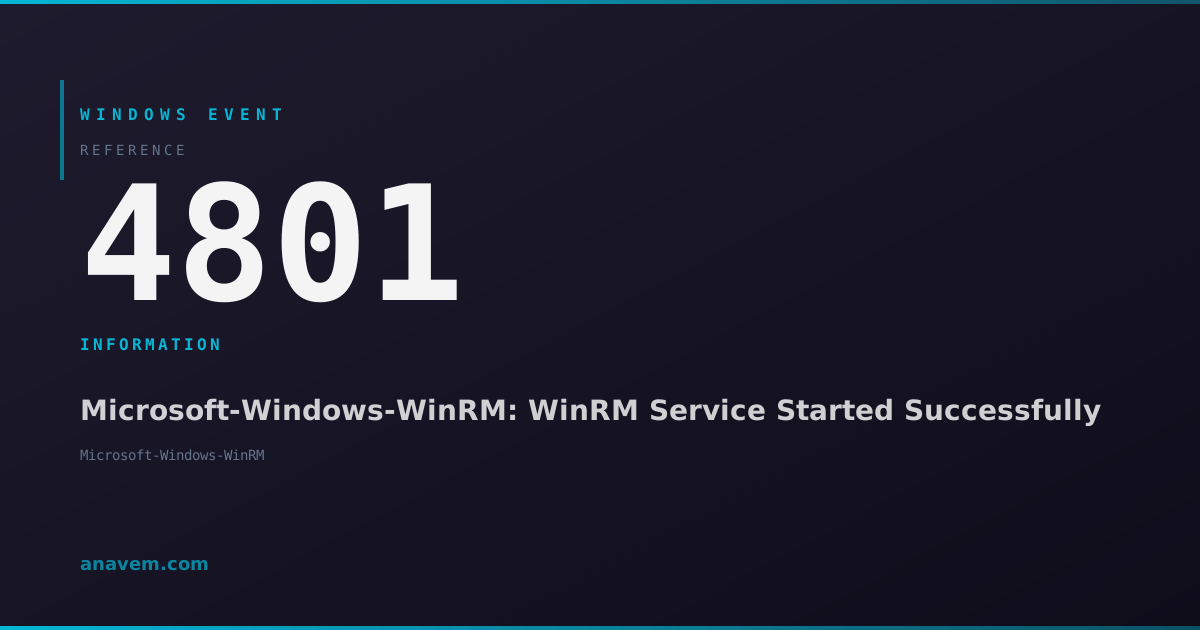
Event ID 4801InformationMicrosoft-Windows-WinRMWindows

Windows Event ID 4801 – Microsoft-Windows-WinRM: WinRM Service Started Successfully

Event ID 4801 indicates the Windows Remote Management (WinRM) service has started successfully. This informational event confirms WinRM is operational and ready to accept remote connections.

Emanuel DE ALMEIDAEmanuel DE ALMEIDA
18 March 20268 min read 0
Event ID 4801Microsoft-Windows-WinRM 5 methods 8 min
Event Reference

What This Event Means

Event ID 4801 represents a successful WinRM service startup notification generated by the Microsoft-Windows-WinRM provider. When the WinRM service (winrm.exe) initializes, it logs this event to confirm operational readiness. The event indicates that all WinRM components have loaded successfully, including the WS-Management protocol stack, HTTP/HTTPS listeners, and authentication modules.

WinRM serves as the foundation for PowerShell remoting, enabling administrators to execute commands on remote systems securely. The service also supports Windows Remote Shell (WinRS), which provides command-line access to remote machines. Modern Windows management relies heavily on WinRM for automation, configuration management, and troubleshooting tasks.

The event typically contains basic information about the service startup, including the process ID and startup type. In enterprise environments, this event helps administrators verify that remote management capabilities are available after system maintenance, reboots, or service disruptions. Security teams may also monitor these events to track when remote management services become available on critical systems.

Understanding when WinRM starts is crucial for troubleshooting connectivity issues, as many remote management failures stem from the service not running or starting incorrectly. This event provides the first confirmation that WinRM initialization completed successfully.

Applies to

Windows 10Windows 11Windows Server 2019/2022/2025
Analysis

Possible Causes

  • System startup with WinRM service configured for automatic start
  • Manual service start via Services console or PowerShell commands
  • Service recovery after a previous failure or crash
  • Group Policy enforcement triggering WinRM service activation
  • Windows Update or system maintenance operations restarting services
  • PowerShell remoting configuration changes requiring service restart
  • Third-party management tools initiating WinRM service startup
Resolution Methods

Troubleshooting Steps

01

Verify WinRM Service Status in Event Viewer

Check the WinRM operational log to confirm service startup details and identify any related events.

  1. Open Event Viewer by pressing Win + R, typing eventvwr.msc, and pressing Enter
  2. Navigate to Applications and Services LogsMicrosoftWindowsWinRMOperational
  3. Look for Event ID 4801 entries to confirm successful service starts
  4. Check surrounding events for any warnings or errors that might indicate issues
  5. Right-click on Event ID 4801 entries and select Event Properties to view detailed information

Use PowerShell to query WinRM events programmatically:

Get-WinEvent -FilterHashtable @{LogName='Microsoft-Windows-WinRM/Operational'; Id=4801} -MaxEvents 10 | Format-Table TimeCreated, Id, LevelDisplayName, Message -Wrap
Pro tip: Filter events by date range to correlate WinRM starts with system reboots or maintenance windows.
02

Check WinRM Service Configuration and Status

Verify the WinRM service configuration to ensure it's set up correctly for your environment.

  1. Open PowerShell as Administrator
  2. Check the current WinRM service status:
Get-Service WinRM | Format-List Name, Status, StartType, ServiceType
  1. Verify WinRM configuration:
winrm get winrm/config
  1. Check WinRM listeners:
winrm enumerate winrm/config/listener
  1. Test WinRM connectivity locally:
Test-WSMan -ComputerName localhost

If the service isn't running, start it manually:

Start-Service WinRM
Warning: Ensure Windows Firewall allows WinRM traffic before testing remote connections.
03

Analyze WinRM Service Dependencies and Startup

Investigate WinRM service dependencies and startup behavior to identify potential issues.

  1. Check service dependencies using PowerShell:
Get-Service WinRM | Select-Object -ExpandProperty ServicesDependedOn
  1. Review services that depend on WinRM:
Get-Service | Where-Object {$_.ServicesDependedOn -contains (Get-Service WinRM)}
  1. Check the Windows Event Log for service startup issues:
Get-WinEvent -FilterHashtable @{LogName='System'; Id=7036} | Where-Object {$_.Message -like '*WinRM*'} | Select-Object TimeCreated, Message
  1. Verify WinRM service registry configuration:
Get-ItemProperty -Path 'HKLM:\SYSTEM\CurrentControlSet\Services\WinRM' | Select-Object Start, Type, ImagePath
  1. Check for Group Policy settings affecting WinRM:
gpresult /h c:\temp\gpresult.html

Open the generated HTML file and search for WinRM-related policies.

04

Monitor WinRM Performance and Resource Usage

Track WinRM service performance and resource consumption to identify potential issues.

  1. Monitor WinRM process resource usage:
Get-Process -Name 'winrm' | Select-Object ProcessName, Id, CPU, WorkingSet, VirtualMemorySize
  1. Check WinRM performance counters:
Get-Counter '\WS-Management Listener(*)*' -MaxSamples 5 -SampleInterval 2
  1. Monitor WinRM connections and sessions:
Get-WSManInstance -ResourceURI winrm/config/service -ComputerName localhost
  1. Set up continuous monitoring of WinRM events:
Register-WmiEvent -Query "SELECT * FROM Win32_NTLogEvent WHERE LogFile='Microsoft-Windows-WinRM/Operational' AND EventCode=4801" -Action {Write-Host "WinRM service started at $(Get-Date)"}
  1. Create a custom PowerShell script to log WinRM startup events:
$logPath = "C:\Logs\WinRM_Monitoring.log"
Get-WinEvent -FilterHashtable @{LogName='Microsoft-Windows-WinRM/Operational'; Id=4801} -MaxEvents 1 | ForEach-Object {
    "$(Get-Date): WinRM started - Process ID: $($_.ProcessId)" | Out-File -FilePath $logPath -Append
}
Pro tip: Use Task Scheduler to run monitoring scripts automatically and maintain historical WinRM startup data.
05

Advanced WinRM Troubleshooting and Security Analysis

Perform comprehensive WinRM analysis including security configuration and advanced diagnostics.

  1. Enable detailed WinRM logging for troubleshooting:
winrm set winrm/config/service @{EnableCompatibilityHttpListener="true"}
wevtutil set-log Microsoft-Windows-WinRM/Analytic /enabled:true
wevtutil set-log Microsoft-Windows-WinRM/Debug /enabled:true
  1. Analyze WinRM security configuration:
winrm get winrm/config/service/auth
winrm get winrm/config/client/auth
  1. Check WinRM SSL certificate configuration:
Get-ChildItem -Path Cert:\LocalMachine\My | Where-Object {$_.Subject -like '*' -and $_.EnhancedKeyUsageList -like '*Server Authentication*'}
  1. Perform network connectivity testing:
Test-NetConnection -ComputerName localhost -Port 5985 -InformationLevel Detailed
Test-NetConnection -ComputerName localhost -Port 5986 -InformationLevel Detailed
  1. Generate comprehensive WinRM diagnostic report:
$report = @{}
$report.ServiceStatus = Get-Service WinRM
$report.Configuration = winrm get winrm/config
$report.Listeners = winrm enumerate winrm/config/listener
$report.RecentEvents = Get-WinEvent -FilterHashtable @{LogName='Microsoft-Windows-WinRM/Operational'; Id=4801} -MaxEvents 5
$report | ConvertTo-Json -Depth 3 | Out-File -FilePath "C:\Temp\WinRM_Diagnostic_Report.json"
Warning: Enable debug logging only temporarily as it generates significant log volume and may impact performance.

Overview

Event ID 4801 fires when the Windows Remote Management (WinRM) service successfully starts on a Windows system. This event appears in the Microsoft-Windows-WinRM/Operational log and serves as confirmation that WinRM is operational and ready to handle remote PowerShell sessions, Windows Remote Shell connections, and other WS-Management protocol communications.

WinRM is critical for remote administration scenarios, PowerShell remoting, and various Microsoft management tools including System Center Configuration Manager, Windows Admin Center, and Azure Arc. The service typically starts automatically during system boot or when explicitly started by an administrator.

This event is purely informational and indicates normal system operation. You'll see it during system startup, after manual service starts, or following service recovery operations. The event contains minimal details but confirms the service initialization completed without errors. Administrators monitoring WinRM availability often track this event to verify remote management capabilities are functioning correctly across their infrastructure.

Frequently Asked Questions

What does Event ID 4801 mean and is it something to worry about?+
Event ID 4801 is an informational event indicating the WinRM service started successfully. This is normal system behavior and not a cause for concern. The event confirms that Windows Remote Management is operational and ready to handle remote connections. You'll typically see this event during system startup or when the WinRM service is manually started. It's actually a positive indicator that remote management capabilities are functioning correctly on your system.
Why do I see multiple Event ID 4801 entries in my logs?+
Multiple Event ID 4801 entries occur because the WinRM service starts multiple times due to various triggers. Common scenarios include system reboots, manual service restarts, service recovery after failures, Windows Updates requiring service restarts, or Group Policy changes. Each time the WinRM service initializes, it generates this event. This is normal behavior, especially in environments with frequent maintenance activities or automated management tools that interact with WinRM.
How can I prevent Event ID 4801 from appearing if I don't use WinRM?+
To stop Event ID 4801 events, you need to disable the WinRM service if you don't require remote management capabilities. Use PowerShell: Set-Service WinRM -StartupType Disabled; Stop-Service WinRM. However, be cautious as many Windows features depend on WinRM, including PowerShell remoting, Windows Admin Center, System Center tools, and some third-party management applications. Disabling WinRM may break these functionalities. Consider whether you truly don't need remote management before disabling the service.
Can Event ID 4801 help me troubleshoot remote connection issues?+
Yes, Event ID 4801 is valuable for troubleshooting remote connection problems. If you're experiencing WinRM connectivity issues, first verify that Event ID 4801 appears in the logs, confirming the service is starting successfully. If this event is missing, the WinRM service isn't starting, which explains connection failures. Check the System log for service startup errors, verify service dependencies, and ensure the service is configured for automatic startup. The presence of Event ID 4801 eliminates service startup as the root cause of connectivity issues.
What should I check if Event ID 4801 appears but remote connections still fail?+
If Event ID 4801 appears but remote connections fail, the WinRM service is starting correctly, so investigate other factors. Check Windows Firewall rules for ports 5985 (HTTP) and 5986 (HTTPS), verify WinRM listeners are configured using 'winrm enumerate winrm/config/listener', test local connectivity with 'Test-WSMan localhost', examine authentication settings, and ensure the target user has appropriate permissions. Also check network connectivity, DNS resolution, and any intermediate firewalls or proxy servers that might block WinRM traffic.
Documentation

References (2)

Emanuel DE ALMEIDA
Written by

Emanuel DE ALMEIDA

Senior IT Journalist & Cloud Architect

Microsoft MCSA-certified Cloud Architect | Fortinet-focused. I modernize cloud, hybrid & on-prem infrastructure for reliability, security, performance and cost control - sharing field-tested ops & troubleshooting.

Discussion

Share your thoughts and insights

You must be logged in to comment.

Loading comments...