ANAVEM
Languagefr
Windows Event Viewer showing system event logs on a monitoring dashboard
Event ID 1074InformationUser32Windows

Windows Event ID 1074 – User32: System Restart or Shutdown Initiated

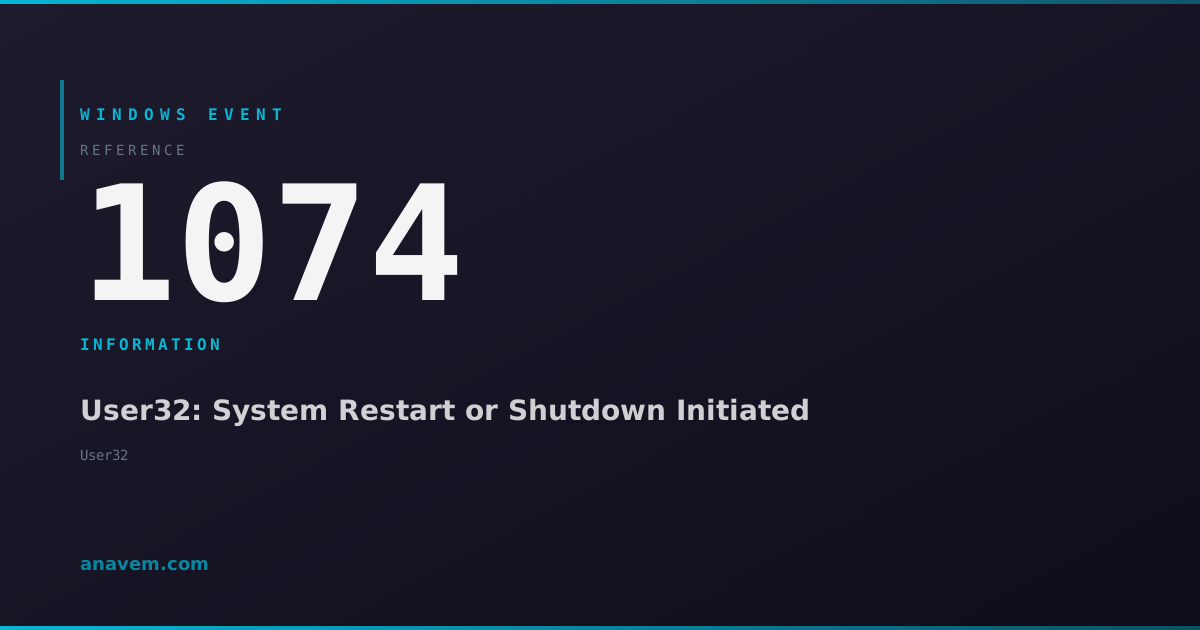
Event ID 1074 records when a system restart or shutdown is initiated by a user or application. This informational event tracks who initiated the action and the reason code.

Emanuel DE ALMEIDAEmanuel DE ALMEIDA
18 March 20268 min read 0
Event ID 1074User32 5 methods 8 min
Event Reference

What This Event Means

Event ID 1074 serves as Windows' primary mechanism for logging shutdown and restart activities. The User32 subsystem generates this event during the early stages of the shutdown process, ensuring the information is captured even if the system encounters issues during the actual shutdown sequence.

The event structure includes several key fields that provide comprehensive context. The user field identifies the account that initiated the action, which can be a local user, domain account, or system service. The process field shows which executable triggered the shutdown, such as shutdown.exe, winlogon.exe, or a third-party application. The reason code follows Microsoft's standardized shutdown reason taxonomy, categorizing the shutdown as planned or unplanned and providing specific reason categories like hardware maintenance, software installation, or system failure.

In enterprise environments, Event ID 1074 becomes crucial for compliance reporting and change management. Many organizations require documentation of all system restarts, especially for critical servers. The event's consistent format and reliable generation make it ideal for automated monitoring solutions and SIEM integration. Security teams also monitor these events to detect potential unauthorized access or malicious activities that might involve system restarts to cover tracks or complete malware installation.

The timing of Event ID 1074 is significant – it appears before the actual shutdown begins, meaning the event will be logged even if the shutdown process fails or is interrupted. This reliability makes it superior to other shutdown-related events that might not appear if the system encounters problems during the shutdown sequence.

Applies to

Windows 10Windows 11Windows Server 2019/2022/2025
Analysis

Possible Causes

  • User-initiated shutdown or restart through Start menu, Alt+F4, or shutdown command
  • Automatic Windows Updates requiring system restart
  • Software installations or uninstallations that require reboot
  • Group Policy-enforced shutdowns or scheduled maintenance windows
  • Third-party applications requesting system restart (antivirus, drivers, etc.)
  • Remote shutdown commands executed via RDP, PowerShell, or administrative tools
  • System services or processes calling shutdown APIs programmatically
  • Hardware-related shutdowns initiated by power management or thermal protection
Resolution Methods

Troubleshooting Steps

01

Check Event Viewer for Shutdown Details

Navigate to Event Viewer to examine the specific details of Event ID 1074 occurrences.

  1. Press Windows + R, type eventvwr.msc, and press Enter
  2. Navigate to Windows LogsSystem
  3. In the Actions pane, click Filter Current Log
  4. Enter 1074 in the Event IDs field and click OK
  5. Double-click any Event ID 1074 entry to view details
  6. Examine the General tab for user, process, and reason information
  7. Check the Details tab for raw XML data including reason codes

The event description will show format: "The process [process] has initiated the [restart/shutdown] of computer [computer] on behalf of user [domain\user] for the following reason: [reason]"

Pro tip: Look for patterns in the Process field - frequent shutdowns from the same application might indicate software issues.
02

Use PowerShell to Query Shutdown Events

PowerShell provides powerful filtering capabilities to analyze shutdown patterns and extract specific information from Event ID 1074.

  1. Open PowerShell as Administrator
  2. Query recent shutdown events:
Get-WinEvent -FilterHashtable @{LogName='System'; Id=1074} -MaxEvents 20 | Format-Table TimeCreated, Id, LevelDisplayName, Message -Wrap
  1. Filter by specific user or time range:
Get-WinEvent -FilterHashtable @{LogName='System'; Id=1074; StartTime=(Get-Date).AddDays(-7)} | Where-Object {$_.Message -like "*username*"}
  1. Extract structured data from events:
Get-WinEvent -FilterHashtable @{LogName='System'; Id=1074} -MaxEvents 10 | ForEach-Object {
    $xml = [xml]$_.ToXml()
    [PSCustomObject]@{
        TimeCreated = $_.TimeCreated
        User = $xml.Event.EventData.Data[6].'#text'
        Process = $xml.Event.EventData.Data[0].'#text'
        Reason = $xml.Event.EventData.Data[2].'#text'
        ReasonCode = $xml.Event.EventData.Data[3].'#text'
    }
}
Pro tip: Export results to CSV for analysis: | Export-Csv -Path "C:\temp\shutdowns.csv" -NoTypeInformation
03

Analyze Shutdown Reason Codes

Understanding shutdown reason codes helps identify the root cause of system restarts and categorize them appropriately.

  1. Extract reason codes from recent events:
Get-WinEvent -FilterHashtable @{LogName='System'; Id=1074} -MaxEvents 50 | ForEach-Object {
    $xml = [xml]$_.ToXml()
    $reasonCode = $xml.Event.EventData.Data[3].'#text'
    $reasonText = $xml.Event.EventData.Data[2].'#text'
    "$($_.TimeCreated): Code $reasonCode - $reasonText"
} | Group-Object | Sort-Object Count -Descending
  1. Common reason codes to investigate:
  • 0x80020002: Unexpected shutdown (system crash or power loss)
  • 0x80020010: Planned shutdown for hardware maintenance
  • 0x80020003: Planned shutdown for software installation
  • 0x500ff: Windows Update automatic restart
  • 0x80000000: User-initiated shutdown with no specific reason
  1. Check for unplanned shutdowns specifically:
Get-WinEvent -FilterHashtable @{LogName='System'; Id=1074} | Where-Object {
    $xml = [xml]$_.ToXml()
    $reasonCode = $xml.Event.EventData.Data[3].'#text'
    $reasonCode -match "0x8002000[2-9]|0x8004000[0-9]"
} | Format-Table TimeCreated, Message -Wrap
Warning: Frequent unplanned shutdowns (reason codes starting with 0x8002) may indicate hardware problems or system instability.
04

Configure Advanced Shutdown Tracking

Enable enhanced shutdown tracking through Group Policy or registry settings to capture more detailed information about shutdown events.

  1. Open Group Policy Editor (gpedit.msc) or Registry Editor for manual configuration
  2. Navigate to Group Policy path:

Computer ConfigurationAdministrative TemplatesSystemShutdown Options

  1. Enable "Display Shutdown Event Tracker" policy
  2. For registry configuration, modify:
Set-ItemProperty -Path "HKLM:\SOFTWARE\Policies\Microsoft\Windows NT\Reliability" -Name "ShutdownReasonUI" -Value 1 -Type DWord
Set-ItemProperty -Path "HKLM:\SOFTWARE\Policies\Microsoft\Windows NT\Reliability" -Name "ShutdownReasonOn" -Value 1 -Type DWord
  1. Configure shutdown reason tracking for servers:
New-ItemProperty -Path "HKLM:\SOFTWARE\Microsoft\Windows\CurrentVersion\Reliability" -Name "ShutdownReasonUI" -Value 1 -PropertyType DWord -Force
New-ItemProperty -Path "HKLM:\SOFTWARE\Microsoft\Windows\CurrentVersion\Reliability" -Name "ShutdownReasonOn" -Value 1 -PropertyType DWord -Force
  1. Restart the system for changes to take effect
  2. Verify configuration by checking that shutdown dialogs now prompt for reason selection
Pro tip: In enterprise environments, combine this with custom shutdown scripts that log additional context to centralized logging systems.
05

Implement Automated Monitoring and Alerting

Set up automated monitoring to track shutdown patterns and alert on suspicious or unexpected restart activity.

  1. Create a PowerShell script for continuous monitoring:
# Save as Monitor-Shutdowns.ps1
$lastCheck = (Get-Date).AddHours(-1)
$events = Get-WinEvent -FilterHashtable @{LogName='System'; Id=1074; StartTime=$lastCheck}

foreach ($event in $events) {
    $xml = [xml]$event.ToXml()
    $user = $xml.Event.EventData.Data[6].'#text'
    $process = $xml.Event.EventData.Data[0].'#text'
    $reasonCode = $xml.Event.EventData.Data[3].'#text'
    
    # Alert on unexpected shutdowns
    if ($reasonCode -match "0x80020002|0x80040000") {
        Write-EventLog -LogName Application -Source "ShutdownMonitor" -EventId 9001 -EntryType Warning -Message "Unexpected shutdown detected: User=$user, Process=$process, Reason=$reasonCode"
        # Send email or SIEM alert here
    }
}
  1. Create a scheduled task to run the monitoring script:
$action = New-ScheduledTaskAction -Execute "PowerShell.exe" -Argument "-File C:\Scripts\Monitor-Shutdowns.ps1"
$trigger = New-ScheduledTaskTrigger -Once -At (Get-Date) -RepetitionInterval (New-TimeSpan -Hours 1)
$principal = New-ScheduledTaskPrincipal -UserId "SYSTEM" -LogonType ServiceAccount
Register-ScheduledTask -TaskName "ShutdownMonitoring" -Action $action -Trigger $trigger -Principal $principal
  1. Configure Windows Event Forwarding for centralized collection:
# On collector server
wecutil qc /q
# On source computers
winrm qc /q
wecutil cs subscription.xml
  1. Set up custom event log source for monitoring alerts:
New-EventLog -LogName Application -Source "ShutdownMonitor"
Warning: Ensure monitoring scripts have appropriate permissions and error handling to prevent false positives or missed events.

Overview

Event ID 1074 from the User32 source fires whenever Windows initiates a system restart or shutdown sequence. This event captures critical information about who or what triggered the action, making it invaluable for system administrators tracking unexpected reboots or investigating compliance requirements.

The event appears in the System log immediately when the shutdown or restart process begins, before the system actually powers down. It records the user account, process name, reason code, and comment if provided. This makes it essential for forensic analysis, especially in environments where unplanned restarts can indicate hardware issues, software conflicts, or security incidents.

Unlike other shutdown-related events that may appear sporadically, Event ID 1074 consistently fires for every planned shutdown or restart. The event provides structured data including the shutdown type (restart vs. shutdown), whether it was planned or unplanned, and the specific reason category. System administrators rely on this event to differentiate between user-initiated actions, automatic updates, and system-forced restarts due to critical errors.

Frequently Asked Questions

What does Event ID 1074 mean and when does it appear?+
Event ID 1074 is generated by the User32 subsystem whenever a system shutdown or restart is initiated. It appears immediately when the shutdown process begins, before the system actually powers down. The event captures who initiated the action, which process triggered it, and the reason code. This makes it essential for tracking both planned and unplanned system restarts, providing administrators with a complete audit trail of shutdown activities.
How can I tell if a shutdown was planned or unplanned from Event ID 1074?+
The reason code in Event ID 1074 indicates whether a shutdown was planned or unplanned. Planned shutdowns typically have reason codes like 0x80020010 (hardware maintenance) or 0x80020003 (software installation). Unplanned shutdowns show codes like 0x80020002 (unexpected shutdown) or 0x80040000 (system failure). You can extract this information using PowerShell to parse the XML data within the event, specifically looking at EventData.Data[3] which contains the reason code.
Why do I see multiple Event ID 1074 entries for a single shutdown?+
Multiple Event ID 1074 entries for a single shutdown typically occur when different processes or services initiate shutdown sequences. For example, you might see one entry from a user clicking shutdown, followed by another from winlogon.exe as it processes the shutdown request. Additionally, some applications or services may call shutdown APIs independently during the shutdown process. Each entry represents a distinct shutdown initiation, even if they're part of the same overall shutdown sequence.
Can Event ID 1074 help identify unauthorized system restarts?+
Yes, Event ID 1074 is excellent for identifying unauthorized restarts. The event records the user account and process that initiated the shutdown, making it easy to spot suspicious activity. Look for shutdowns initiated by unexpected user accounts, especially during off-hours, or by unusual processes. Remote shutdowns will show the account used for the remote connection. Combine this with logon events (Event ID 4624) to build a complete picture of who accessed the system before initiating the restart.
How do I configure Windows to require shutdown reasons for better Event ID 1074 tracking?+
Enable the Shutdown Event Tracker through Group Policy or registry settings. In Group Policy, navigate to Computer Configuration → Administrative Templates → System → Shutdown Options and enable 'Display Shutdown Event Tracker'. For registry configuration, set ShutdownReasonUI and ShutdownReasonOn to 1 in HKLM\SOFTWARE\Policies\Microsoft\Windows NT\Reliability. This forces users to select a reason category when shutting down, providing more detailed information in Event ID 1074 entries and improving audit capabilities.
Documentation

References (2)

Emanuel DE ALMEIDA
Written by

Emanuel DE ALMEIDA

Senior IT Journalist & Cloud Architect

Microsoft MCSA-certified Cloud Architect | Fortinet-focused. I modernize cloud, hybrid & on-prem infrastructure for reliability, security, performance and cost control - sharing field-tested ops & troubleshooting.

Discussion

Share your thoughts and insights

You must be logged in to comment.

Loading comments...