ANAVEM
Languagefr
Windows Event Viewer showing system event logs on a monitoring dashboard
Event ID 1125InformationUser32Windows

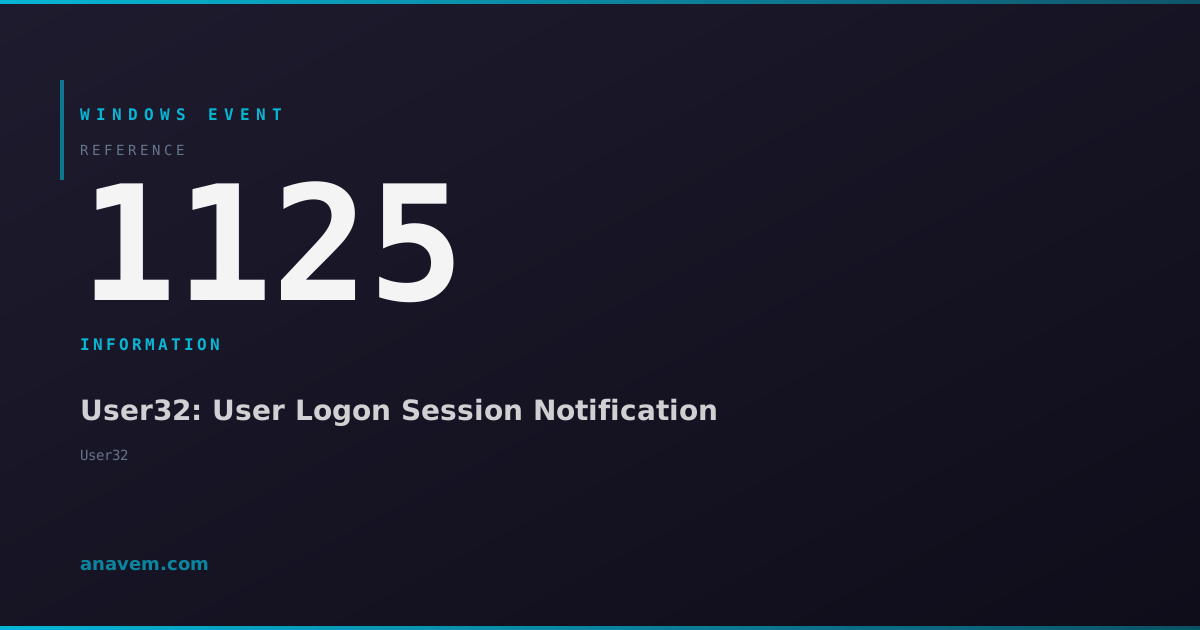
Windows Event ID 1125 – User32: User Logon Session Notification

Event ID 1125 from User32 indicates a user logon session notification event, typically fired during interactive logon processes or session state changes in Windows environments.

Emanuel DE ALMEIDAEmanuel DE ALMEIDA
18 March 20268 min read 0
Event ID 1125User32 5 methods 8 min
Event Reference

What This Event Means

Event ID 1125 represents a critical component in Windows' user session management infrastructure. When a user initiates an interactive logon, the Windows authentication subsystem coordinates multiple components to establish the session. The User32 service, responsible for managing the Windows user interface and desktop environment, participates in this process by handling session notifications and desktop initialization tasks.

The event typically contains information about the session being established, including timing data and process identifiers. This information proves valuable when diagnosing slow logon performance or investigating authentication anomalies. In enterprise environments, Event ID 1125 patterns can indicate infrastructure health, with consistent timing suggesting proper system performance and irregular patterns potentially signaling resource constraints or configuration issues.

Modern Windows versions in 2026 have enhanced the event's diagnostic capabilities, providing more granular session state information. The event integrates with Windows' telemetry systems and can trigger automated responses in managed environments. Understanding this event's context within the broader authentication framework enables administrators to maintain optimal user experience and identify potential security concerns early in the logon process.

Applies to

Windows 10Windows 11Windows Server 2019/2022/2025
Analysis

Possible Causes

  • Normal interactive user logon to local machine or domain
  • Remote Desktop Protocol (RDP) session establishment
  • Fast user switching between accounts
  • Session unlock after screen saver or lock screen
  • Terminal Services session creation on Windows Server
  • Credential provider initialization during authentication
  • Windows Hello or biometric authentication completion
  • Service account interactive logon for administrative tasks
Resolution Methods

Troubleshooting Steps

01

Review Event Viewer Details

Start by examining the event details in Event Viewer to understand the context and timing of the session notification.

  1. Open Event Viewer by pressing Win + R, typing eventvwr.msc, and pressing Enter
  2. Navigate to Windows LogsSystem
  3. Filter for Event ID 1125 by right-clicking SystemFilter Current Log
  4. Enter 1125 in the Event IDs field and click OK
  5. Double-click on recent Event ID 1125 entries to examine details including timestamp, process ID, and session information
  6. Note the frequency and timing patterns of these events relative to user logon activities
Pro tip: Compare Event ID 1125 timestamps with Event ID 4624 (successful logon) to measure session establishment performance.
02

PowerShell Event Analysis

Use PowerShell to analyze Event ID 1125 patterns and correlate with other authentication events for comprehensive session monitoring.

  1. Open PowerShell as Administrator
  2. Query recent Event ID 1125 occurrences:
    Get-WinEvent -FilterHashtable @{LogName='System'; Id=1125} -MaxEvents 20 | Format-Table TimeCreated, Id, LevelDisplayName, Message -AutoSize
  3. Analyze event frequency over the past 24 hours:
    $events = Get-WinEvent -FilterHashtable @{LogName='System'; Id=1125; StartTime=(Get-Date).AddDays(-1)}
    $events | Group-Object {$_.TimeCreated.Hour} | Sort-Object Name
  4. Correlate with successful logon events:
    $logonEvents = Get-WinEvent -FilterHashtable @{LogName='Security'; Id=4624; StartTime=(Get-Date).AddHours(-2)}
    $sessionEvents = Get-WinEvent -FilterHashtable @{LogName='System'; Id=1125; StartTime=(Get-Date).AddHours(-2)}
    Compare-Object $logonEvents.TimeCreated $sessionEvents.TimeCreated
  5. Export events for further analysis:
    Get-WinEvent -FilterHashtable @{LogName='System'; Id=1125} -MaxEvents 100 | Export-Csv -Path "C:\temp\Event1125_Analysis.csv" -NoTypeInformation
03

Session Performance Monitoring

Monitor session establishment performance by tracking Event ID 1125 timing relative to other logon events to identify potential bottlenecks.

  1. Enable detailed logon auditing in Group Policy:
    Computer ConfigurationWindows SettingsSecurity SettingsAdvanced Audit Policy ConfigurationLogon/Logoff
  2. Create a PowerShell monitoring script:
    $scriptBlock = {
        $events = Get-WinEvent -FilterHashtable @{LogName='System'; Id=1125; StartTime=(Get-Date).AddMinutes(-5)}
        foreach ($event in $events) {
            Write-Host "Session notification at $($event.TimeCreated) - Process ID: $($event.ProcessId)"
        }
    }
    Register-ScheduledJob -Name "Monitor1125" -ScriptBlock $scriptBlock -Trigger (New-JobTrigger -RepeatInterval (New-TimeSpan -Minutes 5) -RepeatIndefinitely -At (Get-Date))
  3. Check User32 service status and dependencies:
    Get-Service | Where-Object {$_.Name -like "*User*" -or $_.DisplayName -like "*User*"}
    Get-WmiObject Win32_Service | Where-Object {$_.Name -eq "Themes"} | Select-Object Name, State, StartMode
  4. Monitor session establishment timing:
    $startTime = Get-Date
    $events1125 = Get-WinEvent -FilterHashtable @{LogName='System'; Id=1125; StartTime=$startTime.AddMinutes(-10)}
    $events4624 = Get-WinEvent -FilterHashtable @{LogName='Security'; Id=4624; StartTime=$startTime.AddMinutes(-10)}
    $timeDiff = ($events1125.TimeCreated - $events4624.TimeCreated).TotalSeconds
    Write-Host "Average session notification delay: $($timeDiff) seconds"
04

Registry and System Configuration Review

Examine registry settings and system configuration that affect User32 session notifications and authentication processes.

  1. Check User32 service registration in registry:
    Get-ItemProperty -Path "HKLM\SYSTEM\CurrentControlSet\Services\Themes" -Name DisplayName, Start, Type
  2. Review session manager configuration:
    Get-ItemProperty -Path "HKLM\SYSTEM\CurrentControlSet\Control\Session Manager" -Name GlobalFlag, CriticalSectionTimeout
  3. Examine authentication package settings:HKLM\SYSTEM\CurrentControlSet\Control\Lsa
    Check the Authentication Packages and Security Packages values
  4. Verify User32 DLL integrity:
    sfc /verifyfile=C:\Windows\System32\user32.dll
    Get-FileHash -Path "C:\Windows\System32\user32.dll" -Algorithm SHA256
  5. Check for Group Policy settings affecting logon:
    gpresult /r /scope:computer
    gpresult /h "C:\temp\GPReport.html"
Warning: Do not modify registry values without proper backup and understanding of the implications.
05

Advanced Troubleshooting and ETW Tracing

Use Event Tracing for Windows (ETW) and advanced diagnostic tools to capture detailed session establishment data when Event ID 1125 patterns indicate issues.

  1. Enable User32 ETW tracing:
    wevtutil sl Microsoft-Windows-User32/Diagnostic /e:true
    wevtutil sl Microsoft-Windows-Winlogon/Diagnostic /e:true
  2. Create custom ETW trace session:
    logman create trace "SessionTrace" -p "Microsoft-Windows-User32" 0xFFFFFFFF 0xFF -o "C:\temp\SessionTrace.etl" -ets
    logman create trace "WinlogonTrace" -p "Microsoft-Windows-Winlogon" 0xFFFFFFFF 0xFF -o "C:\temp\WinlogonTrace.etl" -ets
  3. Reproduce the logon scenario and stop tracing:
    logman stop "SessionTrace" -ets
    logman stop "WinlogonTrace" -ets
  4. Analyze trace files using Windows Performance Toolkit:
    wpa.exe "C:\temp\SessionTrace.etl"
  5. Generate comprehensive system report:
    msinfo32 /report "C:\temp\SystemInfo.txt"
    Get-ComputerInfo | Out-File "C:\temp\ComputerInfo.txt"
    Get-EventLog -LogName System -After (Get-Date).AddDays(-1) | Where-Object {$_.EventID -in @(1125, 4624, 4634)} | Export-Csv "C:\temp\AuthEvents.csv"
Pro tip: Use Process Monitor (ProcMon) during logon to identify file system and registry access patterns that might affect session establishment timing.

Overview

Event ID 1125 from the User32 source fires during user session management operations in Windows. This event typically appears in the System log when the Windows session manager processes user logon notifications or session state transitions. The User32 component, which handles Windows user interface operations, generates this event as part of the interactive logon sequence.

This event commonly occurs during normal user authentication workflows, including local logons, domain authentication, and remote desktop connections. System administrators encounter this event frequently in environments with active user sessions, particularly on workstations and terminal servers. The event serves as an informational marker in the logon process chain and helps track session establishment timing.

While generally benign, patterns in Event ID 1125 can reveal authentication bottlenecks, session management issues, or unusual logon activity. The event appears alongside other authentication-related events like 4624 (successful logon) and 4648 (explicit credential use), providing context for comprehensive session monitoring and troubleshooting.

Frequently Asked Questions

What does Windows Event ID 1125 from User32 indicate?+
Event ID 1125 from User32 indicates a user logon session notification event that occurs during the interactive logon process. This informational event is generated when the User32 service processes session establishment notifications, typically appearing during normal user authentication workflows including local logons, domain authentication, and remote desktop connections. The event serves as a timing marker in the logon sequence and helps administrators track session establishment performance.
Is Event ID 1125 a sign of a problem with my Windows system?+
No, Event ID 1125 is typically not a sign of a problem. It's an informational event that occurs during normal system operation when users log on interactively. However, unusual patterns such as excessive frequency, timing anomalies, or correlation with authentication failures might indicate underlying issues with session management, authentication infrastructure, or system performance. Regular occurrence of this event during user logons is expected behavior.
How can I reduce the frequency of Event ID 1125 entries in my logs?+
Event ID 1125 frequency directly correlates with user logon activity, so reducing it means reducing interactive logons. You can minimize entries by implementing single sign-on solutions, extending session timeouts, reducing fast user switching, and optimizing remote desktop usage patterns. However, completely suppressing this event is not recommended as it provides valuable session establishment timing data. Instead, consider log retention policies and filtering in monitoring tools to manage log volume while preserving diagnostic capability.
What other events should I monitor alongside Event ID 1125 for comprehensive session tracking?+
Monitor Event ID 4624 (successful logon), Event ID 4625 (failed logon), Event ID 4634 (logoff), Event ID 4648 (explicit credential use), and Event ID 4672 (special privileges assigned) from the Security log. Additionally, watch Event ID 7001 and 7002 (service start/stop) from the System log, and Event ID 1074 (system shutdown/restart). These events together provide a complete picture of authentication flows, session lifecycle, and system state changes that affect user experience.
Can Event ID 1125 help identify security issues or unauthorized access attempts?+
While Event ID 1125 itself is informational and doesn't directly indicate security issues, analyzing its patterns can reveal security-relevant information. Unusual timing, frequency outside normal business hours, or correlation with failed authentication events might suggest reconnaissance or brute force attempts. The event's timing data helps establish session establishment baselines, making anomalies more apparent. For security monitoring, combine Event ID 1125 analysis with Security log events, failed logon patterns, and account lockout events to build comprehensive threat detection capabilities.
Documentation

References (2)

Emanuel DE ALMEIDA
Written by

Emanuel DE ALMEIDA

Senior IT Journalist & Cloud Architect

Microsoft MCSA-certified Cloud Architect | Fortinet-focused. I modernize cloud, hybrid & on-prem infrastructure for reliability, security, performance and cost control - sharing field-tested ops & troubleshooting.

Discussion

Share your thoughts and insights

You must be logged in to comment.

Loading comments...