ANAVEM
Languagefr
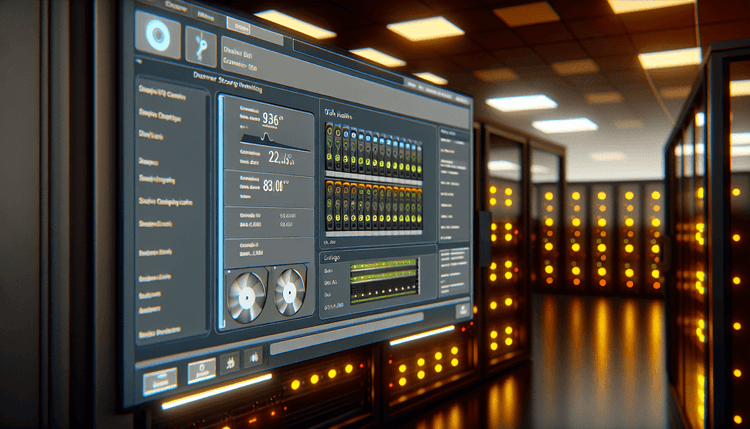
Server room storage arrays with monitoring displays showing disk health status and error alerts
Event ID 11ErrorDiskWindows

Windows Event ID 11 – Disk: Hardware Error Detected on Storage Device

Event ID 11 indicates a hardware error detected on a storage device. This critical event fires when Windows encounters disk read/write failures, bad sectors, or controller issues that could lead to data corruption or system instability.

Emanuel DE ALMEIDAEmanuel DE ALMEIDA
18 March 202612 min read 0
Event ID 11Disk 5 methods 12 min
Event Reference

What This Event Means

Event ID 11 occurs when Windows detects hardware-level errors during disk I/O operations that cannot be resolved through standard retry mechanisms. The Windows storage driver stack continuously monitors disk operations and generates this event when it encounters persistent hardware failures that exceed normal error thresholds.

The event typically contains detailed information about the failing storage device, including the device object name, physical disk number, and specific error codes returned by the hardware. These error codes follow SCSI sense data standards and provide insight into whether the failure is related to media errors, controller problems, or communication issues between the system and storage device.

Modern storage systems implement sophisticated error correction and retry logic, so Event ID 11 only appears when these mechanisms have been exhausted. This makes the event particularly significant as it indicates genuine hardware problems rather than transient communication glitches. The frequency and pattern of these events can help administrators determine whether they're dealing with a gradually failing drive or sudden hardware failure.

In Windows Server environments, Event ID 11 can trigger automated responses through System Center or third-party monitoring solutions. The event's criticality level ensures it receives appropriate attention in enterprise monitoring dashboards and can initiate failover procedures in clustered storage configurations.

Applies to

Windows 10Windows 11Windows Server 2019/2022/2025
Analysis

Possible Causes

  • Physical hard drive or SSD failure with bad sectors or mechanical problems
  • Faulty SATA, SAS, or NVMe storage controller causing communication errors
  • Defective storage cables or loose connections between drive and motherboard
  • Power supply issues causing voltage fluctuations to storage devices
  • Overheating storage devices due to inadequate cooling or fan failures
  • Firmware bugs in storage device controllers or Windows storage drivers
  • RAID controller failures in hardware RAID configurations
  • USB or external storage device connection problems or power issues
Resolution Methods

Troubleshooting Steps

01

Check Event Viewer for Error Details

Start by examining the complete Event ID 11 details to understand the scope and nature of the hardware error.

  1. Open Event Viewer by pressing Win + R, typing eventvwr.msc, and pressing Enter
  2. Navigate to Windows LogsSystem
  3. Filter for Event ID 11 by right-clicking SystemFilter Current Log → Enter 11 in Event IDs field
  4. Double-click the most recent Event ID 11 to view details including device name and error codes
  5. Note the frequency pattern - multiple events in short timeframes indicate severe hardware problems

Use PowerShell to extract detailed information:

Get-WinEvent -FilterHashtable @{LogName='System'; Id=11} -MaxEvents 20 | Format-Table TimeCreated, LevelDisplayName, Message -Wrap

Export events for analysis:

Get-WinEvent -FilterHashtable @{LogName='System'; Id=11} | Export-Csv -Path "C:\Temp\DiskErrors.csv" -NoTypeInformation
02

Run Windows Disk Check and SMART Analysis

Perform comprehensive disk health checks to identify the failing storage device and assess damage extent.

  1. Open Command Prompt as Administrator
  2. Run Check Disk on all drives to identify bad sectors:
chkdsk C: /f /r /x

For additional drives, replace C: with the appropriate drive letter. The /f flag fixes errors, /r locates bad sectors, and /x forces dismount if necessary.

  1. Use PowerShell to check SMART data for all physical disks:
Get-PhysicalDisk | Get-StorageReliabilityCounter | Format-Table DeviceId, Temperature, ReadErrorsTotal, WriteErrorsTotal -AutoSize
  1. Check disk health status:
Get-PhysicalDisk | Select-Object DeviceID, FriendlyName, HealthStatus, OperationalStatus | Format-Table -AutoSize
Warning: Running chkdsk /r on large drives can take several hours and should be scheduled during maintenance windows.
03

Verify Storage Hardware Connections and Drivers

Inspect physical connections and update storage drivers to eliminate non-hardware causes of Event ID 11.

  1. Power down the system and check all storage device connections:
    • Verify SATA/SAS cables are securely connected at both ends
    • Inspect cables for physical damage or kinks
    • Ensure power connectors are firmly seated
    • Check for dust buildup on connectors
  2. Boot the system and update storage drivers through Device Manager:
    • Open Device Manager → Expand Disk drives
    • Right-click each storage device → Update driver
    • Select Search automatically for drivers
  3. Update storage controller drivers:
    • In Device Manager, expand Storage controllers
    • Update SATA AHCI, NVMe, or RAID controller drivers

Use PowerShell to check driver versions:

Get-WmiObject Win32_PnPSignedDriver | Where-Object {$_.DeviceName -like "*disk*" -or $_.DeviceName -like "*storage*"} | Select-Object DeviceName, DriverVersion, DriverDate | Format-Table -AutoSize

Verify storage controller status:

Get-WmiObject -Class Win32_SCSIController | Select-Object Name, Status, ConfigManagerErrorCode | Format-Table -AutoSize
04

Monitor System Temperature and Power Supply

Investigate environmental factors that can cause storage hardware errors, particularly temperature and power issues.

  1. Check system temperatures using built-in sensors:
Get-WmiObject -Namespace "root/OpenHardwareMonitor" -Class Sensor | Where-Object {$_.SensorType -eq "Temperature"} | Select-Object Name, Value | Format-Table -AutoSize
  1. Monitor power supply voltages and stability:
    • Use hardware monitoring tools to check +12V, +5V, and +3.3V rails
    • Verify power supply wattage meets system requirements
    • Check for power supply fan operation and excessive heat
  2. Review System event log for power-related events:
Get-WinEvent -FilterHashtable @{LogName='System'; Id=6008,41,1074} -MaxEvents 50 | Format-Table TimeCreated, Id, LevelDisplayName, Message -Wrap
  1. Check storage device temperatures if supported:
Get-PhysicalDisk | Get-StorageReliabilityCounter | Where-Object {$_.Temperature -ne $null} | Select-Object DeviceId, Temperature | Format-Table -AutoSize
Pro tip: Storage devices typically operate safely up to 60°C. Temperatures above 70°C indicate cooling problems that can cause Event ID 11 errors.
05

Advanced Diagnostics and Hardware Replacement Planning

Perform comprehensive hardware diagnostics and prepare for storage device replacement if hardware failure is confirmed.

  1. Run manufacturer-specific diagnostic tools:
    • Download tools from drive manufacturer (Western Digital Data Lifeguard, Seagate SeaTools, Samsung Magician)
    • Perform extended surface scans and SMART attribute analysis
    • Document any failing SMART attributes or surface defects
  2. Create complete system backup before hardware failure progresses:
wbadmin start backup -backupTarget:E: -include:C: -allCritical -quiet
  1. Monitor Event ID 11 frequency to assess failure progression:
$Events = Get-WinEvent -FilterHashtable @{LogName='System'; Id=11; StartTime=(Get-Date).AddDays(-7)}
$Events | Group-Object {$_.TimeCreated.Date} | Select-Object Name, Count | Sort-Object Name
  1. Prepare replacement hardware:
    • Identify exact drive model and interface type
    • Verify compatibility with existing RAID configurations
    • Plan maintenance window for replacement
    • Prepare drive cloning or restore procedures
  2. Document all findings for warranty claims or vendor support:
    • Export Event ID 11 logs with timestamps
    • Record SMART data and diagnostic results
    • Note environmental conditions and system configuration
Warning: Continuing to use a drive generating frequent Event ID 11 errors risks complete data loss. Plan immediate replacement for critical systems.

Overview

Event ID 11 from the Disk source represents one of the most critical storage-related events in Windows. This event fires when the Windows storage subsystem detects hardware-level errors on physical storage devices, including hard drives, SSDs, and external storage. The event typically indicates problems with the storage controller, bad sectors on the disk surface, or communication failures between the storage device and the system.

This event appears in the System log and requires immediate attention from system administrators. Unlike software-related disk errors, Event ID 11 points to physical hardware problems that can escalate quickly. The event often precedes more severe issues like complete drive failure, data corruption, or system crashes. Windows generates this event through the disk driver stack when retry attempts fail and the storage subsystem cannot complete requested I/O operations.

In enterprise environments, Event ID 11 serves as an early warning system for impending storage failures. Modern Windows versions in 2026 have enhanced detection capabilities that can identify subtle hardware degradation before complete failure occurs. The event provides crucial diagnostic information including the device name, error codes, and timing data that help administrators determine the severity and appropriate response.

Frequently Asked Questions

What does Event ID 11 mean and how serious is it?+
Event ID 11 indicates a hardware error detected on a storage device, making it one of the most serious disk-related events in Windows. This error means the storage subsystem has detected physical problems with a hard drive, SSD, or storage controller that couldn't be resolved through normal retry mechanisms. The event is critical because it often precedes complete drive failure and potential data loss. Unlike software errors, Event ID 11 points to actual hardware problems requiring immediate attention. Systems experiencing frequent Event ID 11 errors should have their storage devices replaced as soon as possible to prevent data corruption or complete system failure.
How can I identify which specific drive is causing Event ID 11 errors?+
The Event ID 11 details contain specific information about the failing device, including the device object name and physical disk number. In Event Viewer, double-click the Event ID 11 entry to see the full message, which typically includes text like 'The driver detected a controller error on \Device\Harddisk0\DR0'. The number after 'Harddisk' indicates the physical disk number. You can correlate this with actual drives using PowerShell command 'Get-PhysicalDisk | Select-Object DeviceID, FriendlyName, MediaType' to match the device number with the physical drive model and location. Additionally, the event message may include SCSI target IDs or device instance paths that help identify the specific storage device experiencing problems.
Can Event ID 11 be caused by software issues or is it always hardware?+
Event ID 11 almost always indicates genuine hardware problems rather than software issues. Windows only generates this event when the storage driver stack has exhausted all retry attempts and error correction mechanisms, meaning the hardware is genuinely failing to respond correctly. However, in rare cases, severely outdated or corrupted storage drivers, firmware bugs, or improper BIOS/UEFI settings can trigger false Event ID 11 errors. Environmental factors like overheating, power supply instability, or loose connections can also cause hardware to behave erratically and generate these events. Before replacing hardware, verify that drivers are current, connections are secure, and the system is operating within proper temperature and voltage ranges.
How frequently should I expect Event ID 11 errors before replacing a drive?+
Any occurrence of Event ID 11 should be taken seriously, but the frequency pattern helps determine urgency. A single isolated Event ID 11 might indicate a temporary issue and should be monitored closely. However, multiple events within hours or days suggest progressive hardware failure requiring immediate action. More than 5-10 Event ID 11 errors per day indicates severe hardware problems, and the drive should be replaced immediately. The pattern matters too - events clustered during heavy I/O operations might indicate the drive is failing under load, while random occurrences could suggest intermittent hardware problems. In enterprise environments, even a few Event ID 11 errors should trigger proactive replacement during the next maintenance window to prevent unexpected failures.
What should I do immediately after seeing Event ID 11 to protect my data?+
Upon discovering Event ID 11 errors, immediately create a complete backup of all critical data from the affected system. Use Windows Backup and Restore or third-party tools to copy important files to a different storage device. Avoid intensive disk operations that could accelerate hardware failure. Run 'chkdsk /f' on the affected drive to mark any bad sectors and prevent Windows from using them, but avoid the '/r' option initially as it performs intensive surface scanning that could worsen hardware problems. Monitor the system closely for additional Event ID 11 occurrences and prepare for hardware replacement. If the system is critical to operations, consider immediately migrating services to backup hardware or implementing temporary redundancy measures. Document all error occurrences with timestamps for warranty claims or vendor support.
Documentation

References (2)

Emanuel DE ALMEIDA
Written by

Emanuel DE ALMEIDA

Senior IT Journalist & Cloud Architect

Microsoft MCSA-certified Cloud Architect | Fortinet-focused. I modernize cloud, hybrid & on-prem infrastructure for reliability, security, performance and cost control - sharing field-tested ops & troubleshooting.

Discussion

Share your thoughts and insights

You must be logged in to comment.

Loading comments...