ANAVEM
Languagefr
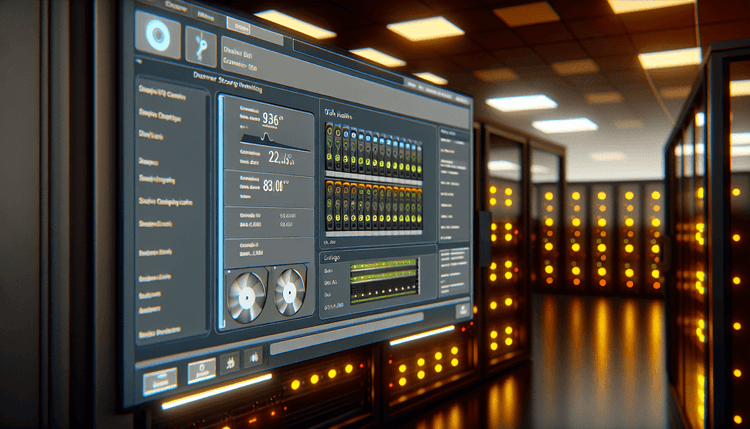
Windows server monitoring setup displaying Event Viewer and system diagnostic tools in a professional data center environment
Event ID 51ErrorDiskWindows

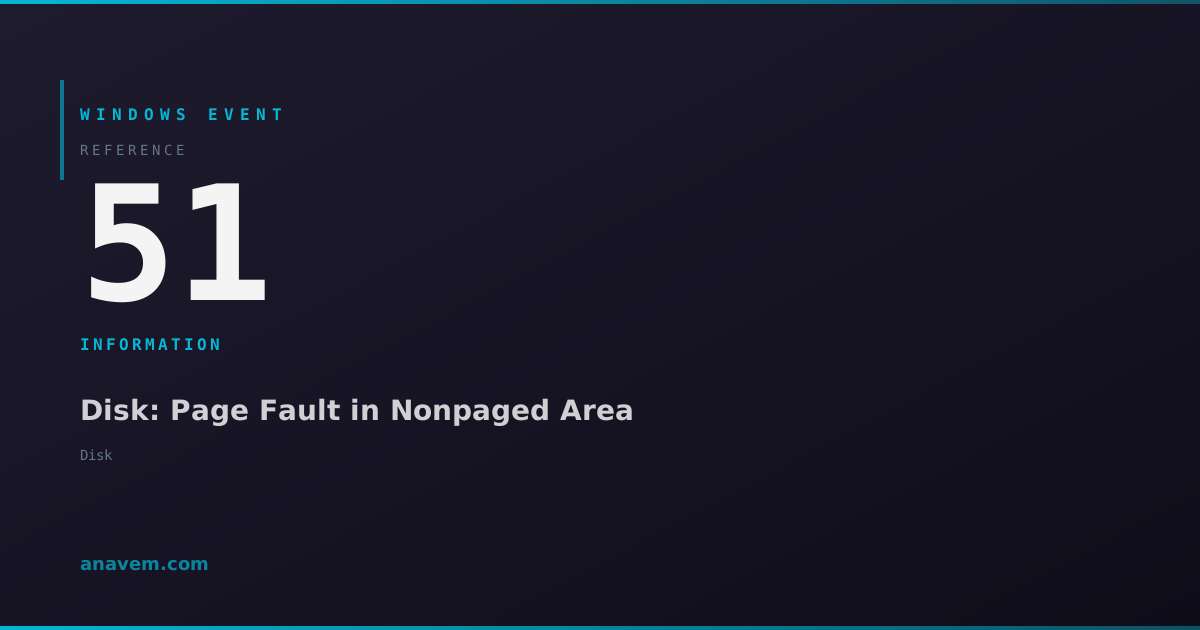
Windows Event ID 51 – Disk: Page Fault in Nonpaged Area

Event ID 51 indicates a critical disk error where Windows encountered a page fault in the nonpaged memory area, typically caused by hardware failures, driver issues, or memory corruption.

Emanuel DE ALMEIDAEmanuel DE ALMEIDA
18 March 202612 min read 0
Event ID 51Disk 5 methods 12 min
Event Reference

What This Event Means

Event ID 51 occurs when Windows kernel encounters a page fault while accessing the nonpaged memory pool during disk operations. The nonpaged pool contains critical system data structures, device driver code, and kernel components that must remain in physical memory at all times. When a page fault occurs in this area, it indicates either memory corruption, hardware failure, or a serious driver bug.

The error mechanism involves the Memory Manager attempting to access a virtual address in the nonpaged pool that either points to invalid memory or has been corrupted. This can happen when disk drivers attempt to access their data structures, when the file system cache manager performs operations, or when storage miniport drivers handle I/O requests. The fault triggers an immediate error condition that Windows logs as Event ID 51.

In modern Windows systems (2024-2026), this event has become more sophisticated with enhanced telemetry and better error reporting. Windows 11 22H2 and later versions include improved memory diagnostics that can often identify the specific component causing the fault. The event now includes additional context about the memory address, the faulting module, and the specific disk operation that triggered the error.

The implications of this event are severe. Systems experiencing Event ID 51 are at high risk of data corruption, unexpected shutdowns, and complete system failure. The error often indicates imminent hardware failure, particularly in storage controllers, RAM modules, or the motherboard itself. In virtualized environments, this event can indicate problems with the hypervisor's storage stack or the underlying physical storage infrastructure.

Applies to

Windows 10Windows 11Windows Server 2019/2022/2025
Analysis

Possible Causes

  • Failing RAM modules - Corrupted memory cells in system RAM causing page faults during disk operations
  • Defective storage controllers - SATA, SCSI, or NVMe controllers with firmware bugs or hardware failures
  • Outdated or corrupt disk drivers - Storage miniport drivers with memory management bugs
  • Overheating components - CPU, RAM, or storage controller overheating causing intermittent failures
  • Power supply instability - Insufficient or unstable power delivery to storage subsystems
  • Motherboard issues - Failing chipset components or damaged PCIe slots affecting storage communication
  • Firmware corruption - Corrupted BIOS/UEFI firmware affecting memory management
  • Virtual machine configuration errors - Incorrect memory or storage allocation in hypervisor environments
  • Third-party filter drivers - Antivirus or backup software drivers interfering with disk operations
Resolution Methods

Troubleshooting Steps

01

Check Event Viewer and System Health

Start by examining the complete event details and correlating with other system events:

  1. Open Event ViewerWindows LogsSystem
  2. Filter for Event ID 51 using the filter option in the right panel
  3. Examine the event details for specific error codes and memory addresses
  4. Run PowerShell as administrator and execute:
Get-WinEvent -FilterHashtable @{LogName='System'; Id=51} -MaxEvents 20 | Format-Table TimeCreated, LevelDisplayName, Message -Wrap

Look for patterns in timing and frequency. Check for related events:

Get-WinEvent -FilterHashtable @{LogName='System'; Id=@(51,41,1001,1003)} -MaxEvents 50 | Sort-Object TimeCreated

Run Windows Memory Diagnostic:

mdsched.exe

Schedule a restart to perform memory testing. After reboot, check results in Event Viewer under Windows LogsSystem for Event ID 1201.

02

Analyze Storage Hardware and Drivers

Investigate storage subsystem components and update drivers:

  1. Check disk health using built-in tools:
Get-PhysicalDisk | Get-StorageReliabilityCounter | Format-Table DeviceId, Temperature, ReadErrorsTotal, WriteErrorsTotal

Run CHKDSK on system drives:

chkdsk C: /f /r /x
  1. Update storage controller drivers through Device Manager or manufacturer websites
  2. Check storage controller firmware versions:
Get-WmiObject -Class Win32_SCSIController | Select-Object Name, DriverVersion, DriverDate

For NVMe drives, use manufacturer tools or PowerShell:

Get-PhysicalDisk | Where-Object {$_.BusType -eq 'NVMe'} | Get-StorageReliabilityCounter
  1. Disable write caching temporarily to test stability:
Get-PhysicalDisk | Set-PhysicalDisk -WriteCacheEnabled $false
Warning: Disabling write cache may impact performance but can help identify hardware issues.
03

Perform Advanced Memory Diagnostics

Conduct comprehensive memory testing beyond basic Windows diagnostics:

  1. Run extended memory test using PowerShell:
bcdedit /set {default} bootmenupolicy legacy
bcdedit /set {memdiag} passcount 3

Reboot and select Windows Memory Diagnostic from boot menu for extended testing.

  1. Check memory configuration and timing:
Get-WmiObject -Class Win32_PhysicalMemory | Select-Object Capacity, Speed, ConfiguredClockSpeed, ConfiguredVoltage
  1. Analyze memory dump files if available:
Get-ChildItem C:\Windows\Minidump\*.dmp | Sort-Object LastWriteTime -Descending | Select-Object -First 5

Use WinDbg or BlueScreenView to analyze dump files for memory-related errors.

  1. Test individual memory modules by removing them one at a time
  2. Check memory slots by moving modules to different slots
  3. Verify memory compatibility with motherboard specifications
Pro tip: Use MemTest86+ for thorough memory testing outside of Windows environment.
04

Investigate System Temperature and Power

Examine thermal and power-related causes of memory corruption:

  1. Monitor system temperatures using PowerShell WMI:
Get-WmiObject -Namespace "root/OpenHardwareMonitor" -Class Sensor | Where-Object {$_.SensorType -eq "Temperature"} | Select-Object Name, Value

If OpenHardwareMonitor is not available, check Event Logs for thermal events:

Get-WinEvent -FilterHashtable @{LogName='System'; Id=@(6008,41,1074)} | Where-Object {$_.Message -like "*thermal*" -or $_.Message -like "*temperature*"}
  1. Check power supply stability through Event Viewer:
Get-WinEvent -FilterHashtable @{LogName='System'; Id=@(6008,41)} -MaxEvents 20
  1. Verify CPU and memory voltage settings in BIOS/UEFI
  2. Clean system fans and heat sinks
  3. Check power supply wattage and efficiency ratings
  4. Monitor system during stress testing:
typeperf "\Processor(_Total)\% Processor Time" "\Memory\Available MBytes" -si 5 -sc 60
Warning: Overheating can cause permanent hardware damage. Address thermal issues immediately.
05

Advanced Registry and Driver Analysis

Perform deep system analysis for driver conflicts and registry corruption:

  1. Check for problematic filter drivers:
Get-ItemProperty -Path "HKLM:\SYSTEM\CurrentControlSet\Control\Class\{4d36e967-e325-11ce-bfc1-08002be10318}" -Name UpperFilters, LowerFilters -ErrorAction SilentlyContinue
  1. Analyze driver verifier settings:
verifier /query

Enable driver verifier for storage drivers (use with caution):

verifier /standard /driver storport.sys storahci.sys
  1. Check system file integrity:
sfc /scannow
Dism /Online /Cleanup-Image /RestoreHealth
  1. Examine memory pool usage:
Get-Counter "\Memory\Pool Nonpaged Bytes" -SampleInterval 5 -MaxSamples 12
  1. Review registry for storage-related corruption:
reg query "HKLM\SYSTEM\CurrentControlSet\Services" /s /f "disk" /k

Back up critical registry keys before making changes:

reg export "HKLM\SYSTEM\CurrentControlSet\Services" C:\backup\services_backup.reg
Pro tip: Use Process Monitor (ProcMon) to capture real-time file system and registry activity during Event ID 51 occurrences.

Overview

Event ID 51 from the Disk source represents one of the most serious disk-related errors in Windows systems. This event fires when the operating system encounters a page fault in the nonpaged memory area during disk operations. The nonpaged pool is a critical section of system memory that must always remain in physical RAM and cannot be swapped to disk. When Windows attempts to access this memory during disk I/O operations and encounters a fault, it generates this error event.

This error typically manifests during high disk activity or when the system is under memory pressure. The event often precedes system crashes, blue screens, or severe performance degradation. Unlike informational disk events, Event ID 51 indicates actual hardware or driver-level problems that require immediate attention. The error can affect both physical and virtual disk operations, making it particularly problematic in virtualized environments where storage performance is critical.

System administrators frequently encounter this event in enterprise environments with aging hardware, misconfigured storage controllers, or systems running intensive disk operations. The event appears in the System log and often correlates with other critical system events, making it a key indicator for proactive system maintenance and hardware replacement planning.

Frequently Asked Questions

What does Event ID 51 mean and how serious is it?+
Event ID 51 indicates a page fault in the nonpaged memory area during disk operations, which is a critical error. This means Windows tried to access system memory that should always be available but encountered a fault. It's extremely serious because it often precedes system crashes, data corruption, or complete hardware failure. The nonpaged pool contains essential system components that must remain in physical memory, so faults here indicate hardware problems, driver issues, or memory corruption that requires immediate attention.
Can Event ID 51 cause data loss or corruption?+
Yes, Event ID 51 can definitely lead to data loss and corruption. When page faults occur in the nonpaged memory area during disk operations, it can interrupt write operations, corrupt file system structures, or cause incomplete transactions. The error often indicates failing hardware components like RAM or storage controllers, which can corrupt data during read/write operations. Always ensure you have current backups when dealing with Event ID 51, and avoid performing critical operations until the underlying cause is resolved.
How do I distinguish between hardware and software causes of Event ID 51?+
Hardware causes typically show patterns related to temperature, power, or physical component failure. Run memory diagnostics, check system temperatures, and test with minimal hardware configurations. Software causes often correlate with recent driver updates, new software installations, or specific applications. Use Driver Verifier to identify problematic drivers, check for recent system changes in Event Viewer, and test in Safe Mode. Hardware issues usually persist across different software configurations, while software issues may disappear with driver rollbacks or clean boot scenarios.
Why does Event ID 51 occur more frequently in virtual machines?+
Virtual machines are more susceptible to Event ID 51 because they rely on the hypervisor's memory management and storage virtualization layers. Issues can arise from overcommitted host memory, storage latency in virtualized environments, or bugs in virtual storage drivers. VM snapshots, dynamic memory allocation, and shared storage can create conditions that trigger page faults. Additionally, host system problems (like failing physical RAM) can manifest as Event ID 51 in guest VMs. Always check both guest and host system health when troubleshooting this error in virtualized environments.
What preventive measures can reduce Event ID 51 occurrences?+
Implement regular hardware monitoring including memory testing, temperature monitoring, and storage health checks using tools like Get-PhysicalDisk and storage vendor utilities. Keep drivers updated, especially storage and chipset drivers. Maintain proper system cooling and ensure adequate power supply capacity. Use ECC memory in critical systems when possible. Implement proactive monitoring with PowerShell scripts to track memory pool usage and disk performance counters. Regular system maintenance including disk cleanup, registry optimization, and driver updates can prevent many software-related causes. In enterprise environments, establish hardware replacement schedules based on age and error frequency patterns.
Documentation

References (2)

Emanuel DE ALMEIDA
Written by

Emanuel DE ALMEIDA

Senior IT Journalist & Cloud Architect

Microsoft MCSA-certified Cloud Architect | Fortinet-focused. I modernize cloud, hybrid & on-prem infrastructure for reliability, security, performance and cost control - sharing field-tested ops & troubleshooting.

Discussion

Share your thoughts and insights

You must be logged in to comment.

Loading comments...