ANAVEM
Languagefr
Server room with emergency lighting and monitoring station showing Windows Event Viewer with critical power event alerts
Event ID 44CriticalKernel-PowerWindows

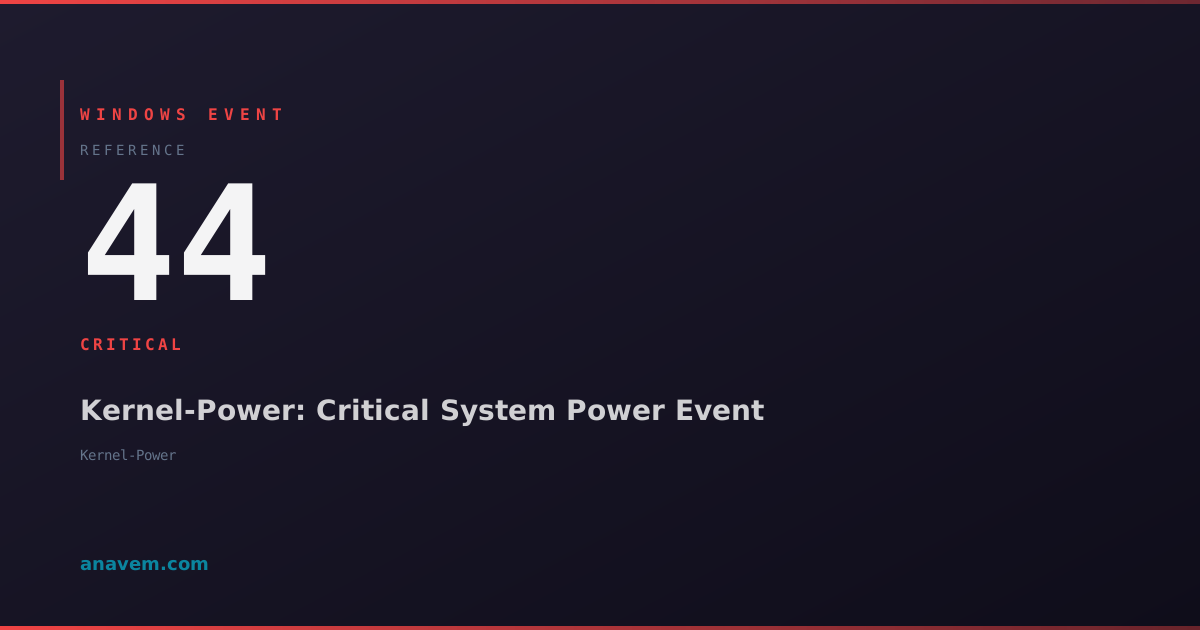
Windows Event ID 44 – Kernel-Power: Critical System Power Event

Event ID 44 from Kernel-Power indicates a critical system power event, typically recording unexpected shutdowns, power failures, or system crashes that prevent proper shutdown procedures.

Emanuel DE ALMEIDAEmanuel DE ALMEIDA
18 March 202612 min read 0
Event ID 44Kernel-Power 5 methods 12 min
Event Reference

What This Event Means

Event ID 44 serves as Windows' mechanism for documenting critical power events that bypass normal shutdown procedures. The event is generated during the next system boot when Windows detects that the previous session ended abnormally. The kernel examines various system states and determines that a critical power event occurred, logging this information for administrative review.

The event typically contains crucial diagnostic information including the system's last known good state, power button context, and timing data that helps administrators understand what led to the unexpected shutdown. This information proves invaluable when troubleshooting recurring stability issues or investigating potential hardware failures.

In enterprise environments, Event ID 44 patterns can reveal systemic issues affecting multiple machines, such as UPS failures, power grid instabilities, or widespread driver problems. The event's critical severity level ensures it receives appropriate attention in monitoring systems and automated alerting platforms.

Modern Windows versions in 2026 have enhanced the diagnostic capabilities around Event ID 44, providing more granular details about system state at the time of the power event. This includes memory dump correlation, driver activity logs, and power management state information that wasn't available in earlier Windows versions.

Applies to

Windows 10Windows 11Windows Server 2019/2022/2025
Analysis

Possible Causes

  • Sudden power loss or electrical outages affecting the system
  • Hardware failures including power supply unit malfunctions or motherboard issues
  • System overheating causing automatic thermal shutdowns
  • Blue Screen of Death (BSOD) events that force immediate system restart
  • Forced shutdowns via power button hold or reset button activation
  • Driver crashes or kernel-level software failures preventing normal shutdown
  • UPS battery depletion during extended power outages
  • Memory hardware failures causing system instability
  • Critical system service crashes that trigger emergency shutdown procedures
  • Malware or system corruption preventing proper shutdown sequences
Resolution Methods

Troubleshooting Steps

01

Examine Event Details in Event Viewer

Start by gathering detailed information about the Event ID 44 occurrence through Event Viewer analysis.

  1. Open Event Viewer by pressing Win + R, typing eventvwr.msc, and pressing Enter
  2. Navigate to Windows LogsSystem
  3. Filter the current log by clicking Filter Current Log in the Actions pane
  4. Enter 44 in the Event IDs field and click OK
  5. Double-click the most recent Event ID 44 entry to view detailed information
  6. Examine the General tab for timestamp, computer name, and basic event data
  7. Check the Details tab for XML view containing additional diagnostic information
  8. Note the EventData section which may contain power button context and system state information

Use PowerShell for more advanced filtering and analysis:

Get-WinEvent -FilterHashtable @{LogName='System'; Id=44} -MaxEvents 20 | Format-Table TimeCreated, Id, LevelDisplayName, Message -Wrap
Pro tip: Export Event ID 44 entries to CSV for trend analysis using Get-WinEvent -FilterHashtable @{LogName='System'; Id=44} | Export-Csv -Path C:\temp\event44.csv -NoTypeInformation
02

Check System Hardware and Power Components

Investigate hardware components that commonly cause Event ID 44 occurrences.

  1. Verify power supply unit (PSU) stability by checking voltage outputs using hardware monitoring tools
  2. Run Windows Memory Diagnostic to test RAM integrity:
    mdsched.exe
  3. Check system temperatures using built-in thermal monitoring:
    Get-WmiObject -Namespace "root/wmi" -Class MSAcpi_ThermalZoneTemperature | Select-Object -Property InstanceName, CurrentTemperature
  4. Examine Device Manager for hardware conflicts or driver issues by running devmgmt.msc
  5. Review System Information for hardware details:
    msinfo32.exe
  6. Test hard drive health using Check Disk utility:
    chkdsk C: /f /r
  7. Verify UPS functionality if connected, including battery capacity and power management settings
Warning: Schedule memory diagnostics and disk checks during maintenance windows as they require system restarts and can take several hours to complete.
03

Analyze Crash Dumps and System Files

Examine system crash dumps and related files to identify the root cause of critical power events.

  1. Check for memory dump files in the default location:
    Get-ChildItem -Path "C:\Windows\Minidump\" -ErrorAction SilentlyContinue | Sort-Object LastWriteTime -Descending
  2. Verify dump file settings in System Properties:
    • Right-click This PCPropertiesAdvanced system settings
    • Click Settings under Startup and Recovery
    • Ensure "Write an event to the system log" is checked
    • Set dump file type to "Small memory dump" or "Kernel memory dump"
  3. Use Windows Debugger (WinDbg) to analyze dump files if available:
    # Install WinDbg from Microsoft Store or Windows SDK
    # Open dump file and run basic analysis
    !analyze -v
  4. Check System File Checker for corruption:
    sfc /scannow
  5. Run Deployment Image Servicing and Management tool:
    DISM /Online /Cleanup-Image /CheckHealth
    DISM /Online /Cleanup-Image /ScanHealth
  6. Review Windows Error Reporting logs:
    Get-WinEvent -FilterHashtable @{LogName='Application'; ProviderName='Windows Error Reporting'} -MaxEvents 10
04

Configure Advanced Power Management and Monitoring

Implement comprehensive power management settings and monitoring to prevent future Event ID 44 occurrences.

  1. Configure power options through Control Panel or PowerShell:
    # View current power scheme
    powercfg /query
    
    # Set high performance power scheme
    powercfg /setactive 8c5e7fda-e8bf-4a96-9a85-a6e23a8c635c
    
    # Disable fast startup which can cause power issues
    powercfg /hibernate off
  2. Adjust advanced power settings:
    • Open Control PanelPower OptionsChange plan settings
    • Click Change advanced power settings
    • Expand PCI ExpressLink State Power Management and set to "Off"
    • Under Processor power management, set minimum processor state to 100%
  3. Configure system event monitoring:
    # Create custom event log filter for power events
    $FilterXML = @"


    "@
    
    Get-WinEvent -FilterXml $FilterXML -MaxEvents 50
  4. Set up Task Scheduler to monitor Event ID 44:
    • Open Task Scheduler and create a new task
    • Set trigger to "On an event" with Log: System, Source: Kernel-Power, Event ID: 44
    • Configure action to send email notification or run diagnostic script
  5. Enable detailed power logging:
    # Enable power troubleshooter logging
    powercfg /energy /output C:\temp\energy-report.html
    powercfg /batteryreport /output C:\temp\battery-report.html
Pro tip: Use powercfg /requests to identify applications preventing system sleep or shutdown, which can contribute to power-related issues.
05

Implement Enterprise-Level Monitoring and Prevention

Deploy comprehensive monitoring solutions for enterprise environments experiencing frequent Event ID 44 occurrences.

  1. Configure Windows Event Forwarding (WEF) for centralized monitoring:
    # On collector server, configure subscription
    wecutil cs PowerEventSubscription.xml
    
    # Enable Windows Remote Management on source computers
    winrm quickconfig
    wecutil qc
  2. Create PowerShell monitoring script for automated analysis:
    # PowerShell script to monitor and report Event ID 44
    $Events = Get-WinEvent -FilterHashtable @{LogName='System'; Id=44; StartTime=(Get-Date).AddDays(-7)}
    
    foreach ($Event in $Events) {
        $EventXML = [xml]$Event.ToXml()
        $Output = [PSCustomObject]@{
            TimeCreated = $Event.TimeCreated
            Computer = $Event.MachineName
            EventID = $Event.Id
            Message = $Event.Message
            PowerButtonTimestamp = $EventXML.Event.EventData.Data | Where-Object {$_.Name -eq 'PowerButtonTimestamp'} | Select-Object -ExpandProperty '#text'
        }
        $Output | Export-Csv -Path "C:\Logs\Event44Analysis.csv" -Append -NoTypeInformation
    }
  3. Configure Group Policy for power management across domain:
    • Open Group Policy Management Console
    • Navigate to Computer ConfigurationAdministrative TemplatesSystemPower Management
    • Configure "Select an active power plan" policy
    • Set "Turn off the display" and "Put the computer to sleep" timeouts
  4. Implement System Center Operations Manager (SCOM) or equivalent monitoring:
    • Create custom management pack for Event ID 44 monitoring
    • Configure alert rules with appropriate severity levels
    • Set up automated response actions for critical power events
  5. Deploy hardware monitoring agents:
    # Example using WMI for temperature monitoring
    $ThermalInfo = Get-WmiObject -Namespace "root\wmi" -Class MSAcpi_ThermalZoneTemperature
    $ThermalInfo | ForEach-Object {
        $TempCelsius = ($_.CurrentTemperature / 10) - 273.15
        Write-Output "Zone: $($_.InstanceName) - Temperature: $([math]::Round($TempCelsius, 2))°C"
    }
Warning: Enterprise monitoring solutions require proper security configuration and may impact system performance. Test thoroughly in non-production environments before deployment.

Overview

Event ID 44 from the Kernel-Power source represents one of the most critical system events in Windows logging. This event fires when the system experiences an unexpected power loss, hard crash, or forced shutdown that prevents the normal shutdown sequence from completing. Unlike graceful shutdowns that generate Event ID 1074, Event ID 44 indicates the system was unable to properly close applications, flush buffers, or complete standard shutdown procedures.

The Kernel-Power source manages all power-related events at the kernel level, making Event ID 44 particularly significant for system stability analysis. When this event appears in your System log, it signals that something prevented your system from shutting down normally - whether due to hardware failure, power supply issues, driver crashes, or forced shutdowns via power button holds.

This event commonly appears after Blue Screen of Death (BSOD) incidents, sudden power outages, overheating situations, or when users perform hard resets. System administrators use Event ID 44 as a primary indicator for investigating system reliability issues and identifying patterns in unexpected shutdowns that could indicate underlying hardware or software problems.

Frequently Asked Questions

What does Event ID 44 mean and how is it different from other shutdown events?+
Event ID 44 from Kernel-Power indicates a critical system power event where the system was unable to complete a normal shutdown sequence. Unlike Event ID 1074 which logs planned shutdowns, or Event ID 6008 which indicates unexpected shutdowns, Event ID 44 specifically focuses on power-related critical events. This event is generated when Windows detects that the previous session ended due to power loss, hardware failure, or system crash that prevented proper shutdown procedures. The event provides crucial diagnostic information about the system's state at the time of the power event, making it essential for troubleshooting system stability issues.
How can I determine what caused Event ID 44 to occur on my system?+
To determine the cause of Event ID 44, start by examining the event details in Event Viewer, focusing on the timestamp and any additional data in the XML view. Check for corresponding events around the same time, particularly Blue Screen events (Event ID 1001), application crashes, or hardware errors. Use PowerShell commands like 'Get-WinEvent -FilterHashtable @{LogName='System'; Id=44}' to analyze patterns. Review system hardware including power supply, memory, and temperature sensors. Check for memory dump files in C:\Windows\Minidump\ and analyze them with debugging tools. Correlate the timing with any recent software installations, driver updates, or environmental changes like power outages.
Is Event ID 44 always a sign of hardware problems?+
No, Event ID 44 is not always indicative of hardware problems, though hardware issues are common causes. Software-related causes include driver crashes, kernel-level software failures, malware infections, or system file corruption that prevents normal shutdown. User actions like forced shutdowns via power button, system overloads causing thermal shutdowns, or UPS battery depletion during power outages can also trigger this event. However, recurring Event ID 44 occurrences often point to underlying hardware issues such as failing power supplies, memory problems, or motherboard instabilities. The key is to analyze the pattern and frequency of occurrences along with other system events to determine whether the root cause is hardware or software-related.
How often should I expect to see Event ID 44 in a healthy Windows system?+
In a healthy Windows system, Event ID 44 should be extremely rare. Ideally, you should see this event only during legitimate power outages or planned maintenance activities that involve forced shutdowns. If you're seeing Event ID 44 more than once per month without corresponding power outages or maintenance activities, this indicates potential system stability issues that require investigation. Frequent occurrences (weekly or daily) suggest serious hardware problems, driver issues, or environmental factors affecting system stability. In enterprise environments, establish baseline monitoring to track Event ID 44 frequency across your infrastructure, as patterns can reveal systemic issues affecting multiple systems.
Can Event ID 44 cause data loss, and how can I prevent it?+
Yes, Event ID 44 can potentially cause data loss because it represents situations where the system couldn't complete normal shutdown procedures, including flushing file buffers, closing applications properly, or saving unsaved work. To prevent data loss, implement regular automated backups, configure applications to auto-save frequently, and use UPS systems to provide clean power during outages. Enable system file protection and configure appropriate virtual memory settings. For critical systems, consider implementing high-availability solutions like clustering or redundant hardware. Use 'powercfg /energy' and 'powercfg /batteryreport' commands to identify power-related issues before they cause critical events. Most importantly, address the root causes of Event ID 44 occurrences promptly rather than accepting them as normal system behavior.
Documentation

References (2)

Emanuel DE ALMEIDA
Written by

Emanuel DE ALMEIDA

Senior IT Journalist & Cloud Architect

Microsoft MCSA-certified Cloud Architect | Fortinet-focused. I modernize cloud, hybrid & on-prem infrastructure for reliability, security, performance and cost control - sharing field-tested ops & troubleshooting.

Discussion

Share your thoughts and insights

You must be logged in to comment.

Loading comments...