ANAVEM
Languagefr
Windows Services management console showing service status and configuration on a monitoring dashboard
Event ID 7011ErrorService Control ManagerWindows

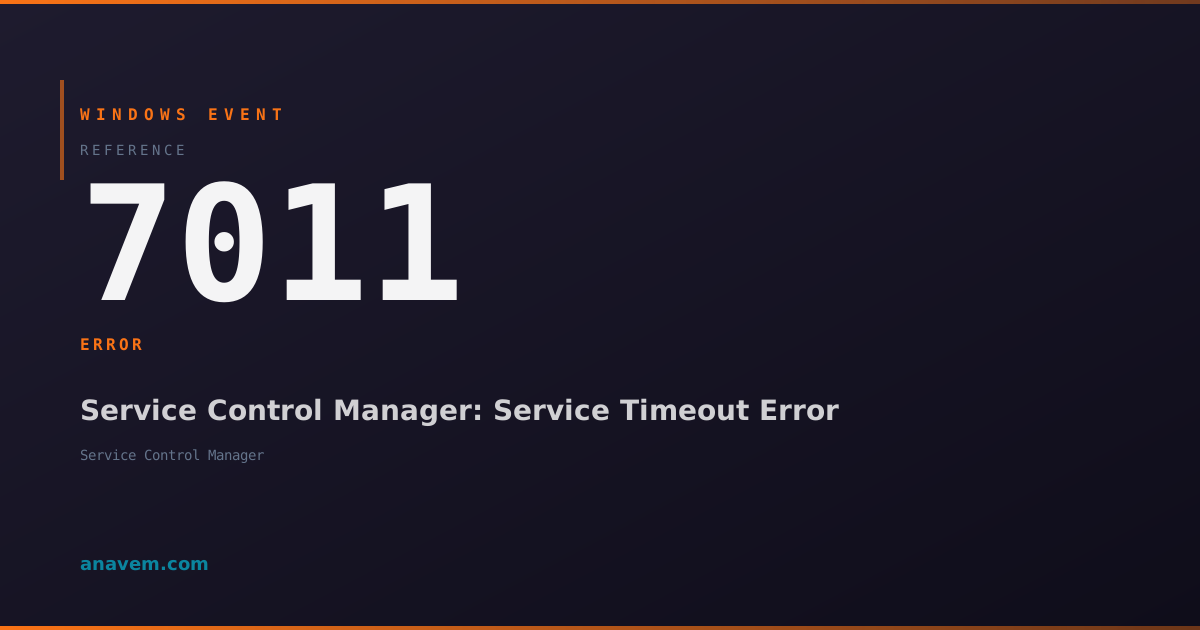
Windows Event ID 7011 – Service Control Manager: Service Timeout Error

Event ID 7011 indicates a Windows service failed to respond within the configured timeout period during startup, shutdown, or control operations, requiring investigation of service dependencies and system performance.

Emanuel DE ALMEIDAEmanuel DE ALMEIDA
18 March 20269 min read 0
Event ID 7011Service Control Manager 5 methods 9 min
Event Reference

What This Event Means

The Service Control Manager generates Event ID 7011 when it sends a control request to a service and doesn't receive a response within the allocated timeout window. This mechanism protects the system from hanging indefinitely while waiting for unresponsive services. The SCM tracks various timeout scenarios including service startup, shutdown, pause, continue, and custom control codes.

When a service receives a control request, it must acknowledge the request and update its status within the timeout period. Services that perform lengthy initialization routines, database connections, or network operations are particularly susceptible to timeout errors. The event details include the service name, the specific control operation that timed out, and the configured timeout value.

In Windows Server environments, this event often correlates with resource contention, especially during peak usage periods or when multiple services start simultaneously. The SCM uses different timeout values for different operations - startup timeouts are typically longer than shutdown timeouts to accommodate complex initialization procedures. Modern Windows versions in 2026 include enhanced timeout management and better diagnostic information to help administrators identify root causes more effectively.

Applies to

Windows 10Windows 11Windows Server 2019/2022/2025
Analysis

Possible Causes

  • Service performing lengthy initialization or cleanup operations that exceed timeout limits
  • High system load causing services to respond slowly to control requests
  • Database connectivity issues preventing services from completing startup procedures
  • Network latency or connectivity problems affecting network-dependent services
  • Insufficient system resources (CPU, memory, or disk I/O) during service operations
  • Service dependencies not being met, causing cascading timeout failures
  • Antivirus or security software interfering with service operations
  • Registry corruption affecting service configuration or startup parameters
  • Hardware issues such as failing storage devices causing slow disk operations
Resolution Methods

Troubleshooting Steps

01

Check Event Viewer for Service Details

Start by examining the specific service and operation that triggered the timeout:

  1. Open Event ViewerWindows LogsSystem
  2. Filter for Event ID 7011 using the filter option
  3. Double-click the most recent 7011 event to view details
  4. Note the service name and timeout operation in the event description
  5. Check for related events before and after the 7011 error

Use PowerShell to query recent timeout events:

Get-WinEvent -FilterHashtable @{LogName='System'; Id=7011} -MaxEvents 20 | Format-Table TimeCreated, Message -Wrap

Look for patterns in the service names and timing to identify if specific services consistently timeout or if the issue occurs during particular system states.

02

Analyze Service Configuration and Dependencies

Investigate the problematic service's configuration and dependency chain:

  1. Open Services.msc and locate the service mentioned in Event ID 7011
  2. Right-click the service and select Properties
  3. Check the Dependencies tab to identify required services
  4. Verify all dependencies are running and healthy
  5. Review the service's startup type and account configuration

Use PowerShell to examine service details:

Get-Service -Name "ServiceName" | Format-List *
Get-WmiObject Win32_Service -Filter "Name='ServiceName'" | Select-Object Name, StartMode, State, StartName, PathName

Check service dependencies programmatically:

$service = Get-WmiObject Win32_Service -Filter "Name='ServiceName'"
$service.GetRelated('Win32_DependentService') | Select-Object Name, State
03

Monitor System Performance During Service Operations

Use Performance Monitor to identify resource bottlenecks affecting service response times:

  1. Open Performance Monitor (perfmon.exe)
  2. Add counters for Processor% Processor Time
  3. Add MemoryAvailable MBytes
  4. Add PhysicalDisk% Disk Time and Avg. Disk Queue Length
  5. Monitor during service startup or when timeouts typically occur

Create a custom data collector set for automated monitoring:

$counterPath = @(
    "\Processor(_Total)\% Processor Time",
    "\Memory\Available MBytes",
    "\PhysicalDisk(_Total)\% Disk Time"
)
Get-Counter -Counter $counterPath -SampleInterval 5 -MaxSamples 60

Check for memory pressure and disk I/O issues that commonly cause service timeouts in high-load scenarios.

04

Adjust Service Timeout Registry Settings

Modify timeout values in the registry to accommodate services that require longer initialization times:

Warning: Always backup the registry before making changes. Incorrect modifications can cause system instability.
  1. Open Registry Editor (regedit.exe) as Administrator
  2. Navigate to HKLM\SYSTEM\CurrentControlSet\Control
  3. Create or modify the DWORD value ServicesPipeTimeout
  4. Set the value to the desired timeout in milliseconds (default is 30000 for 30 seconds)
  5. Restart the system for changes to take effect

Use PowerShell to check and modify the timeout setting:

# Check current timeout value
Get-ItemProperty -Path "HKLM:\SYSTEM\CurrentControlSet\Control" -Name "ServicesPipeTimeout" -ErrorAction SilentlyContinue

# Set timeout to 60 seconds (60000 milliseconds)
Set-ItemProperty -Path "HKLM:\SYSTEM\CurrentControlSet\Control" -Name "ServicesPipeTimeout" -Value 60000 -Type DWord

For specific services, you can also modify individual service timeout settings in their registry keys under HKLM\SYSTEM\CurrentControlSet\Services\[ServiceName].

05

Advanced Service Debugging and Process Analysis

Perform detailed analysis of service behavior using advanced debugging tools:

  1. Enable service failure logging by modifying the service's failure actions
  2. Use Process Monitor (ProcMon) to track file and registry access during service startup
  3. Configure Windows Error Reporting to capture service crash dumps
  4. Analyze service executable with dependency walker to identify missing DLLs

Create a comprehensive service monitoring script:

# Monitor service status and performance
$serviceName = "YourServiceName"
$service = Get-Service -Name $serviceName

while ($true) {
    $process = Get-Process -Name $service.ServiceName -ErrorAction SilentlyContinue
    if ($process) {
        $cpuUsage = (Get-Counter "\Process($($process.ProcessName))\% Processor Time").CounterSamples.CookedValue
        $memoryUsage = $process.WorkingSet64 / 1MB
        Write-Host "$(Get-Date): CPU: $cpuUsage%, Memory: $([math]::Round($memoryUsage, 2)) MB"
    }
    Start-Sleep -Seconds 10
}

Use Windows Performance Toolkit (WPT) for advanced tracing:

# Start ETW tracing for service analysis
wpr.exe -start GeneralProfile -filemode
# Reproduce the timeout issue
wpr.exe -stop ServiceTimeout.etl

Overview

Event ID 7011 fires when the Service Control Manager (SCM) determines that a Windows service has failed to respond within the configured timeout period. This timeout error typically occurs during service startup, shutdown, or when the SCM sends control requests to running services. The default timeout for most service operations is 30 seconds, though this can vary based on service configuration and system load.

This event commonly appears in high-load environments, during system startup with many services competing for resources, or when services encounter internal errors that prevent them from responding to SCM requests. The affected service may continue running but becomes unresponsive to management commands, potentially impacting dependent services and applications.

Understanding Event ID 7011 is crucial for maintaining service reliability and diagnosing performance bottlenecks. The event provides specific details about which service timed out and the operation that failed, enabling targeted troubleshooting approaches.

Frequently Asked Questions

What does Event ID 7011 mean and when does it occur?+
Event ID 7011 indicates that a Windows service failed to respond to a control request within the configured timeout period. This occurs when the Service Control Manager sends commands like start, stop, pause, or continue to a service, but the service doesn't acknowledge the request within the allocated time frame (typically 30 seconds). The event helps identify services that are hanging, overloaded, or experiencing internal errors that prevent normal operation.
How can I identify which specific service is causing Event ID 7011 errors?+
The service name is included in the Event ID 7011 message details. Open Event Viewer, navigate to System logs, and double-click the 7011 event to see the full description. You can also use PowerShell: Get-WinEvent -FilterHashtable @{LogName='System'; Id=7011} | Select-Object TimeCreated, Message. The message will contain the exact service name and the operation that timed out, allowing you to focus your troubleshooting efforts on that specific service.
Is it safe to increase the service timeout values to resolve Event ID 7011?+
Increasing timeout values can be safe but should be done carefully. While extending timeouts may resolve legitimate cases where services need more time to initialize, it can also mask underlying performance issues. Before increasing timeouts, investigate the root cause - check system resources, service dependencies, and network connectivity. If you do increase timeouts, use reasonable values (60-120 seconds maximum) and monitor system behavior. The registry setting ServicesPipeTimeout affects all services globally, so consider the impact on overall system responsiveness.
Can Event ID 7011 cause system instability or affect other services?+
Yes, Event ID 7011 can impact system stability, especially when it affects critical services or services with many dependencies. When a service times out, dependent services may fail to start or function properly, creating a cascading failure effect. The Service Control Manager may attempt to restart failed services, potentially causing resource contention. In severe cases, repeated timeout errors can lead to system slowdowns or require manual intervention to restore normal operation. Monitor for patterns of multiple services timing out simultaneously, which often indicates broader system resource issues.
What are the most common causes of Event ID 7011 in modern Windows environments?+
The most frequent causes include: insufficient system resources during startup (CPU, memory, or disk I/O bottlenecks), network connectivity issues for services that connect to databases or external systems, antivirus software interfering with service operations, and services with complex initialization routines that exceed default timeout limits. In virtualized environments, resource contention and storage latency are common culprits. Database-dependent services often timeout during peak usage periods or when database servers are slow to respond. Modern Windows versions in 2026 have improved resource management, but legacy applications and custom services may still experience timeout issues under load.
Documentation

References (2)

Emanuel DE ALMEIDA
Written by

Emanuel DE ALMEIDA

Senior IT Journalist & Cloud Architect

Microsoft MCSA-certified Cloud Architect | Fortinet-focused. I modernize cloud, hybrid & on-prem infrastructure for reliability, security, performance and cost control - sharing field-tested ops & troubleshooting.

Discussion

Share your thoughts and insights

You must be logged in to comment.

Loading comments...