ANAVEM
Languagefr
Windows Event Viewer displaying system driver error logs on a server monitoring station
Event ID 7041ErrorService Control ManagerWindows

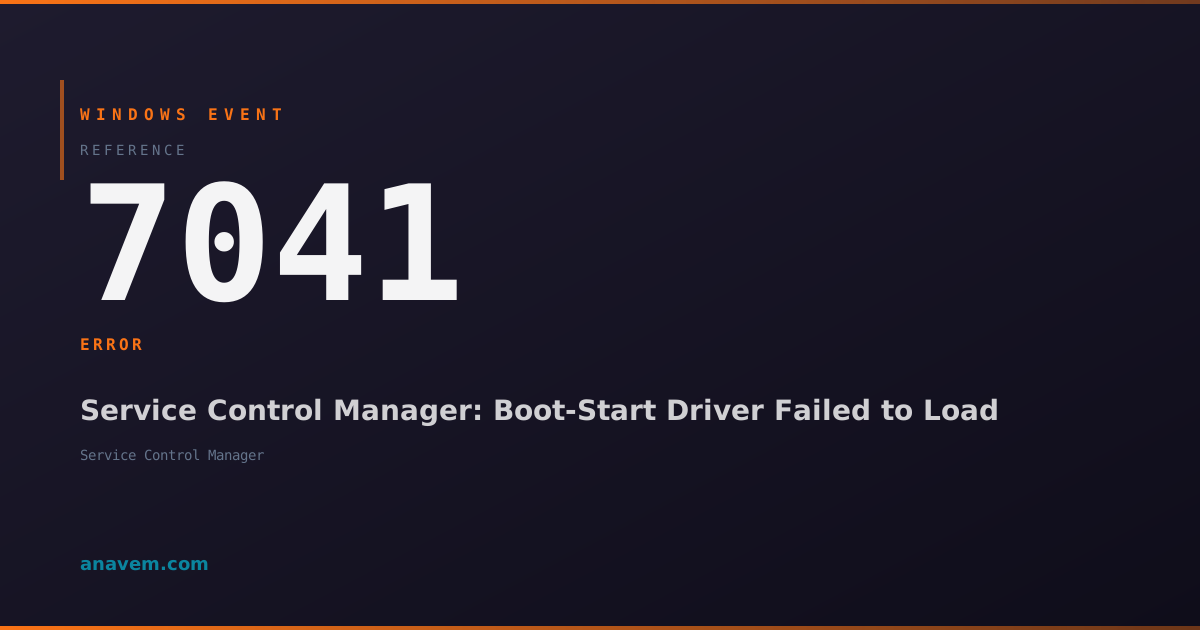
Windows Event ID 7041 – Service Control Manager: Boot-Start Driver Failed to Load

Event ID 7041 indicates a boot-start driver failed to load during system startup. This critical error can prevent hardware functionality and requires immediate investigation to identify the problematic driver.

Emanuel DE ALMEIDAEmanuel DE ALMEIDA
18 March 202612 min read 0
Event ID 7041Service Control Manager 5 methods 12 min
Event Reference

What This Event Means

Windows Event ID 7041 represents a critical system error where the Service Control Manager (SCM) cannot successfully load a boot-start driver during the early stages of system initialization. Boot-start drivers operate at the lowest level of the Windows architecture, loading before most system services and even before the Windows subsystem becomes fully operational.

The Service Control Manager maintains a database of all system services and drivers, including their startup configuration and dependencies. When a driver is configured with a start type of 0 (Boot), Windows attempts to load it during the kernel initialization phase. If this process fails, Event ID 7041 is logged with specific details about the failed driver and the underlying error condition.

This event is particularly concerning because boot-start drivers typically control essential hardware components like storage controllers, network adapters, and security devices. A failure to load these drivers can result in missing hardware, degraded performance, or security vulnerabilities. The error often manifests after driver updates, Windows updates, hardware changes, or system corruption events.

Modern Windows versions have become more stringent about driver signing and compatibility, especially with features like Secure Boot and Device Guard. These security enhancements can trigger Event ID 7041 for drivers that previously worked but no longer meet current security requirements or compatibility standards.

Applies to

Windows 10Windows 11Windows Server 2019/2022/2025
Analysis

Possible Causes

  • Corrupted or missing driver files in the system directory
  • Driver signing issues due to expired certificates or unsigned drivers
  • Hardware compatibility problems with recent Windows updates
  • Registry corruption affecting driver configuration entries
  • Conflicting drivers attempting to control the same hardware
  • Insufficient system resources during boot process
  • Secure Boot policy blocking unsigned or incompatible drivers
  • Driver dependency failures where required components are missing
  • Storage controller issues preventing driver file access
  • Memory corruption affecting driver loading mechanisms
Resolution Methods

Troubleshooting Steps

01

Identify the Failed Driver in Event Viewer

Start by examining the specific Event ID 7041 entry to identify the problematic driver and error details.

  1. Open Event Viewer by pressing Win + R, typing eventvwr.msc, and pressing Enter
  2. Navigate to Windows LogsSystem
  3. Filter the log by clicking Filter Current Log in the Actions pane
  4. Enter 7041 in the Event IDs field and click OK
  5. Double-click the most recent Event ID 7041 entry to view details
  6. Note the driver name in the event description and the specific error code
  7. Use PowerShell to get additional details:
Get-WinEvent -FilterHashtable @{LogName='System'; Id=7041} -MaxEvents 5 | Format-List TimeCreated, Id, LevelDisplayName, Message

Record the driver name and error code for use in subsequent troubleshooting steps. The error code will help determine whether this is a signing issue, corruption problem, or compatibility conflict.

02

Check Driver Status and Dependencies

Verify the current status of the failed driver and examine its dependencies using built-in Windows tools.

  1. Open an elevated Command Prompt or PowerShell session
  2. Check the driver status using the Service Control utility:
sc query [DriverName]
sc qc [DriverName]
  1. Use PowerShell to get detailed driver information:
Get-WindowsDriver -Online | Where-Object {$_.Driver -like "*[DriverName]*"}
Get-PnpDevice | Where-Object {$_.Status -eq "Error"}
  1. Check for driver file integrity:
Get-ChildItem -Path "C:\Windows\System32\drivers\[DriverName].sys" -ErrorAction SilentlyContinue
Get-AuthenticodeSignature "C:\Windows\System32\drivers\[DriverName].sys"
  1. Examine driver dependencies in the registry:
Get-ItemProperty -Path "HKLM:\SYSTEM\CurrentControlSet\Services\[DriverName]" | Select-Object DependOnService, Start, Type

This method helps determine if the issue is related to missing dependencies, incorrect configuration, or file corruption.

03

Run System File Checker and Driver Verification

Use Windows built-in repair tools to check for system file corruption and driver integrity issues.

  1. Open an elevated Command Prompt as Administrator
  2. Run System File Checker to repair corrupted system files:
sfc /scannow
  1. Run DISM to repair the Windows image if SFC finds issues:
DISM /Online /Cleanup-Image /RestoreHealth
  1. Use PowerShell to verify driver signatures:
Get-ChildItem "C:\Windows\System32\drivers\*.sys" | Get-AuthenticodeSignature | Where-Object {$_.Status -ne "Valid"}
  1. Check for driver store corruption:
pnputil /enum-drivers | findstr /i [DriverName]
  1. Verify system integrity with additional checks:
Get-WindowsImage -Online | Select-Object ImageHealth
Repair-WindowsImage -Online -CheckHealth
Pro tip: If SFC finds corrupted files but cannot repair them, the CBS.log file in C:\Windows\Logs\CBS\ contains detailed information about what failed.

Reboot the system after running these commands and check if Event ID 7041 still occurs.

04

Update or Reinstall the Problematic Driver

Replace the failed driver with an updated or clean version from the manufacturer or Windows Update.

  1. Open Device Manager by pressing Win + X and selecting Device Manager
  2. Look for devices with warning icons or check ViewShow hidden devices
  3. Right-click any problematic devices and select Update driver
  4. Use PowerShell to check for available driver updates:
Get-WindowsUpdate -Category Drivers
Install-WindowsUpdate -Category Drivers -AcceptAll
  1. If the driver is not hardware-related, try reinstalling it manually:
pnputil /delete-driver [DriverName].inf /uninstall
pnputil /add-driver [PathToNewDriver].inf /install
  1. For critical system drivers, use DISM to add drivers to the offline image:
DISM /Online /Add-Driver /Driver:[PathToDriver] /ForceUnsigned
  1. Check Windows Update for system updates that might include driver fixes:
Get-WindowsUpdate | Where-Object {$_.Title -like "*driver*"}
Warning: Only use the /ForceUnsigned parameter if you trust the driver source, as it bypasses Windows security checks.

Restart the system and monitor the System log for any remaining Event ID 7041 occurrences.

05

Advanced Registry Analysis and Boot Configuration

Perform deep registry analysis and modify boot configuration to resolve persistent driver loading issues.

  1. Open Registry Editor as Administrator and navigate to the driver's service key:
HKLM\SYSTEM\CurrentControlSet\Services\[DriverName]
  1. Examine critical registry values and backup the key:
$servicePath = "HKLM:\SYSTEM\CurrentControlSet\Services\[DriverName]"
Get-ItemProperty -Path $servicePath | Export-Csv -Path "C:\Temp\driver_backup.csv"
Reg export "HKLM\SYSTEM\CurrentControlSet\Services\[DriverName]" "C:\Temp\driver_backup.reg"
  1. Check for conflicting or duplicate service entries:
Get-ChildItem "HKLM:\SYSTEM\CurrentControlSet\Services" | Where-Object {$_.GetValue("ImagePath") -like "*[DriverName]*"}
  1. Modify the driver start type temporarily for testing:
Set-ItemProperty -Path "HKLM:\SYSTEM\CurrentControlSet\Services\[DriverName]" -Name "Start" -Value 3
  1. Use BCDEdit to modify boot options if needed:
bcdedit /set testsigning on
bcdedit /set nointegritychecks on
  1. Create a custom boot configuration for troubleshooting:
bcdedit /copy {current} /d "Safe Driver Test"
bcdedit /set {[GUID]} safeboot minimal
  1. Monitor boot process with detailed logging:
bcdedit /set bootlog yes
bcdedit /set sos on
Warning: Modifying boot configuration can prevent system startup. Always create a system restore point before making these changes.

After testing, remember to restore original boot settings and registry values if the changes don't resolve the issue.

Overview

Event ID 7041 fires when the Service Control Manager encounters a boot-start driver that fails to load during the Windows startup sequence. Boot-start drivers are critical system components that must initialize before the kernel fully loads, making this event particularly significant for system stability.

This event typically appears in the System log immediately after boot and indicates that a driver marked with a start type of 0 (Boot) could not be loaded. The failure can stem from corrupted driver files, incompatible hardware, registry corruption, or driver signing issues introduced in recent Windows updates.

Unlike service startup failures, boot-start driver failures can severely impact hardware functionality, prevent device recognition, or cause system instability. The event provides the specific driver name and error code, making it essential for targeted troubleshooting. System administrators should investigate this event immediately, as it often precedes more serious system failures or hardware malfunctions.

Frequently Asked Questions

What does Event ID 7041 mean and why is it critical?+
Event ID 7041 indicates that a boot-start driver failed to load during Windows startup. This is critical because boot-start drivers control essential hardware components like storage controllers, network adapters, and security devices. When these drivers fail to load, you may experience missing hardware, degraded performance, or system instability. The event occurs during the early kernel initialization phase, making it a fundamental system issue that requires immediate attention.
How can I identify which specific driver is causing Event ID 7041?+
Open Event Viewer and navigate to Windows Logs → System, then filter for Event ID 7041. The event description will contain the exact driver name and error code. You can also use PowerShell: Get-WinEvent -FilterHashtable @{LogName='System'; Id=7041} -MaxEvents 5 | Format-List Message. The driver name is typically mentioned in the format 'The [DriverName] service failed to start' along with a specific error code that helps identify the root cause.
Can Event ID 7041 cause system crashes or blue screens?+
Yes, Event ID 7041 can lead to system crashes or blue screens, especially if the failed driver controls critical hardware like storage controllers or memory management components. While the immediate effect might just be missing hardware functionality, the underlying issue that prevents driver loading (such as memory corruption or registry damage) can escalate to more severe system failures. It's essential to address this event promptly to prevent potential system instability.
Why do I get Event ID 7041 after Windows updates?+
Windows updates can trigger Event ID 7041 for several reasons: updated driver signing requirements that make older drivers incompatible, changes to kernel security features like Secure Boot policies, modifications to the Windows Driver Framework that affect driver loading, or replacement of working drivers with newer versions that have compatibility issues. Windows 11 and recent Windows 10 updates have particularly strict driver signing and security requirements that can cause previously functional drivers to fail.
Is it safe to disable the driver causing Event ID 7041?+
Disabling the driver depends on its function and importance to your system. Non-essential drivers for optional hardware can usually be safely disabled temporarily while you find a solution. However, critical drivers for storage controllers, network adapters, or security components should not be disabled as this can cause system instability or prevent proper operation. Before disabling any driver, research its function using Device Manager or the manufacturer's documentation. Always create a system restore point before making changes, and consider changing the start type to 'Manual' rather than 'Disabled' for easier recovery.
Documentation

References (2)

Emanuel DE ALMEIDA
Written by

Emanuel DE ALMEIDA

Senior IT Journalist & Cloud Architect

Microsoft MCSA-certified Cloud Architect | Fortinet-focused. I modernize cloud, hybrid & on-prem infrastructure for reliability, security, performance and cost control - sharing field-tested ops & troubleshooting.

Discussion

Share your thoughts and insights

You must be logged in to comment.

Loading comments...