ANAVEM
Languagefr
How to Brand Your Microsoft 365 Login Page for Enhanced Security

How to Brand Your Microsoft 365 Login Page for Enhanced Security

Customize your Microsoft 365 login portal with company branding to prevent phishing attacks and improve user trust. Configure logos, backgrounds, and security messaging through Microsoft Entra admin center.

March 26, 2026 15 min
mediummicrosoft365 9 steps 15 min

Why Should You Brand Your Microsoft 365 Login Page?

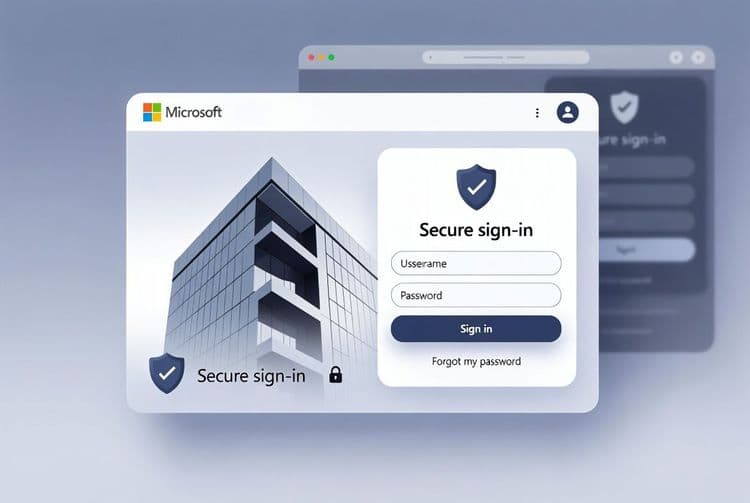
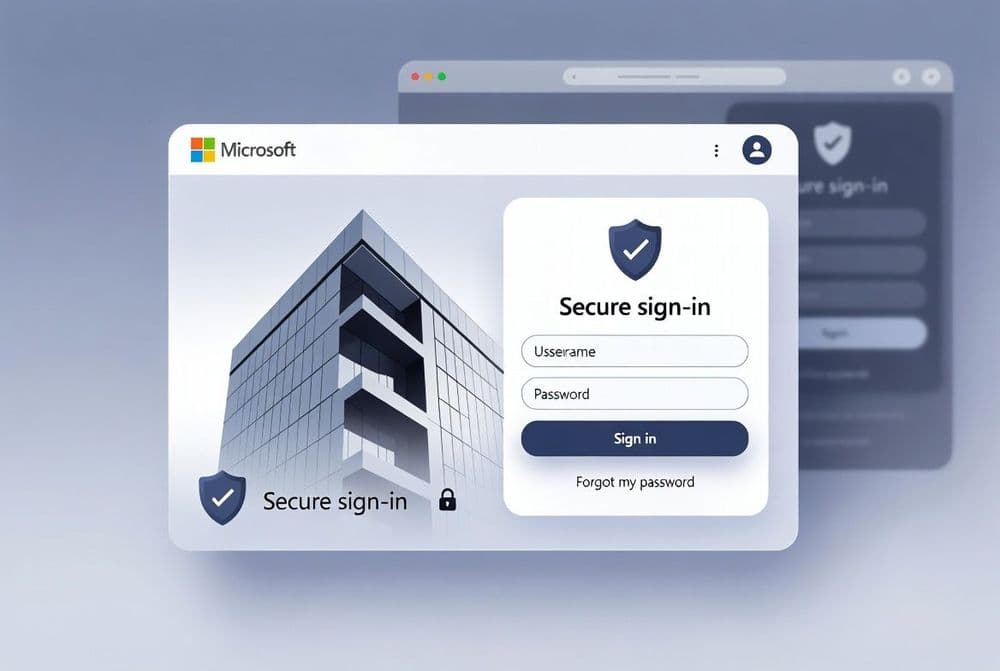
Phishing attacks targeting Microsoft 365 credentials have become increasingly sophisticated, with attackers creating convincing fake login pages that mimic the standard Microsoft interface. By customizing your organization's login page with company branding, you create a visual authentication method that helps users distinguish legitimate login pages from fraudulent ones.

What Security Benefits Does Login Page Branding Provide?

A branded login page serves as an immediate visual cue that users are accessing your organization's legitimate Microsoft 365 portal. When employees see your company logo, colors, and security messaging, they can confidently proceed with authentication. Conversely, the absence of expected branding on a login page should raise immediate red flags about potential phishing attempts.

How Does Microsoft Entra ID Company Branding Work?

Microsoft's company branding feature allows you to customize various elements of the sign-in experience, including background images, logos, favicons, and custom messaging. These changes apply to all Microsoft 365 services accessed by your organization's users, creating a consistent branded experience across the entire platform. The branding configuration is managed through the Microsoft Entra admin center and typically propagates within hours of implementation.

This tutorial walks you through the complete process of implementing company branding for your Microsoft 365 login page, from accessing the admin center to educating users about the enhanced security features. You'll learn to configure all branding elements effectively while following security best practices that maximize protection against phishing attacks.

Implementation Guide

Full Procedure

01

Access the Microsoft Entra Admin Center

Navigate to the Microsoft Entra admin center where you'll configure your organization's sign-in branding. This is the central hub for all identity and access management settings.

Open your browser and go to entra.microsoft.com. Sign in with your Global Administrator credentials. You'll see the main dashboard with various identity management options.

Once logged in, look for the navigation menu on the left side. Click on Identity to expand the menu, then select User experiences. If you don't see all options immediately, click Show more to reveal additional settings.

Pro tip: Bookmark the direct URL to company branding: https://entra.microsoft.com/#view/Microsoft_AAD_IAM/CompanyBrandingMenuBlade for quick access in the future.

Click on Company branding from the expanded menu. This opens the branding configuration interface where you'll customize your sign-in experience.

Verification: You should see the Company branding page with options to configure or edit your branding settings. If you see an "Access denied" error, verify your Global Administrator permissions.

02

Prepare Your Branding Assets

Before uploading any images, you need to prepare your branding assets according to Microsoft's specific requirements. Getting these specifications right prevents upload failures and ensures optimal display across devices.

Create or gather these essential branding elements:

  • Favicon: 32x32 pixels, PNG/JPG/JPEG format, maximum 5KB file size
  • Banner logo: PNG/JPG/JPEG format (exact dimensions shown in the UI)
  • Background image: PNG/JPG/JPEG format (specific sizes listed in the interface)

Use image editing software to resize your assets. For the favicon, ensure it's exactly 32x32 pixels and under 5KB. Most company logos need resizing for optimal display in the header area.

Warning: Images that don't match the exact specifications will be rejected during upload. Always check the file size and dimensions before proceeding.

Save your prepared images in an easily accessible folder on your computer. Name them clearly (e.g., "company-favicon.png", "header-logo.png", "background-image.jpg") to avoid confusion during upload.

Verification: Check each image file's properties to confirm dimensions and file sizes meet the requirements. Right-click the file and select Properties (Windows) or Get Info (Mac) to verify.

03

Configure Basic Branding Elements

Start customizing your sign-in page by configuring the fundamental branding elements. These basic settings form the foundation of your branded login experience.

In the Company branding interface, click Edit or Configure to open the branding settings. You'll see several tabs: Basics, Layout, Header, Footer, and Advanced.

Begin with the Basics tab:

  1. Click Browse next to Favicon and upload your 32x32 pixel favicon file
  2. For the background image, click Browse and select your prepared background image
  3. Choose your preferred language settings if you serve multiple regions

The favicon appears in browser tabs and bookmarks, while the background image sets the visual tone for your login page. Choose images that reflect your brand identity and maintain professionalism.

Pro tip: Use a background image that doesn't interfere with text readability. Subtle patterns or gradients work better than busy photographs.

After uploading, you'll see a preview of how your branding elements will appear. Review this carefully before proceeding to ensure the visual impact matches your expectations.

Verification: The preview should show your favicon and background image properly loaded. If you see error messages, check that your images meet the size and format requirements.
04

Select the Optimal Layout Template

Choose the right layout template to ensure your background image is visible and your branding makes maximum impact. The template selection significantly affects how users perceive your login page.

Navigate to the Layout tab in the branding configuration. You'll see template options that determine how your background image displays:

  • Full-screen template: Background image fills the entire screen but may be obscured by the login form
  • Partial-screen background: Recommended option that ensures your background image remains visible alongside the login form

Select Partial-screen background for optimal results. This template positions the login form to one side, allowing your background image to remain prominently displayed.

Enable the Header & Footer option to add additional branding elements and helpful information for users. This creates space for your company logo in the header and contact information in the footer.

Pro tip: The partial-screen template works best for most organizations because it balances branding visibility with login form usability.

Review the layout preview to see how your chosen template affects the overall appearance. The preview updates in real-time as you make selections.

Verification: The preview should show your background image clearly visible with the login form positioned appropriately. If the background is completely hidden, switch to the partial-screen template.

05

Upload Header Logo and Configure Footer

Add your company logo to the header and configure footer information to create a complete branded experience. These elements reinforce your organization's identity and provide helpful user guidance.

Switch to the Header tab and upload your banner logo:

  1. Click Browse next to the banner logo field
  2. Select your prepared header logo file
  3. Review the preview to ensure proper sizing and positioning

The header logo replaces the default Microsoft branding and appears prominently at the top of the sign-in page. Choose a logo that's clear and recognizable at the display size.

Move to the Footer tab to add helpful information:

  1. Add your IT helpdesk contact information
  2. Include any legal disclaimers or security notices
  3. Provide links to password reset instructions or user guides

Example footer text:

For technical support, contact IT Help Desk: +1-555-0123 or helpdesk@yourcompany.com
By signing in, you agree to our IT Security Policy.
Warning: Keep footer text concise and relevant. Excessive information can clutter the interface and distract from the login process.

Verification: Check the preview to ensure your header logo displays clearly and footer text is readable and properly formatted.

06

Add Security-Focused Sign-in Page Text

Configure custom sign-in page text that helps users identify legitimate login pages and provides security guidance. This text serves as an additional layer of phishing protection.

In the branding configuration, locate the Sign-in page text section. This field allows you to add custom messaging that appears on the login page to guide users and enhance security awareness.

Add security-focused messaging such as:

Welcome to [Your Company Name] secure portal.
Always verify you're on the official login page before entering credentials.
Never enter your password on suspicious or unfamiliar websites.
Report phishing attempts to security@yourcompany.com

This messaging serves multiple purposes:

  • Confirms users are on the legitimate company login page
  • Educates users about phishing risks
  • Provides a reporting mechanism for suspicious activity
  • Reinforces security best practices
Pro tip: Include your company's official domain name in the security message to help users verify they're on the correct site.

Keep the message concise but informative. Users should be able to quickly read and understand the security guidance without feeling overwhelmed.

Verification: Review the preview to ensure your security message displays prominently and doesn't interfere with the login form usability.

07

Configure Language-Specific Branding (Optional)

Set up language-specific branding if your organization serves users in multiple regions or languages. This ensures a consistent branded experience regardless of user language preferences.

In the Company branding interface, look for language configuration options. You can create separate branding configurations for different languages while maintaining consistent visual elements.

To add a new language configuration:

  1. Click Add language or similar option
  2. Select the target language from the dropdown
  3. Upload language-specific text elements while keeping visual branding consistent
  4. Translate your security messaging and footer text appropriately

Example multilingual security message (Spanish):

Bienvenido al portal seguro de [Nombre de su empresa].
Siempre verifique que está en la página de inicio de sesión oficial antes de ingresar credenciales.
Nunca ingrese su contraseña en sitios web sospechosos o desconocidos.

Maintain visual consistency across all language versions by using the same logos, colors, and background images. Only translate text elements to preserve brand recognition.

Pro tip: Even if you only serve English-speaking users, consider the default language settings to ensure optimal display for all users.

Verification: Test each language configuration by changing your browser's language settings and accessing the sign-in page to confirm proper display.

08

Save Configuration and Test Propagation

Save your branding configuration and verify that changes propagate correctly across Microsoft's infrastructure. This final step ensures your branded login page is active and functioning properly.

After completing all branding configurations, click the Save button at the bottom of the interface. You should see a confirmation message indicating that your changes have been saved successfully.

Microsoft's system needs time to propagate your changes across their global infrastructure. This process can take anywhere from a few seconds to several hours, depending on various factors.

To test your branded login page:

  1. Open a new incognito/private browser window
  2. Navigate to login.microsoftonline.com
  3. Enter your organization's domain or use a direct tenant URL
  4. Verify that your branding elements appear correctly
Warning: Changes may not appear immediately due to browser caching and Microsoft's propagation delays. Don't panic if you don't see changes right away.

If changes aren't visible after several hours:

  • Clear your browser cache completely
  • Try accessing from a different device or network
  • Verify your configuration settings in the admin center

Verification: Your branded login page should display your favicon, background image, header logo, and custom messaging. The URL should remain on Microsoft's official domain (login.microsoftonline.com or similar).

09

Educate Users About the New Branded Experience

Communicate the branding changes to your users and provide security education about identifying legitimate login pages. User awareness is crucial for maximizing the security benefits of your branded login page.

Create a communication plan that includes:

  • Email announcement about the new branded login experience
  • Screenshots showing what the legitimate login page looks like
  • Security reminders about phishing awareness
  • Instructions for reporting suspicious login pages

Example user communication email template:

Subject: New Secure Login Experience - Important Security Update

Dear Team,

We've enhanced our Microsoft 365 login page with company branding for improved security.

What to expect:
- Our company logo and colors on the login page
- Security messaging confirming you're on the official site
- Consistent branding across all Microsoft 365 services

Security reminder: Always verify you're on login.microsoftonline.com before entering credentials.
Report suspicious login pages to security@yourcompany.com

Questions? Contact IT Help Desk at [contact info]
Pro tip: Include a screenshot of the new branded login page in your communication so users know exactly what to expect.

Consider adding the branded login page information to your security awareness training program and new employee onboarding materials.

Verification: Monitor your IT help desk for user questions about the new branding and track any reported phishing attempts to measure the effectiveness of your security messaging.

Frequently Asked Questions

How long does it take for Microsoft 365 login page branding changes to appear?+
Branding changes typically propagate within seconds to several hours across Microsoft's global infrastructure. The exact timing depends on various factors including geographic location and caching. If changes aren't visible immediately, clear your browser cache and try accessing from an incognito window. Most users see updates within 1-2 hours of saving the configuration.
What image specifications are required for Microsoft 365 login page branding?+
The favicon must be exactly 32x32 pixels in PNG, JPG, or JPEG format with a maximum file size of 5KB. Banner logos and background images must be in PNG, JPG, or JPEG format with specific dimensions shown in the Microsoft Entra admin center interface. Images that don't meet exact specifications will be rejected during upload, so always verify dimensions and file sizes before attempting to upload.
Which Microsoft 365 subscriptions include company branding features?+
Company branding is available with Microsoft Entra ID P1/P2, Microsoft 365 Business Standard or higher, SharePoint Plan 1, or equivalent subscriptions. It's included free with paid Microsoft 365 for business, Dynamics CRM Online, and Enterprise Mobility Suite. Personal Microsoft accounts cannot use company branding features, and the functionality requires an organizational tenant with eligible licensing.
Can I create different branding for different languages or regions?+
Yes, Microsoft Entra ID supports language-specific branding configurations. You can create separate branding settings for different languages while maintaining consistent visual elements like logos and background images. This is particularly useful for global organizations serving users in multiple regions. Each language configuration can have translated text elements while preserving brand recognition through consistent visual branding.
How does branded login page help prevent phishing attacks?+
A branded login page creates a visual authentication method that helps users identify legitimate Microsoft 365 portals. When users see expected company logos, colors, and security messaging, they can confidently proceed with authentication. The absence of familiar branding on a login page serves as an immediate red flag for potential phishing attempts. Combined with user education about recognizing legitimate branding, this significantly reduces successful credential theft through fake login pages.

Discussion

Share your thoughts and insights

Sign in to join the discussion