Why Deploy Security Baselines in Microsoft Intune?
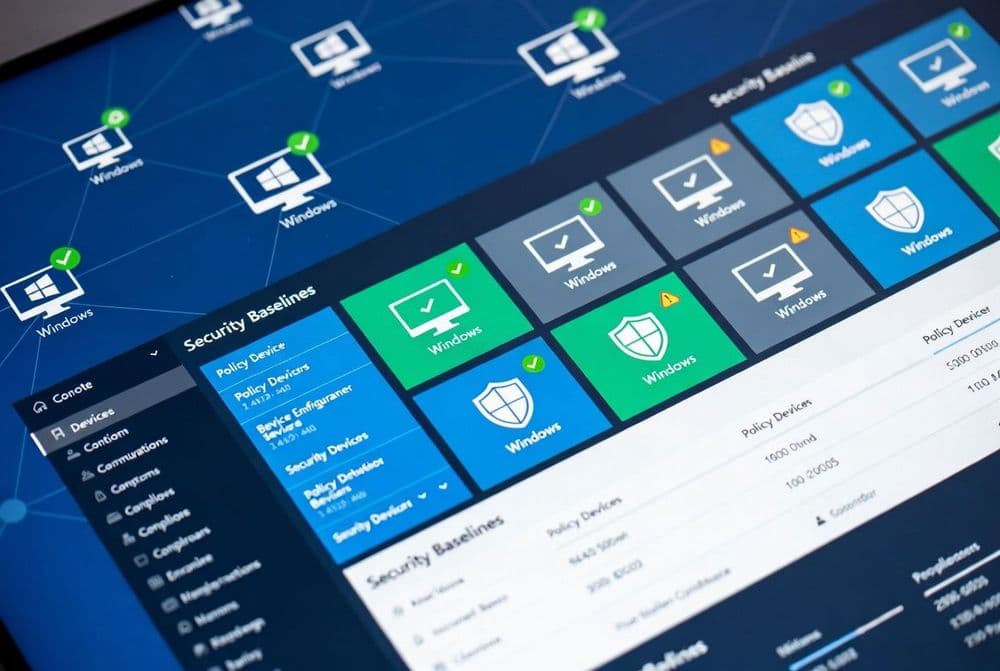
Security baselines in Microsoft Intune provide a standardized approach to device security that eliminates guesswork and ensures consistent protection across your entire Windows device fleet. These baselines represent Microsoft's recommended security configurations, developed by the same Windows security team that creates Group Policy baselines, giving you enterprise-grade security settings without the complexity of manual configuration.
The cloud-managed baseline system automatically updates with the latest security recommendations, ensuring your devices stay protected against emerging threats without requiring manual intervention. Unlike traditional Group Policy approaches, Intune baselines provide real-time compliance reporting, allowing you to identify and remediate security gaps immediately.
What Makes Intune Security Baselines Different from Manual Configuration?
Traditional device security management requires IT teams to research, test, and deploy hundreds of individual security settings across multiple policy areas. This approach is time-intensive, error-prone, and often results in inconsistent security postures across different device groups. Intune security baselines solve these challenges by packaging proven security configurations into ready-to-deploy profiles.
The baselines cover critical security areas including BitLocker encryption, authentication requirements, Windows Defender settings, firewall configurations, and network security protocols. Each setting includes detailed explanations and Microsoft's rationale, helping you understand the security impact of each configuration choice. This transparency allows you to make informed customizations while maintaining a strong security foundation.
How Do Security Baselines Integrate with Existing Intune Policies?
Security baselines work alongside your existing Intune configuration profiles and compliance policies, but they take precedence for settings they manage. This hierarchical approach ensures baseline security requirements are enforced while allowing additional customizations through separate policies. The system provides conflict detection and resolution guidance when overlapping settings exist across different policy types.