ANAVEM
Languagefr
How to Configure Microsoft Outlook with Exchange Server Using Group Policy

How to Configure Microsoft Outlook with Exchange Server Using Group Policy

Deploy automated Outlook configuration across your organization using Group Policy Objects. Configure cached Exchange mode, autodiscovery, and Global Address List synchronization for seamless email deployment.

March 26, 2026 15 min
mediumgroup-policy 9 steps 15 min

Why Configure Outlook with Exchange Server Using Group Policy?

Managing Outlook configurations manually across hundreds or thousands of users is time-consuming and error-prone. Group Policy Objects (GPO) provide a centralized, automated approach to deploy consistent Outlook settings throughout your organization. This eliminates the need for manual configuration on each workstation and ensures users have optimal email performance from day one.

What Does This Configuration Accomplish?

This tutorial walks you through deploying enterprise-grade Outlook configuration using Active Directory Group Policy. You'll learn to automatically enable Cached Exchange Mode for improved performance, configure AutoDiscover for seamless profile creation, manage Offline Address Book distribution for Global Address List access, and implement security policies that meet modern compliance requirements. The configuration supports Outlook 2016, 2019, 2021, and Microsoft 365 Apps with Exchange Server 2016/2019/202x environments.

How Does Group Policy Streamline Outlook Deployment?

Instead of visiting each workstation or relying on users to configure Outlook correctly, Group Policy automatically applies settings when users log in. This approach reduces help desk tickets, ensures consistent configuration across the organization, and allows for rapid deployment of security updates or policy changes. The policies we'll configure handle everything from basic connectivity to advanced security settings, creating a seamless email experience for end users while maintaining administrative control.

Implementation Guide

Full Procedure

01

Download and Install Office Administrative Templates

Before configuring Outlook via Group Policy, you need the latest Office ADMX templates that contain the Outlook policy definitions.

Download the Office Administrative Templates from the Microsoft Download Center by searching for "Office 365 ADMX" or "Office Administrative Templates 2026". Extract the downloaded file to a temporary location.

# Copy ADMX files to PolicyDefinitions folder
Copy-Item "C:\Temp\admx\*.admx" "C:\Windows\PolicyDefinitions\"
Copy-Item "C:\Temp\admx\en-us\*.adml" "C:\Windows\PolicyDefinitions\en-us\"

# For domain-wide deployment, copy to SYSVOL
Copy-Item "C:\Temp\admx\*.admx" "\\domain.com\SYSVOL\domain.com\Policies\PolicyDefinitions\"
Copy-Item "C:\Temp\admx\en-us\*.adml" "\\domain.com\SYSVOL\domain.com\Policies\PolicyDefinitions\en-us\"

Verification: Open Group Policy Management Console and create a new GPO. Navigate to User Configuration > Administrative Templates and verify you see "Microsoft Outlook 2016", "Microsoft Outlook 2019", or "Microsoft Outlook for Microsoft 365" folders.

Pro tip: Always copy ADMX files to the central store (SYSVOL) for domain-wide availability. This ensures all domain controllers have the same policy definitions.
02

Create and Configure the Outlook GPO

Create a dedicated Group Policy Object for Outlook configuration to maintain clean policy management and easy troubleshooting.

Open Group Policy Management Console (gpmc.msc) and create a new GPO specifically for Outlook settings.

# Open GPMC via PowerShell
gpmc.msc

# Or create GPO via PowerShell
New-GPO -Name "Outlook Exchange Configuration" -Domain "yourdomain.com"

Right-click on "Group Policy Objects" in the GPMC tree, select "New", and name it "Outlook Exchange Configuration". Right-click the new GPO and select "Edit" to open the Group Policy Management Editor.

Navigate to User Configuration > Policies > Administrative Templates. You should now see the Microsoft Outlook folders for different versions.

Verification: Confirm you can see the Outlook administrative templates by expanding the Microsoft Outlook folder for your version (2016, 2019, 2021, or Microsoft 365).

03

Enable Cached Exchange Mode

Cached Exchange Mode improves Outlook performance by storing a local copy of the mailbox. This is essential for mobile users and reduces server load.

In the Group Policy Management Editor, navigate to:

User Configuration > Policies > Administrative Templates > Microsoft Outlook [version] > Account Settings > Exchange > Cached Exchange Mode

Configure the following policies:

1. "Use Cached Exchange Mode for new and existing Outlook profiles"
   - Set to: Enabled
   - This forces all profiles to use cached mode

2. "Cached Exchange Mode Sync Settings"
   - Mail: 12 months (or as per company policy)
   - Calendar: 12 months
   - This controls how much data is synchronized locally

Double-click "Use Cached Exchange Mode for new and existing Outlook profiles", select "Enabled", and click "OK". This policy ensures all Outlook profiles automatically use cached mode, which stores email locally for faster access.

For the synchronization duration, locate "Cached Exchange Mode Sync Settings" and configure the mail and calendar synchronization periods based on your organization's needs.

Verification: Run gpresult /r on a test client after applying the policy to confirm the GPO is being applied.

Warning: Enabling cached mode will create OST files on local machines. Ensure adequate disk space and consider redirecting OST files to a network location if needed.
04

Configure OST File Location and Management

Control where Outlook stores its offline data files (OST) to prevent disk space issues and ensure proper backup coverage.

Navigate to User Configuration > Policies > Administrative Templates > Microsoft Outlook [version] > Miscellaneous > PST Settings

Configure the OST file location policy:

Policy: "Default location for OST files"
Setting: Enabled
Path: %USERPROFILE%\AppData\Local\Microsoft\Outlook

# Alternative for network storage:
Path: \\fileserver\users$\%USERNAME%\Outlook

Also configure the upgrade behavior to prevent multiple OST files:

Navigate to Account Settings > Exchange and enable:

"Do not create new OST file on upgrade"
- Set to: Enabled
- This prevents Outlook from creating additional OST files during upgrades

For organizations with roaming profiles or limited local storage, you can redirect OST files to a network location, though this may impact performance.

Verification: After policy application, check the OST file location on a test client by going to File > Account Settings > Data Files in Outlook.

Pro tip: Consider using folder redirection for the entire Outlook folder if users frequently switch between computers. This ensures consistent access to cached data.
05

Configure AutoDiscover Settings

AutoDiscover automates the Outlook configuration process by automatically detecting Exchange server settings. Proper configuration eliminates manual setup for end users.

Navigate to User Configuration > Policies > Administrative Templates > Microsoft Outlook [version] > Account Settings > Exchange > AutoDiscover

Configure these critical AutoDiscover policies:

1. "Automatically configure profile based on Active Directory Primary SMTP address"
   - Set to: Enabled
   - This enables automatic profile creation

2. "Exclude HTTPS root domain"
   - Set to: Enabled (if you have autodiscover issues)
   - Prevents certain autodiscover lookup methods

3. "Exclude SCP (Service Connection Point) lookup"
   - Set to: Disabled (for internal clients)
   - Set to: Enabled (for external/hybrid scenarios)

For hybrid Exchange environments, you may need additional configuration:

# Verify SCP configuration in Exchange
Get-ClientAccessService | Format-List Name,AutoDiscoverServiceInternalUri

# Check AutoDiscover virtual directory
Get-AutodiscoverVirtualDirectory | Format-List

The AutoDiscover configuration is crucial for seamless Outlook setup. When properly configured, users simply enter their email address and password, and Outlook automatically configures all server settings.

Verification: Test AutoDiscover functionality using the Microsoft Remote Connectivity Analyzer at testconnectivity.microsoft.com or run Test-OutlookConnectivity from Exchange Management Shell.

06

Deploy Global Address List and Offline Address Book

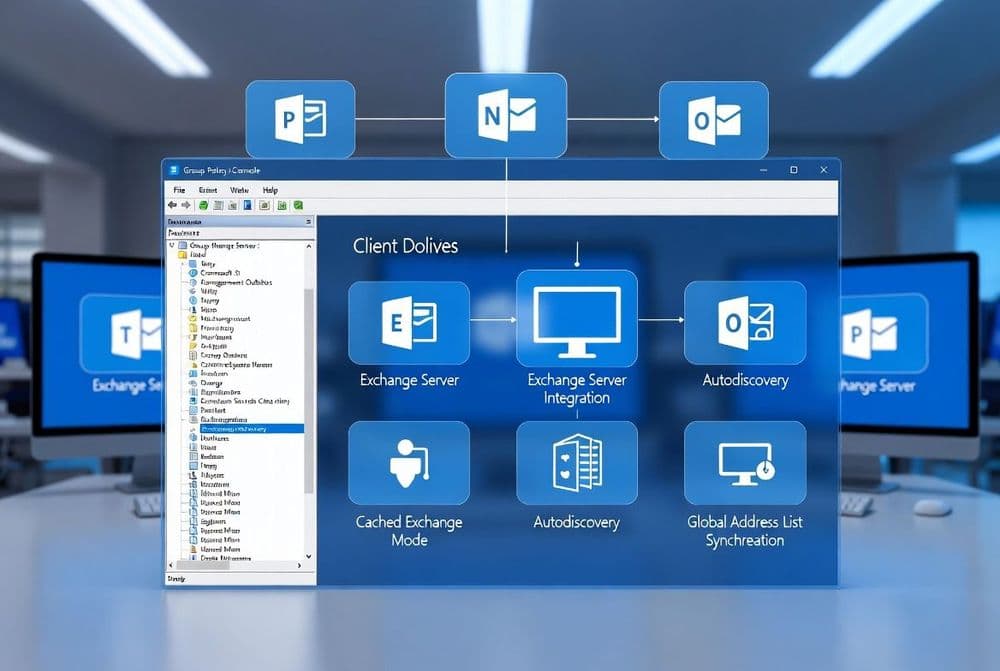
The Global Address List (GAL) provides users with access to all organizational email addresses. When cached mode is enabled, the Offline Address Book (OAB) ensures GAL access even when disconnected.

The GAL deployment is automatically handled when Cached Exchange Mode is enabled, but you need to configure the OAB distribution settings on the Exchange server.

On your Exchange server, configure the OAB virtual directory:

# Configure OAB virtual directory for Outlook compatibility
Set-OabVirtualDirectory -Identity "Default Web Site\oab (Default Web Site)" -ExternalUrl "https://mail.yourdomain.com/oab" -InternalUrl "https://mail.yourdomain.com/oab"

# Ensure OAB generation is working
Get-OfflineAddressBook | Update-OfflineAddressBook

# Check OAB distribution points
Get-OabVirtualDirectory | Format-List Name,ExternalUrl,InternalUrl

For organizations with multiple Exchange servers, ensure OAB replication is working:

# Force OAB generation and distribution
Update-OfflineAddressBook -Identity "Default Offline Address Book"

# Check OAB generation status
Get-OfflineAddressBook | Format-List Name,*Status*

In the GPO, you can control OAB download behavior under Account Settings > Exchange:

"Download Offline Address Book"
- Set to: Enabled
- This ensures the GAL is available offline

Verification: In Outlook, go to File > Account Settings > Download Address Book to verify the OAB is downloading correctly. Check the status in the progress dialog.

Warning: Large organizations should schedule OAB generation during off-hours as it can be resource-intensive. Monitor Exchange server performance during initial OAB downloads.
07

Configure Advanced Security and Authentication Settings

Modern Exchange environments require specific security configurations to ensure proper authentication and protect against security threats.

Configure Extended Protection settings for Exchange 2019 CU14+ environments:

# Check current Extended Protection status
Get-OutlookAnywhere | Format-List Name,SSLOffloading,ExternalHostname

# Disable SSL offloading if Extended Protection is enabled
Set-OutlookAnywhere -Identity "SERVER\Rpc (Default Web Site)" -SSLOffloading $false

# Verify the change
Get-OutlookAnywhere | Format-List Name,SSLOffloading

In the GPO, configure security policies under User Configuration > Policies > Administrative Templates > Microsoft Outlook [version] > Security:

"Outlook Security Mode"
- Set to: Enabled
- Value: Use Outlook Security Group Policy

"Configure trusted add-ins"
- Configure based on organizational requirements

"Minimum encryption settings"
- Set appropriate encryption levels for your environment

For legacy compatibility (Outlook 2007+), you may need to configure additional registry settings via GPO Preferences:

Registry Path: HKEY_CURRENT_USER\Software\Policies\Microsoft\Office\16.0\Outlook\Security
Value Name: AdminSecurityMode
Value Type: DWORD
Value Data: 3

Verification: Test Outlook connectivity after applying security policies. Use Test-EOPConnectivity for Exchange Online hybrid environments.

08

Apply and Test the Group Policy

Link the GPO to the appropriate Organizational Unit and test the configuration on pilot users before full deployment.

In Group Policy Management Console, right-click on the target OU (usually the OU containing user accounts) and select "Link an Existing GPO". Choose your "Outlook Exchange Configuration" GPO.

Force policy application on test clients:

# Force Group Policy update on client machines
gpupdate /force

# Restart the computer or have users log off/on for user policies
shutdown /r /t 0

# Check GPO application status
gpresult /r

# Detailed GPO report
gpresult /h C:\GPReport.html

Test the configuration with a pilot group:

1. Create a test OU with a few user accounts
2. Link the GPO to the test OU
3. Have test users log off and back on
4. Verify Outlook configures automatically
5. Check cached mode is enabled
6. Confirm GAL access works offline

Monitor for common issues during testing:

# Check Outlook process and profile creation
Get-Process outlook -ErrorAction SilentlyContinue

# Verify registry settings were applied
Get-ItemProperty "HKCU:\Software\Microsoft\Office\16.0\Outlook\Cached Mode" -ErrorAction SilentlyContinue

Verification: Open Outlook on a test machine and verify: 1) Profile creates automatically, 2) Cached mode is enabled (File > Account Settings > Account Settings > Data Files shows an OST file), 3) GAL is accessible, 4) Email synchronization works properly.

Pro tip: Use WMI filters on your GPO to target specific Outlook versions or operating systems. This prevents policy conflicts when you have mixed environments.
09

Monitor and Troubleshoot Common Issues

Implement monitoring and establish troubleshooting procedures for common Outlook GPO deployment issues.

Common troubleshooting commands and checks:

# Check if GPO is being applied
gpresult /scope user /v | findstr "Outlook"

# Verify Outlook registry settings
Get-ChildItem "HKCU:\Software\Microsoft\Office\16.0\Outlook" -Recurse | Where-Object {$_.Name -like "*Exchange*"}

# Check AutoDiscover functionality
nslookup autodiscover.yourdomain.com

# Test Exchange connectivity
Test-NetConnection mail.yourdomain.com -Port 443

# Check Outlook process and version
Get-Process outlook | Select-Object Name,Path,ProductVersion

Address common issues:

Issue: "GPO modified by Exchange" SIEM alerts
Solution: This is normal - Exchange updates AD attributes like msExchMailboxAuditLastAdminAccess
Action: Whitelist these events in your SIEM

Issue: AutoDiscover fails in hybrid environments
Solution: Configure SCP exclusion in GPO for external clients
Action: Enable "Exclude SCP lookup" policy

Issue: OST files not creating
Solution: Verify cached mode policy is applied and user has local disk space
Action: Check %USERPROFILE%\AppData\Local\Microsoft\Outlook

Issue: OAB download failures
Solution: Ensure OAB virtual directory is set to Accept/Allow
Action: Run Set-OabVirtualDirectory with proper authentication settings

Set up monitoring for ongoing health:

# Create a monitoring script for Outlook GPO compliance
$Users = Get-ADUser -Filter * -SearchBase "OU=Users,DC=domain,DC=com"
foreach ($User in $Users) {
    $GPResult = gpresult /user $User.SamAccountName /scope user /z
    # Parse results for Outlook policies
}

Verification: Establish a regular review process using gpresult reports and Exchange server logs to ensure policies remain effective and identify any configuration drift.

Warning: Always test GPO changes in a lab environment first. Incorrect Outlook policies can prevent users from accessing email, causing significant business disruption.

Frequently Asked Questions

What versions of Outlook support Group Policy configuration with Exchange Server?+
Group Policy configuration is supported in Outlook 2016, 2019, 2021, and Microsoft 365 Apps. You need the corresponding Office Administrative Templates (ADMX files) for your Outlook version. The latest 2026 Q1 templates support all current Outlook versions and include enhanced AutoDiscover controls and security policies for modern authentication scenarios.
How do I troubleshoot AutoDiscover issues when using Group Policy for Outlook configuration?+
Common AutoDiscover issues include SCP lookup failures in hybrid environments and DNS resolution problems. Use the Microsoft Remote Connectivity Analyzer to test AutoDiscover functionality. In Group Policy, configure the 'Exclude SCP lookup' policy for external clients and verify your Exchange server's AutoDiscover virtual directory settings. Check DNS records for autodiscover.yourdomain.com and ensure proper SSL certificates are installed.
Can I use Group Policy to configure Outlook for Exchange Online or hybrid environments?+
Yes, Group Policy works with Exchange Online and hybrid deployments. For hybrid environments, you may need to exclude certain AutoDiscover lookup methods using GPO policies. Configure the 'Exclude HTTPS root domain' and 'Exclude SCP lookup' policies appropriately. For Exchange Online, ensure modern authentication is enabled and consider using Microsoft 365 cloud policies in addition to traditional GPO for comprehensive management.
What happens to existing Outlook profiles when I apply Group Policy configuration?+
Group Policy can modify existing Outlook profiles depending on the policies configured. The 'Use Cached Exchange Mode for new and existing Outlook profiles' policy will enable cached mode for all profiles. To prevent disruption, test policies on a pilot group first. You can use the 'Do not create new OST file on upgrade' policy to prevent multiple OST files during transitions.
How do I handle Offline Address Book distribution issues in large organizations?+
Large organizations should schedule OAB generation during off-hours to minimize server impact. Configure the OAB virtual directory with proper authentication settings and ensure adequate bandwidth for initial downloads. Use the Exchange Management Shell to monitor OAB generation status with Get-OfflineAddressBook. Consider multiple distribution points for geographically distributed organizations and monitor Exchange server performance during peak OAB download periods.

Discussion

Share your thoughts and insights

Sign in to join the discussion