

Anavem
Languagefr
How to Share Wi-Fi Password as QR Code on Windows 11

How to Share Wi-Fi Password as QR Code on Windows 11

Generate QR codes for your Wi-Fi network using Windows 11's built-in feature. Allow guests to connect instantly by scanning with their mobile devices.

March 22, 2026 8 min
easywindows11 7 steps 8 min

Why Share Wi-Fi Passwords Using QR Codes on Windows 11?

Sharing Wi-Fi passwords has traditionally been a tedious process involving spelling out complex passwords character by character. Windows 11's built-in QR code feature eliminates this friction by encoding your network credentials into a scannable code that guests can use to connect instantly with their mobile devices.

This feature, introduced in Windows 11 version 24H2, leverages the same Wi-Fi QR standard used by routers and mobile devices worldwide. When you generate a QR code through Windows 11, it encodes your network's SSID, security type, and password into a format that smartphones and tablets can read natively through their camera apps.


What Makes Windows 11's QR Code Feature Different?

Unlike third-party QR generators that require you to manually enter network details, Windows 11 automatically pulls the information from your saved network profiles. This eliminates typing errors and ensures the QR code contains the exact credentials your computer uses to connect. The feature works entirely offline and doesn't send your network information to external services, maintaining your privacy and security.

The generated QR codes follow the WIFI QR code standard, making them compatible with iOS devices running iOS 11+, Android devices with Android 10+, and most modern smartphones. This universal compatibility means your guests can connect regardless of their device type or manufacturer.

Implementation Guide

Full Procedure

01

Open Windows 11 Settings

Start by accessing the Windows Settings app where all network configurations are managed.

Press Win + I on your keyboard to open the Settings app directly. Alternatively, you can click the Start button and select the Settings gear icon, but the keyboard shortcut is faster.

Verification: The Settings window should open with a blue interface showing various categories like System, Bluetooth & devices, and Network & internet in the left sidebar.

Pro tip: Pin the Settings app to your taskbar for quick access if you frequently manage network settings.
02

Navigate to Wi-Fi Settings

Now you'll access the specific Wi-Fi management section where the QR code feature is located.

In the Settings window, click Network & internet in the left sidebar. This opens the main networking panel. Next, click Wi-Fi in the right pane to access wireless network settings.

You'll see your current Wi-Fi connection status, available networks, and various Wi-Fi options. The interface shows your connected network name (SSID) and signal strength.

Verification: You should see "Connected" next to your current Wi-Fi network name, and the Wi-Fi toggle should be enabled (blue).

03

Access Manage Known Networks

This step takes you to the section where Windows stores all previously connected Wi-Fi networks, including their passwords.

On the Wi-Fi settings page, look for Manage known networks on the right side and click it. This opens a list of all Wi-Fi networks your computer has connected to and saved.

You'll see a list showing network names (SSIDs), security types (like WPA2-Personal), and when you last connected to each network. The networks are typically sorted by most recently used.

Verification: Your current Wi-Fi network should appear at or near the top of the list with a "Connected" status indicator.

Warning: If you don't see "Manage known networks," you're likely running an older Windows 11 version. This feature requires Windows 11 24H2 or later.
04

Select Your Wi-Fi Network

Choose the specific network you want to share from your saved networks list.

Click on the Wi-Fi network you want to generate a QR code for. This is typically your current connected network, but you can select any previously saved network. The network name will be highlighted when selected.

After clicking the network name, a detailed view opens showing network properties including the security type, network profile (Public or Private), and connection options.

Verification: The selected network's details page should display information like "Security type: WPA2-Personal" and show options for network properties.

05

Reveal Password and Generate QR Code

This is where Windows 11's built-in QR code generation happens automatically when you reveal the password.

In the network details view, locate the Wi-Fi network password field. You'll see asterisks (****) hiding the actual password. Click the Show button next to the password field.

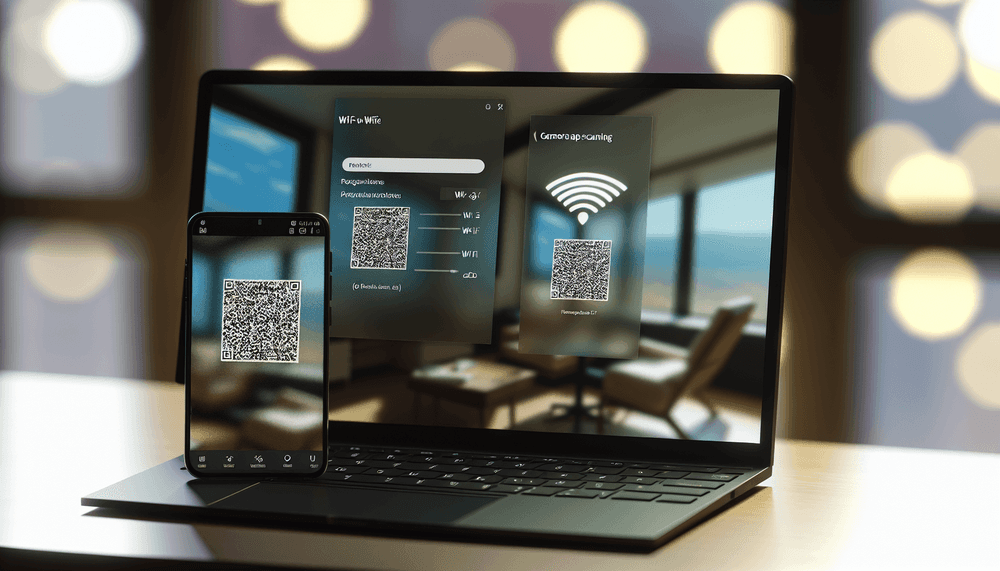
Windows will immediately display two things: the actual password in plain text and a QR code containing all the network information (SSID, security type, and password) encoded for easy scanning.

The QR code appears as a square black and white pattern that mobile devices can scan to automatically connect to your network.

Verification: You should see both the plain text password and a QR code displayed on the same screen. The QR code should be clearly visible and well-contrasted.

Pro tip: Take a screenshot of this screen (Win + Shift + S) to save the QR code for later use, or keep the window open while guests scan it.
06

Test QR Code Scanning with Guest Device

Verify that the QR code works properly by testing it with a mobile device.

On the guest's smartphone or tablet, open the default Camera app (not a third-party QR scanner). Point the camera at the QR code displayed on your Windows 11 screen. Make sure the entire QR code is visible in the camera viewfinder with good lighting.

The device should automatically recognize the QR code and display a notification like "Join Network [Your Network Name]" on iOS or "Connect to [Network Name]" on Android. Tap this notification to connect.

The device will automatically connect to your Wi-Fi network without requiring manual password entry. The connection process typically takes 5-10 seconds.

Verification: Check the guest device's Wi-Fi settings to confirm it's connected to your network. The Wi-Fi icon should appear in the status bar, and the network should show as "Connected" in Wi-Fi settings.

Warning: Some older smartphones may not support Wi-Fi QR codes natively. In this case, the user will need to download a QR code scanner app that supports Wi-Fi network codes.
07

Troubleshoot Common Connection Issues

Address potential problems that guests might encounter when scanning your QR code.

If the QR code doesn't work, first ensure the guest device's camera app is up to date. On iOS devices, make sure iOS 11 or later is installed for native Wi-Fi QR support. Android devices need Android 10 or later for built-in support.

Check that your Windows 11 is running version 24H2 or later by pressing Win + R, typing winver, and pressing Enter. The version should show 24H2 (Build 26100 or higher).

If the QR code appears blurry or distorted, try adjusting your display scaling. Right-click the desktop, select "Display settings," and ensure the scale is set to 100% or 125% for optimal QR code clarity.

For networks with special characters in the password, verify the QR code encodes them correctly by testing with multiple devices.

Verification: Run winver to confirm your Windows version supports this feature. Test the QR code with different mobile devices to ensure compatibility.

Pro tip: If you frequently host guests, consider creating a small printed card with the QR code for permanent use. You can screenshot the QR code and print it for easy access.

Frequently Asked Questions

Does Windows 11 Wi-Fi QR code feature work on older Windows versions?+
No, the built-in Wi-Fi QR code feature is exclusive to Windows 11 version 24H2 and later (build 26100+). Earlier Windows versions including Windows 10 and Windows 11 versions before 24H2 do not have this feature. You would need to use third-party QR code generators or update to Windows 11 24H2 to access this functionality.
Can I save the Wi-Fi QR code as an image file in Windows 11?+
Windows 11 doesn't provide a direct save option for the QR code, but you can easily capture it using the built-in screenshot tool. Press Win + Shift + S to open Snipping Tool, select the QR code area, and save it as a PNG file. This allows you to print the QR code, share it digitally, or keep it for future use without reopening the Settings app.
What mobile devices can scan Windows 11 Wi-Fi QR codes?+
Most modern smartphones support Wi-Fi QR codes natively. iOS devices running iOS 11 or later can scan them through the default Camera app. Android devices with Android 10 or later have built-in support. Some older Android devices may require a third-party QR scanner app that specifically supports Wi-Fi network codes. The QR codes follow the universal WIFI standard for maximum compatibility.
Is it secure to share Wi-Fi passwords using QR codes in Windows 11?+
Yes, Windows 11's QR code feature is secure because it works entirely offline and doesn't transmit your network credentials to external servers. The QR code contains the same information you would verbally share with guests. However, treat QR codes like written passwords - don't leave them displayed publicly or share screenshots with untrusted individuals, as anyone who scans the code gains network access.
Why doesn't my Windows 11 show the QR code option for Wi-Fi networks?+
The most common reason is running an older Windows 11 version. Check your version by pressing Win + R, typing 'winver', and ensuring you have 24H2 (build 26100+). If you're on an older version, update through Settings > Windows Update. Also ensure you're connected to the network you want to share, as the QR code option only appears for saved network profiles with stored passwords.

Discussion

Share your thoughts and insights

Sign in to join the discussion
