ANAVEM
Languagefr
Windows Services management console displaying service status information on administrator workstation monitors
Event ID 7016ErrorService Control ManagerWindows

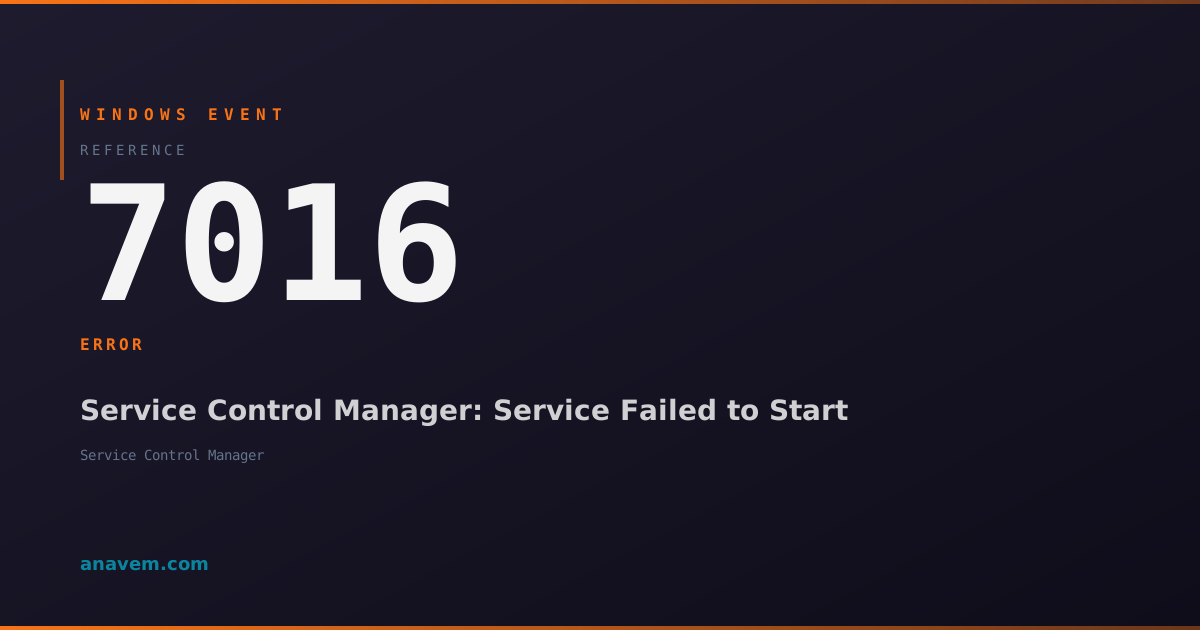
Windows Event ID 7016 – Service Control Manager: Service Failed to Start

Event ID 7016 indicates a Windows service failed to start during system boot or manual startup attempts, typically due to dependency failures, permission issues, or corrupted service configurations.

Emanuel DE ALMEIDAEmanuel DE ALMEIDA
18 March 20269 min read 0
Event ID 7016Service Control Manager 5 methods 9 min
Event Reference

What This Event Means

The Service Control Manager generates Event ID 7016 when it cannot successfully start a Windows service. This error occurs at the service initialization phase, after the SCM has located the service executable but before the service can enter a running state. The event captures detailed information about the failure, including the service name, error codes, and timing information that helps administrators diagnose the underlying problem.

Windows services operate under strict dependency chains and security contexts. When Event ID 7016 appears, it often indicates that one or more prerequisites for service startup have not been met. These prerequisites can include dependent services that must start first, specific user account permissions, registry configurations, or file system access rights. The Service Control Manager enforces these requirements and logs failures when services cannot meet their startup conditions.

The event becomes particularly significant in enterprise environments where custom applications, third-party software, and critical system services must start reliably. Service startup failures can cascade through dependency chains, causing multiple services to fail and potentially impacting business-critical applications. Event ID 7016 serves as an early warning system that allows administrators to identify and resolve service issues before they affect end users or system operations.

Modern Windows versions in 2026 have enhanced service recovery mechanisms, but Event ID 7016 remains a crucial diagnostic indicator. The event helps distinguish between temporary startup delays and permanent service failures, enabling administrators to implement appropriate recovery strategies or escalate issues to development teams when custom services are involved.

Applies to

Windows 10Windows 11Windows Server 2019/2022/2025
Analysis

Possible Causes

  • Service dependencies not met - required services failed to start first
  • Insufficient permissions - service account lacks necessary privileges
  • Corrupted service executable or missing DLL files
  • Registry corruption affecting service configuration parameters
  • Network connectivity issues for services requiring remote resources
  • Hardware failures affecting services that interact with specific devices
  • Antivirus software blocking service executables or processes
  • Resource exhaustion - insufficient memory or disk space
  • Service timeout during initialization process
  • Conflicting software installations modifying service configurations
Resolution Methods

Troubleshooting Steps

01

Check Service Dependencies and Status

Start by examining the failed service and its dependencies to identify the root cause.

  1. Open Event ViewerWindows LogsSystem and locate Event ID 7016
  2. Note the service name mentioned in the event description
  3. Open Services console by running services.msc
  4. Locate the failed service and check its Dependencies tab
  5. Verify all dependent services are running using PowerShell:
Get-Service | Where-Object {$_.Status -eq 'Stopped' -and $_.StartType -eq 'Automatic'}
Get-Service -Name 'ServiceName' | Select-Object Name, Status, StartType, DependentServices

If dependencies are stopped, start them manually or investigate why they failed to start first.

02

Verify Service Account Permissions

Service account permission issues frequently cause startup failures, especially after security updates.

  1. Open Services console and right-click the failed service
  2. Select PropertiesLog On tab
  3. Note the service account (Local System, Network Service, or custom account)
  4. For custom accounts, verify the account has these user rights:
# Check user rights assignment
secedit /export /cfg C:\temp\secpol.cfg
# Review the exported file for service logon rights

Required user rights typically include:

  • Log on as a service (SeServiceLogonRight)
  • Act as part of the operating system (if needed)
  • Access this computer from the network (for network services)

Use Local Security PolicyUser Rights Assignment to grant missing permissions.

03

Analyze Service Configuration and Registry

Examine service registry entries for corruption or misconfiguration that prevents startup.

  1. Identify the service registry key location:
# Get service registry information
Get-WmiObject Win32_Service | Where-Object {$_.Name -eq 'ServiceName'} | Select-Object Name, PathName, StartMode
  1. Navigate to the service registry key at:

HKLM\SYSTEM\CurrentControlSet\Services\[ServiceName]

  1. Verify critical registry values:
  2. ImagePath - points to valid executable
  3. Start - correct startup type (2=Automatic, 3=Manual, 4=Disabled)
  4. DependOnService - lists valid dependent services
  5. Check if the service executable exists and is accessible:
# Verify service executable
$service = Get-WmiObject Win32_Service | Where-Object {$_.Name -eq 'ServiceName'}
Test-Path $service.PathName.Split('"')[1]

If the executable is missing or corrupted, reinstall the associated application or restore from backup.

04

Enable Service Logging and Debug Mode

Configure detailed logging to capture additional diagnostic information during service startup attempts.

  1. Enable Service Control Manager logging by modifying registry:
# Enable SCM debug logging
New-ItemProperty -Path 'HKLM:\SYSTEM\CurrentControlSet\Control' -Name 'ServiceControlManagerDebugLevel' -Value 1 -PropertyType DWord -Force
  1. For specific services, enable failure actions and recovery:
# Configure service recovery options
sc failure ServiceName reset= 86400 actions= restart/5000/restart/5000/restart/5000
sc failureflag ServiceName 1
  1. Monitor the Application log for additional service-specific events
  2. Use Process Monitor (ProcMon) to capture file and registry access during startup
  3. Check Windows Event Forwarding logs if centralized logging is configured
  4. After collecting diagnostic data, disable debug logging:
# Disable SCM debug logging
Remove-ItemProperty -Path 'HKLM:\SYSTEM\CurrentControlSet\Control' -Name 'ServiceControlManagerDebugLevel'
Warning: Debug logging can generate large amounts of data and impact system performance. Disable it after troubleshooting.
05

Advanced Troubleshooting with Service Isolation

Isolate problematic services and perform advanced diagnostics when standard methods fail.

  1. Create a minimal boot environment to test service startup:
# Configure selective startup
msconfig
  1. Use Windows Performance Toolkit for detailed analysis:
# Capture boot trace (requires WPT installation)
wpr -start GeneralProfile -start CPU
# Reproduce the service startup issue
wpr -stop C:\temp\boot_trace.etl
  1. Analyze service dependencies with PowerShell:
# Get complete dependency chain
function Get-ServiceDependencies {
    param([string]$ServiceName)
    $service = Get-Service $ServiceName
    $dependencies = @()
    foreach ($dep in $service.ServicesDependedOn) {
        $dependencies += $dep.Name
        $dependencies += Get-ServiceDependencies $dep.Name
    }
    return $dependencies | Sort-Object -Unique
}
Get-ServiceDependencies 'ServiceName'
  1. Test service startup in Safe Mode to eliminate third-party interference
  2. Use System File Checker and DISM to repair potential system corruption:
# Repair system files
sfc /scannow
DISM /Online /Cleanup-Image /RestoreHealth
Pro tip: Document all changes made during troubleshooting to enable rollback if issues persist or worsen.

Overview

Event ID 7016 fires when the Service Control Manager (SCM) encounters a service that fails to start properly. This error appears in the System log whenever Windows attempts to launch a service but the startup process fails for various reasons. The event provides critical information about which service failed and often includes error codes that help identify the root cause.

This event commonly occurs during system startup when services with automatic start types fail to initialize, or when administrators manually attempt to start services through the Services console or PowerShell commands. The Service Control Manager generates this event immediately after detecting the startup failure, making it an essential diagnostic tool for troubleshooting service-related issues.

Unlike informational service events, Event ID 7016 represents an actual failure condition that requires investigation. The event details typically include the service name, display name, and specific error codes that point to dependency problems, permission issues, corrupted binaries, or configuration errors. System administrators rely on this event to identify problematic services that may impact system functionality or application performance.

Frequently Asked Questions

What does Event ID 7016 mean and why is it critical?+
Event ID 7016 indicates that a Windows service failed to start when requested by the Service Control Manager. This is critical because services provide essential system functionality, and their failure can impact applications, security features, or core Windows operations. The event helps administrators quickly identify which service failed and begin troubleshooting before the failure affects users or dependent systems.
How do I identify which service caused Event ID 7016?+
The service name appears directly in the Event ID 7016 description within Event Viewer. You can also use PowerShell to filter and extract this information: Get-WinEvent -FilterHashtable @{LogName='System'; Id=7016} | Select-Object TimeCreated, Message. The message field contains the service name and often includes additional error codes that help identify the specific failure reason.
Can Event ID 7016 cause system instability or crashes?+
While Event ID 7016 itself doesn't cause crashes, the underlying service failures it represents can lead to system instability. Critical services like Windows Audio, DHCP Client, or security services can significantly impact system functionality when they fail to start. Multiple service failures during boot can create a cascade effect, potentially requiring Safe Mode recovery or system restore to resolve.
How do I prevent Event ID 7016 from recurring after fixing it?+
Prevention involves addressing root causes: ensure service dependencies start correctly, maintain proper service account permissions, keep system files updated, and monitor for registry corruption. Implement service monitoring with PowerShell scripts or System Center Operations Manager to detect failures early. Regular system maintenance including Windows updates, antivirus scans, and disk cleanup helps prevent conditions that lead to service startup failures.
Should I be concerned about Event ID 7016 for third-party services?+
Yes, third-party service failures require attention as they often indicate application problems, licensing issues, or compatibility conflicts. Document the failing service, check with the vendor for known issues, and verify the service is still needed. Some third-party services may fail due to Windows updates changing security policies or API behavior. Consider updating or replacing problematic third-party software if failures persist after troubleshooting.
Documentation

References (2)

Emanuel DE ALMEIDA
Written by

Emanuel DE ALMEIDA

Senior IT Journalist & Cloud Architect

Microsoft MCSA-certified Cloud Architect | Fortinet-focused. I modernize cloud, hybrid & on-prem infrastructure for reliability, security, performance and cost control - sharing field-tested ops & troubleshooting.

Discussion

Share your thoughts and insights

You must be logged in to comment.

Loading comments...