ANAVEM
Languagefr
How to Configure Microsoft Copilot in Edge Using Intune for Enterprise

How to Configure Microsoft Copilot in Edge Using Intune for Enterprise

Deploy and manage Microsoft Copilot settings across your organization's Edge browsers using Microsoft Intune Settings Catalog policies with proper verification and monitoring.

March 26, 2026 15 min
hardintune 9 steps 15 min

Why Configure Microsoft Copilot in Edge Through Intune?

Microsoft Copilot integration in Edge represents a significant shift in how enterprise users interact with AI-powered productivity tools. However, without proper management, organizations face security risks, compliance challenges, and inconsistent user experiences. Microsoft Intune provides enterprise-grade control over these AI features through granular policy management.

What Enterprise Challenges Does This Solve?

Unmanaged Copilot deployments create several enterprise risks. Users might inadvertently share sensitive information with AI services, access Copilot features with personal accounts instead of managed work accounts, or experience inconsistent functionality across devices. Additionally, compliance requirements in regulated industries demand precise control over AI feature access and data sharing.

How Does Intune Settings Catalog Enable Copilot Management?

The Intune Settings Catalog provides three critical policies for Copilot management: CopilotPageContext controls page summarization access, EdgeEntraCopilotPageContext manages sidepane functionality for Entra ID profiles, and Microsoft365CopilotChatIconEnabled governs the M365 Copilot chat integration. These policies specifically target work accounts, ensuring personal usage remains unaffected while maintaining enterprise security boundaries.

This tutorial walks you through the complete deployment process, from initial policy creation to production monitoring, ensuring your organization can leverage Copilot's productivity benefits while maintaining security and compliance standards.

Implementation Guide

Full Procedure

01

Access Microsoft Intune Admin Center and Create Configuration Profile

Start by navigating to the Microsoft Intune admin center to create a new configuration profile specifically for Edge Copilot management.

Open your browser and navigate to https://endpoint.microsoft.com. Sign in with your Intune Administrator credentials.

Once logged in, follow this navigation path:

  1. Click Devices in the left navigation pane
  2. Select Windows from the submenu
  3. Click Configuration profiles
  4. Click Create and select New policy

In the policy creation wizard:

  • Set Platform to Windows 10 and later
  • Set Profile type to Settings catalog
  • Click Create
Pro tip: The Settings Catalog provides the most granular control over Edge policies and is Microsoft's recommended approach for modern policy management.

Verification: You should now see the policy creation wizard with the Basics tab active. The breadcrumb should show "Create profile > Settings catalog".

02

Configure Basic Profile Information and Naming

Proper naming and documentation are crucial for enterprise policy management. This step ensures your policy is easily identifiable and maintainable.

On the Basics tab, fill in the following information:

  • Name: Edge Copilot Enterprise Policy - [Environment] (replace [Environment] with Pilot, Production, etc.)
  • Description: Configures Microsoft Copilot settings for Edge browsers including page context access, sidebar functionality, and M365 Copilot chat integration. Applied to Entra ID profiles only.
  • Platform: Confirm it shows Windows 10 and later

Click Next to proceed to the Configuration settings tab.

Warning: Use descriptive names that include the environment type. Avoid generic names like "Edge Policy" as you'll likely have multiple Edge policies in production environments.

Verification: The policy name should appear in the breadcrumb navigation, and you should now be on the "Configuration settings" tab.

03

Add Core Copilot Policies Using Settings Picker

Now you'll configure the specific Copilot policies that control how users interact with AI features in Edge. These policies target Entra ID profiles specifically.

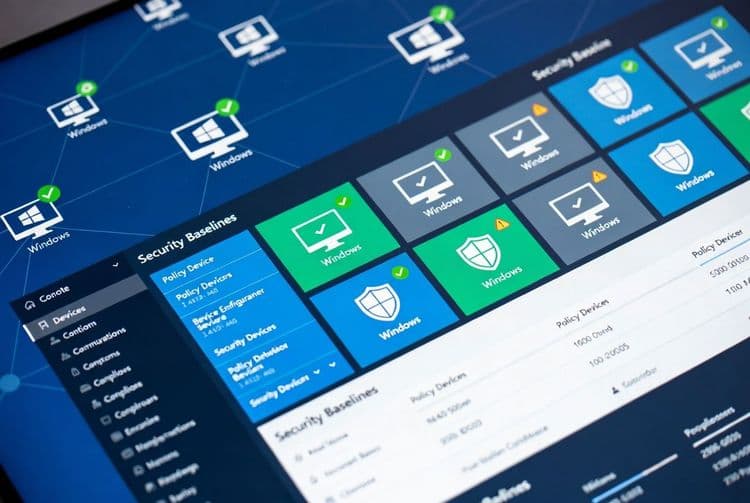
On the Configuration settings tab, click Add settings to open the Settings picker.

Search for and add these three core policies:

1. CopilotPageContext Policy

In the search box, type CopilotPageContext and select it from the results. This policy controls whether Copilot can access page content for summarization.

Microsoft Edge > CopilotPageContext

Set the toggle to Enabled.

2. EdgeEntraCopilotPageContext Policy

Search for EdgeEntraCopilotPageContext and add it. This enables sidepane Copilot access to page content for Entra ID profiles.

Microsoft Edge > EdgeEntraCopilotPageContext

Set the toggle to Enabled.

3. Microsoft365CopilotChatIconEnabled Policy

Search for Microsoft365CopilotChatIconEnabled and add it. This shows the M365 Copilot Chat icon in the Edge toolbar.

Microsoft Edge > Microsoft365CopilotChatIconEnabled

Set the toggle to Enabled.

Pro tip: The EdgeEntraCopilotPageContext policy requires Edge version 130+ while the chat icon policy requires Edge 139+. Check your Edge deployment versions before enabling.

Verification: You should see all three policies listed in your configuration settings with "Enabled" status. Click Next to continue.

04

Configure Policy Assignments and Target Groups

Proper assignment strategy is critical for enterprise deployments. Start with a pilot group to validate functionality before broad deployment.

On the Assignments tab, you'll configure which users or devices receive this policy.

Create Pilot Assignment

Click Add groups under the "Included groups" section.

Search for and select your pilot group. If you don't have a pilot group, create one first:

  1. Open a new tab and navigate to https://entra.microsoft.com
  2. Go to Groups > All groups > New group
  3. Create a Security group named Edge-Copilot-Pilot-Users
  4. Add 5-10 test users to this group
  5. Return to your Intune policy configuration

Select your pilot group and click Select.

Assignment Type Considerations

Choose between:

  • User groups: Policy follows the user across devices (recommended for most scenarios)
  • Device groups: Policy applies to specific devices regardless of user
Warning: These policies only affect Entra ID profiles in Edge, not personal Microsoft accounts. Ensure your test users are signing into Edge with their work accounts.

Verification: Your pilot group should appear in the "Included groups" section. Click Next to proceed to review.

05

Review and Deploy the Configuration Profile

The final step before deployment is to review all settings and create the policy. This is your last chance to verify configurations before they're pushed to devices.

On the Review + create tab, carefully review:

  • Profile name and description
  • All three Copilot policies are listed and enabled
  • Assignment groups are correct
  • Platform is set to Windows 10 and later

If everything looks correct, click Create.

The policy will be created and you'll see a confirmation message. The policy status will initially show as "Not assigned" and then change to "Pending" as it begins deployment.

Pro tip: Policy deployment to devices can take up to 8 hours for the standard check-in cycle. For testing, you can force a sync from the device or use the "Sync" option in Intune for specific devices.

Verification: Navigate to Devices > Windows > Configuration profiles and confirm your new policy appears in the list with the correct assignment count.

06

Force Policy Sync and Initial Testing

To speed up testing and validation, you'll force a policy sync on your pilot devices rather than waiting for the natural 8-hour check-in cycle.

Force Sync from Intune Portal

In the Intune admin center:

  1. Navigate to Devices > All devices
  2. Find a device from your pilot group
  3. Click on the device name
  4. Click Sync in the top toolbar
  5. Confirm the sync action

Force Sync from Target Device

On the target Windows device, open an elevated Command Prompt and run:

gpupdate /force
InvokeWMIMethod -Namespace root/cimv2/mdm/dmmap -Class MDM_EnterpriseModernAppManagement_AppManagement01 -MethodName UpdateScanMethod

Alternatively, use the Settings app:

  1. Open Settings > Accounts > Access work or school
  2. Click on your work account
  3. Click Info
  4. Click Sync
Warning: Policy propagation can take up to 90 minutes even after forcing a sync. Don't assume the policy failed if changes aren't immediate.

Verification: Check the sync status in Intune shows "Successful" and note the timestamp. The device should show policy compliance within 15-30 minutes.

07

Verify Policy Application on Target Devices

Proper verification ensures your policies are actually being applied and functioning as expected. Edge provides built-in tools for policy validation.

Check Policy Status in Edge

On a target device where the policy should be applied:

  1. Open Microsoft Edge
  2. Navigate to edge://policy
  3. Click Reload policies to ensure latest policies are loaded
  4. Look for the following policies in the list:
CopilotPageContext: true
EdgeEntraCopilotPageContext: true
Microsoft365CopilotChatIconEnabled: true

Verify Copilot Functionality

Test the actual Copilot features:

  1. Ensure the user is signed into Edge with their Entra ID work account
  2. Navigate to any webpage (try a news article or documentation page)
  3. Look for the Copilot icon in the Edge toolbar
  4. Click the Copilot icon to open the sidebar
  5. Try asking Copilot to summarize the current page

Check Edge Settings

Navigate to edge://settings/appearance and scroll to Copilot and sidebar. You should see:

  • Copilot toggle available (may be grayed out if managed by policy)
  • "Managed by your organization" text if policies are applied
Pro tip: Use edge://policy regularly during testing. It's the most reliable way to confirm policy application and troubleshoot issues.

Verification: All three policies should show as "true" in edge://policy, and Copilot functionality should be available when signed in with work accounts.

08

Monitor Policy Compliance and Troubleshoot Issues

Ongoing monitoring ensures your Copilot policies remain effective and helps identify issues before they impact users broadly.

Monitor in Intune Admin Center

Navigate to your Edge Copilot policy in Devices > Configuration profiles and click on the policy name.

Review the following tabs:

  • Overview: Shows deployment status and success/failure counts
  • Device status: Lists individual device compliance
  • User status: Shows per-user deployment status

Common Issues and Solutions

IssueCauseSolution
Policy shows in edge://policy but Copilot not workingUser signed in with personal accountEnsure user signs into Edge with Entra ID work account
Microsoft365CopilotChatIconEnabled not workingEdge version too oldUpdate Edge to version 139+ on target devices
Policy not appearing on deviceDevice not properly enrolledCheck device enrollment status in Intune
Copilot grayed out in settingsConflicting policies or regional restrictionsCheck for other Edge policies; verify region settings

Generate Compliance Reports

Create regular reports to track policy effectiveness:

  1. In Intune, go to Reports > Configuration profiles
  2. Select your Edge Copilot policy
  3. Generate and download compliance reports
  4. Review for devices showing "Error" or "Not applicable" status
Warning: In EU regions, CopilotPageContext may be disabled by default due to regulatory requirements. Check regional policy variations.

Verification: Policy compliance should show 90%+ success rate for properly enrolled devices. Any failures should have clear error messages in the device status view.

09

Scale to Production and Implement Monitoring

After successful pilot testing, you're ready to scale the deployment to your entire organization with proper monitoring and rollback procedures.

Create Production Assignment

Return to your Edge Copilot policy in Intune:

  1. Click on the policy name
  2. Go to Assignments
  3. Click Edit
  4. Add your production groups (e.g., "All Users" or specific department groups)
  5. Consider using Filters to exclude specific device types if needed

Implement Phased Rollout

For large organizations, use a phased approach:

Week 1: IT Department (50-100 users)
Week 2: Management and Early Adopters (200-500 users)
Week 3: Department by Department (1000+ users)
Week 4: Remaining Users

Set Up Monitoring and Alerting

Create monitoring dashboards:

  1. Use Intune Reports to create scheduled compliance reports
  2. Set up Azure Monitor alerts for policy failures
  3. Create PowerBI dashboards for executive reporting

Document Rollback Procedures

Prepare for potential issues:

  1. Document how to quickly disable policies (set to "Not configured")
  2. Create emergency contact procedures
  3. Test rollback procedures with pilot group first
Pro tip: Keep the pilot group assigned permanently as a "canary" group for testing future policy changes before broad deployment.

Verification: Monitor the first 48 hours of production deployment closely. Policy compliance should remain above 90%, and help desk tickets related to Copilot should be minimal.

Frequently Asked Questions

What Edge version is required for Microsoft Copilot Intune policies?+
Microsoft Edge version 130 or later is required for CopilotPageContext and EdgeEntraCopilotPageContext policies. The Microsoft365CopilotChatIconEnabled policy specifically requires Edge version 139 or later. Always verify your Edge deployment versions before enabling these policies, as older versions will not recognize or apply the configurations properly.
Do Copilot policies in Intune affect personal Microsoft accounts in Edge?+
No, these Intune policies only apply to Entra ID (work or school) profiles in Microsoft Edge. Personal Microsoft accounts remain unaffected by enterprise Copilot policies. This design ensures that users' personal browsing and AI interactions remain private while allowing organizations to manage work-related Copilot usage according to their security and compliance requirements.
How long does it take for Copilot policies to apply to devices?+
Copilot policies deployed through Intune typically take 8 hours to apply during the standard device check-in cycle. However, you can force immediate synchronization using the Sync button in Intune for specific devices or by running gpupdate /force on the target device. Even after forcing sync, policy propagation can take up to 90 minutes to fully take effect.
Can I use Edge Management Service instead of Intune for Copilot configuration?+
Yes, Microsoft offers the Edge Management Service as an alternative method for enabling Copilot Mode. This service is accessible through the Microsoft 365 Admin Center at admin.cloud.microsoft.com and provides a simpler interface for basic Copilot enablement. However, Intune Settings Catalog offers more granular control and is better suited for complex enterprise environments requiring detailed policy management.
What should I do if Copilot policies show as applied but features don't work?+
First, verify the user is signed into Edge with their Entra ID work account, not a personal account. Check edge://policy to confirm policies show as 'true'. Ensure Edge version meets requirements (130+ for page context, 139+ for chat icon). Clear Edge cache and restart the browser. If issues persist, check for conflicting policies and verify the user has appropriate Microsoft 365 Copilot licensing for chat features.

Discussion

Share your thoughts and insights

Sign in to join the discussion