ANAVEM
Languagefr
How to Migrate Intune Administrative Templates to Settings Catalog

How to Migrate Intune Administrative Templates to Settings Catalog

Migrate deprecated Intune Administrative Template policies to modern Settings Catalog format using automated tools while preserving group assignments, filters, and scope tags.

March 26, 2026 18 min
hardintune 9 steps 18 min

Why Migrate from Administrative Templates to Settings Catalog?

Microsoft deprecated the creation of new Administrative Templates policies in Intune with the December 2024 (2412) release. While existing policies continue to function, they're marked as deprecated and won't receive new features or long-term support. The Settings Catalog represents Microsoft's unified approach to Windows device configuration, offering improved consistency, better reporting, and enhanced cross-platform support.

What Are the Key Benefits of Settings Catalog Migration?

Settings Catalog provides several advantages over the legacy Administrative Templates approach. You get access to the latest Windows settings as they're released, improved policy conflict resolution, better reporting and troubleshooting capabilities, and unified management across different Windows versions. The modern interface also makes it easier to search and configure settings, with built-in documentation for each configuration option.

How Does the Automated Migration Process Work?

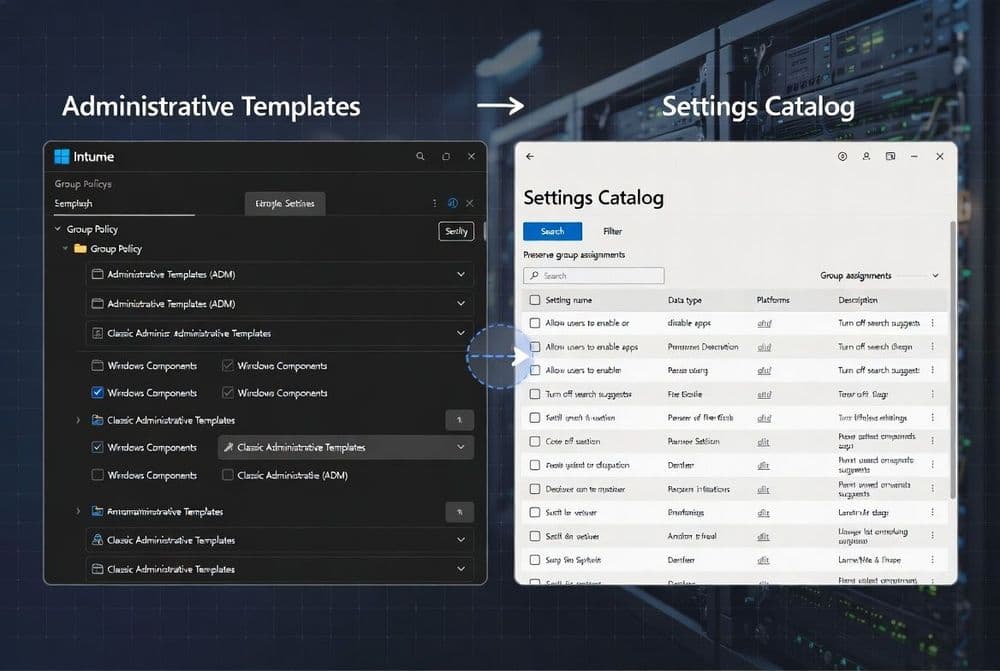
The Administrative Template to Settings Catalog Converter, released in February 2026, automates the tedious manual recreation process. This free web-based tool connects to your Intune tenant, analyzes your existing Administrative Templates policies, and creates equivalent Settings Catalog policies while preserving group assignments, filters, and scope tags. The tool handles the complex mapping between old ADMX paths and new Settings Catalog locations, significantly reducing migration time and human error.

Implementation Guide

Full Procedure

01

Audit Your Current Administrative Templates Policies

Start by documenting all existing Administrative Templates policies in your Intune environment. Navigate to the Microsoft Intune admin center at endpoint.microsoft.com and sign in with your administrator credentials.

Go to Devices > Configuration > Policies and filter by profile type Administrative templates. You'll see a deprecation warning banner indicating these policies are no longer supported for new creation as of the December 2024 (2412) release.

# Optional: Export policy list using Graph API
$policies = Invoke-MgGraphRequest -Uri "https://graph.microsoft.com/v1.0/deviceManagement/deviceConfigurations" -Method GET
$adminTemplates = $policies.value | Where-Object { $_."@odata.type" -eq "#microsoft.graph.windows10CustomConfiguration" }

Document each policy's:

  • Policy name and description
  • Group assignments and filters
  • Scope tags
  • Configured settings and values
  • Last modified date
Pro tip: Take screenshots of complex policies with many settings. The converter tool preserves most configurations, but visual documentation helps verify accuracy.

Verification: Create a spreadsheet listing all Administrative Templates policies. You should see the deprecated status indicator in the Intune admin center for each policy.

02

Access the Administrative Template to Settings Catalog Converter

Navigate to the free web-based converter tool at admintemplate.intunestuff.com. This third-party tool, released in February 2026, automates the migration process while preserving your existing assignments and configurations.

Click Sign in with Microsoft and authenticate using your Intune administrator credentials. The tool requires the same permissions as the Intune admin center to read and create policies.

Warning: This is a third-party tool. While it's widely used in the Intune community, always test in a non-production environment first and review the tool's privacy policy.

Once authenticated, the tool will automatically discover and list all Administrative Templates policies in your tenant. You'll see a dashboard showing:

  • Total number of Administrative Templates policies
  • Policies eligible for conversion
  • Policies with custom ADMX files (require manual migration)
  • Estimated conversion time

Verification: Confirm the tool displays the same number of Administrative Templates policies you documented in Step 1. The policy names and assignments should match your audit.

03

Select and Configure Policies for Migration

In the converter tool interface, review the list of discovered policies. Select the policies you want to migrate by checking the boxes next to each policy name. Start with non-critical policies for your initial migration batch.

For each selected policy, click Review Settings to examine the conversion mapping. The tool shows:

  • Original Administrative Template setting path
  • Equivalent Settings Catalog setting
  • Current configured value
  • Any settings that cannot be automatically mapped

Configure migration options:

  • Preserve Assignments: Keep existing group assignments and filters
  • Add Suffix: Append "_SC" to new policy names for identification
  • Scope Tags: Maintain existing scope tags or add new ones
  • Pilot Mode: Create policies in disabled state for testing
Pro tip: Enable pilot mode for your first migration batch. This creates the Settings Catalog policies in a disabled state, allowing you to review and test before activation.

Verification: Review the settings mapping for at least one complex policy manually. Ensure critical settings like security configurations are properly mapped to their Settings Catalog equivalents.

04

Execute the Automated Migration Process

Click Start Migration to begin the automated conversion process. The tool will:

  1. Create new Settings Catalog policies with equivalent configurations
  2. Apply the same group assignments and filters
  3. Copy scope tags and descriptions
  4. Generate a migration report

Monitor the migration progress in real-time. The tool displays:

  • Current policy being processed
  • Settings successfully mapped
  • Any errors or warnings
  • Estimated time remaining

Common migration statuses you'll see:

✓ Policy "Corporate Security Settings" - 15/15 settings migrated
⚠ Policy "Custom App Settings" - 12/14 settings migrated (2 manual review needed)
✗ Policy "Legacy ADMX" - Migration failed (custom ADMX not supported)
Warning: Don't close the browser tab during migration. The process can take 5-15 minutes depending on the number of policies and settings.

Verification: Wait for the migration to complete and review the summary report. Note any policies that failed or require manual attention.

05

Verify New Settings Catalog Policies in Intune

Return to the Microsoft Intune admin center and navigate to Devices > Configuration > Policies. Filter by profile type Settings catalog to view your newly created policies.

For each migrated policy:

  1. Click the policy name to open its configuration
  2. Review the Settings tab to verify all configurations were preserved
  3. Check the Assignments tab to confirm group assignments and filters
  4. Verify scope tags in the Scope (Tags) section

Compare a few key settings manually:

Original Administrative Template:
Computer Configuration > Administrative Templates > Windows Components > Internet Explorer
"Turn off Internet Explorer Enhanced Security Configuration" = Enabled

New Settings Catalog:
Internet Explorer > Turn off Enhanced Security Configuration = Enabled

Check the policy status and assignments:

  • Status: Should show "Not assigned" if created in pilot mode
  • Assignments: Should match original policy assignments
  • Filters: Should preserve any device filters
Pro tip: Use the search function in Settings Catalog to quickly locate specific settings. The search covers both setting names and descriptions.

Verification: Open one migrated policy and compare its settings with the original Administrative Template policy side-by-side. All configured values should match exactly.

06

Test Migrated Policies with Pilot Devices

Before deploying to production, test the migrated Settings Catalog policies with a small pilot group. Create a test device group or use an existing pilot group (like "Ring 0 - IT Department").

Enable and assign one migrated policy to your pilot group:

  1. Open the Settings Catalog policy in Intune admin center
  2. Go to Assignments tab
  3. Click Add group and select your pilot group
  4. Configure any necessary filters (e.g., Windows version)
  5. Save the assignment

Monitor policy deployment and application:

# On a pilot device, check policy application status
Get-WinEvent -FilterHashtable @{LogName='Microsoft-Windows-DeviceManagement-Enterprise-Diagnostics-Provider/Admin'; ID=1000} | Select-Object TimeCreated, Message | Format-Table -Wrap

Verify settings are applied correctly on pilot devices:

  • Check Group Policy Results (gpresult /r) for applied settings
  • Verify registry values for specific configurations
  • Test functionality affected by the policies
  • Monitor Intune device compliance reports
Warning: Some settings may take up to 8 hours to apply on devices. Don't assume failure if settings don't appear immediately.

Verification: Run gpresult /h gpresult.html on a pilot device and review the HTML report to confirm Settings Catalog policies are applying correctly.

07

Handle Manual Migration for Unsupported Policies

Some Administrative Templates policies cannot be automatically migrated, particularly those using custom ADMX files or deprecated settings. For these policies, you'll need to perform manual migration.

Identify policies requiring manual migration from the converter tool report. Common scenarios include:

  • Custom ADMX files imported into Intune
  • Third-party application templates
  • Deprecated Windows settings no longer supported

For custom ADMX files, first import them into Settings Catalog:

  1. Go to Devices > Configuration > Import ADMX
  2. Upload your custom ADMX and ADML files
  3. Wait for processing (can take 15-30 minutes)

Create equivalent Settings Catalog policies manually:

  1. Go to Devices > Configuration > Create > New policy
  2. Select Platform: Windows 10 and later, Profile type: Settings catalog
  3. Search for your imported ADMX settings or equivalent built-in settings
  4. Configure values to match the original policy
  5. Apply the same assignments, filters, and scope tags
Example manual mapping:
Original: Custom App ADMX > Enable Feature X = True
Settings Catalog: [Custom App] > Enable Feature X = Enabled
Pro tip: Use the Settings Catalog search with keywords from your original policy. Many third-party applications now have native Settings Catalog support.

Verification: Test manually migrated policies thoroughly, as the settings paths and values may differ from the original Administrative Templates.
08

Deploy to Production and Monitor Results

After successful pilot testing, gradually deploy the migrated Settings Catalog policies to production. Use a phased approach to minimize risk and allow for quick rollback if issues arise.

Deploy in phases:

  1. Phase 1: IT department and early adopters (Week 1)
  2. Phase 2: Department by department (Weeks 2-3)
  3. Phase 3: Remaining users (Week 4)

For each phase, update the policy assignments:

  1. Open the Settings Catalog policy
  2. Go to Assignments tab
  3. Add the next phase group(s)
  4. Remove pilot group assignments if no longer needed

Monitor deployment through Intune reporting:

  • Device configuration: Check policy assignment status
  • Device compliance: Monitor for any compliance issues
  • Endpoint analytics: Watch for performance impacts

Track key metrics:

Policy Application Success Rate: Target >95%
Device Check-in Frequency: Monitor for delays
User-reported Issues: Track helpdesk tickets
Compliance Status: Ensure no degradation
Warning: Keep the original Administrative Templates policies active during the initial production rollout. Only disable them after confirming the Settings Catalog policies are working correctly.

Verification: Use the Intune admin center reports to confirm >95% successful policy application across all deployed groups before proceeding to the next phase.

09

Clean Up Deprecated Administrative Templates Policies

Once you've confirmed the Settings Catalog policies are working correctly in production, it's time to clean up the deprecated Administrative Templates policies. This final step completes your migration and removes the deprecation warnings from your Intune console.

Before deletion, create a final backup of your Administrative Templates policies:

  1. Document all policy settings one final time
  2. Export assignments and scope tags
  3. Take screenshots of complex configurations
  4. Note any policies still in use for reference

Disable Administrative Templates policies first (don't delete immediately):

  1. Open each Administrative Templates policy
  2. Go to Assignments tab
  3. Remove all group assignments
  4. Save the changes

Monitor for 1-2 weeks to ensure no unexpected issues arise. Then proceed with deletion:

  1. Return to Devices > Configuration > Policies
  2. Filter by Administrative templates
  3. Select policies to delete (start with non-critical ones)
  4. Click Delete and confirm

Alternatively, use the converter tool's cleanup feature:

  • Return to admintemplate.intunestuff.com
  • Navigate to the Cleanup section
  • Select successfully migrated policies
  • Choose Disable assignments or Delete policies
Pro tip: Keep a few non-critical Administrative Templates policies for 30 days after migration as a safety net. Delete them only after confirming no rollback is needed.

Verification: Confirm the deprecation warnings are gone from your Intune admin center. Check that device compliance and policy application rates remain stable after cleanup.

Frequently Asked Questions

Can I still use Administrative Templates policies after the December 2024 deprecation?+
Yes, existing Administrative Templates policies continue to function normally after the December 2024 (2412) deprecation. However, you cannot create new Administrative Templates policies, and existing ones are marked as deprecated in the Intune admin center. Microsoft recommends migrating to Settings Catalog for long-term support and access to new features.
Does Microsoft provide an official migration tool for Administrative Templates to Settings Catalog?+
No, Microsoft does not provide an official automated migration tool as of March 2026. Administrators must either manually recreate policies in Settings Catalog or use third-party tools like the Administrative Template to Settings Catalog Converter. Microsoft's official guidance focuses on manual recreation through the Intune admin center.
What happens to custom ADMX files during the migration process?+
Custom ADMX files cannot be automatically migrated by most conversion tools. You must first import your custom ADMX and ADML files into Intune using the 'Import ADMX' feature under Devices > Configuration. After import, you can manually create Settings Catalog policies using the imported custom settings, or some may be automatically available for conversion.
Will migrating to Settings Catalog affect my existing device assignments and filters?+
When using automated migration tools like the Administrative Template to Settings Catalog Converter, your existing group assignments, device filters, and scope tags are preserved in the new Settings Catalog policies. However, you should verify assignments after migration and test with pilot groups before full deployment to ensure proper functionality.
How long does it take for Settings Catalog policies to apply to devices compared to Administrative Templates?+
Settings Catalog policies follow the same application timeline as Administrative Templates, typically applying within 8 hours or at the next device check-in cycle. However, Settings Catalog often provides better reporting and faster conflict resolution. The migration itself doesn't change policy application timing, but you may notice improved consistency in policy deployment and reporting.

Discussion

Share your thoughts and insights

Sign in to join the discussion