ANAVEM
Languagefr
Windows Event Viewer showing system event logs and backup file management on a monitoring dashboard
Event ID 1085InformationEventLogWindows

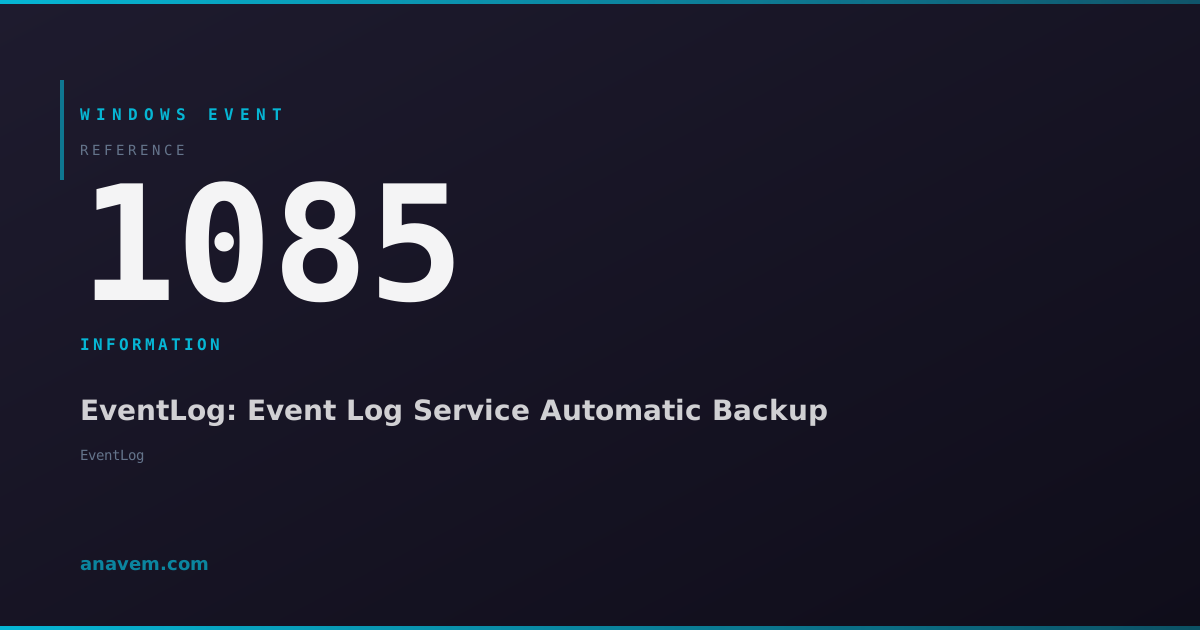
Windows Event ID 1085 – EventLog: Event Log Service Automatic Backup

Event ID 1085 indicates the Windows Event Log service has automatically backed up a log file when it reached maximum size or retention limits.

Emanuel DE ALMEIDAEmanuel DE ALMEIDA
18 March 20269 min read 0
Event ID 1085EventLog 5 methods 9 min
Event Reference

What This Event Means

Event ID 1085 represents a critical component of Windows' log management infrastructure. When an event log reaches its maximum configured size, the Event Log service automatically triggers this backup process to maintain system stability and ensure continuous logging capability. The event contains detailed information about which log was backed up, the backup file location, and timestamp information.

This automatic backup behavior is controlled by each log's retention policy settings, which can be configured to overwrite events as needed, archive when full, or never overwrite events. When set to archive mode, the system generates Event ID 1085 each time a backup occurs. The backup process is atomic and non-disruptive, allowing the original log to continue accepting new entries immediately after the backup completes.

The backed-up files maintain the same security permissions as the original logs, ensuring that access controls remain consistent. These backup files can be opened directly in Event Viewer, imported into log analysis tools, or processed programmatically using PowerShell's Get-WinEvent cmdlet. For compliance and forensic purposes, these backups provide a complete historical record of system activity that would otherwise be lost when logs roll over.

In enterprise environments, Event ID 1085 serves as an important indicator of log volume and system activity levels. Frequent occurrences might suggest the need for log size adjustments, more aggressive filtering, or implementation of centralized logging solutions to manage the data more effectively.

Applies to

Windows 10Windows 11Windows Server 2019/2022/2025
Analysis

Possible Causes

  • Event log reaching its configured maximum size limit
  • Log retention policy set to 'Archive the log when full, do not overwrite events'
  • High-volume application or system activity generating excessive log entries
  • Security auditing policies creating large numbers of audit events
  • Custom applications writing extensive diagnostic information to Windows event logs
  • System services generating debug or verbose logging output
  • Network authentication events in domain environments creating large Security logs
Resolution Methods

Troubleshooting Steps

01

Review Event Details in Event Viewer

Start by examining the specific Event ID 1085 entry to understand which log was backed up and when.

  1. Open Event Viewer by pressing Win + R, typing eventvwr.msc, and pressing Enter
  2. Navigate to Windows LogsSystem
  3. Filter the current log by clicking Filter Current Log in the Actions pane
  4. Enter 1085 in the Event IDs field and click OK
  5. Double-click the most recent Event ID 1085 entry to view details
  6. Note the log name and backup file path shown in the event description
  7. Check the backup file location, typically C:\Windows\System32\winevt\Logs\Archive-[LogName]-[Timestamp].evtx

Use PowerShell to get detailed information about recent backup events:

Get-WinEvent -FilterHashtable @{LogName='System'; Id=1085} -MaxEvents 10 | Select-Object TimeCreated, Id, LevelDisplayName, Message | Format-Table -Wrap
02

Check Log Size Configuration and Adjust Limits

Examine the current log size settings and modify them if backups are occurring too frequently.

  1. Open Event Viewer and navigate to the log mentioned in the Event ID 1085 message
  2. Right-click the log name and select Properties
  3. Review the Maximum log size (KB) setting
  4. Check the current When maximum event log size is reached option
  5. To increase log size, modify the value (recommended: 20480 KB for Application/System logs)
  6. Consider changing retention policy to Overwrite events as needed if historical data isn't critical

Use PowerShell to check log configurations across multiple logs:

Get-WinEvent -ListLog * | Where-Object {$_.RecordCount -gt 0} | Select-Object LogName, MaximumSizeInBytes, LogMode | Sort-Object LogName

Modify log size programmatically:

# Set Application log to 50MB
Limit-EventLog -LogName Application -MaximumSize 52428800

# Check current settings
Get-EventLog -List
03

Analyze Log Growth Patterns and Sources

Identify what's causing rapid log growth to address the root cause rather than just managing symptoms.

  1. Open the backed-up log file mentioned in Event ID 1085
  2. In Event Viewer, click ActionOpen Saved Log
  3. Browse to the backup file location and open the archived .evtx file
  4. Analyze the event sources and frequency patterns
  5. Look for repetitive events or verbose logging from specific applications

Use PowerShell to analyze event frequency by source:

# Analyze Application log event sources
Get-WinEvent -LogName Application -MaxEvents 10000 | Group-Object ProviderName | Sort-Object Count -Descending | Select-Object Name, Count

# Check for high-frequency events in the last 24 hours
$StartTime = (Get-Date).AddDays(-1)
Get-WinEvent -FilterHashtable @{LogName='Application'; StartTime=$StartTime} | Group-Object Id | Sort-Object Count -Descending | Select-Object Name, Count -First 10

For Security log analysis:

# Identify top security event types
Get-WinEvent -LogName Security -MaxEvents 5000 | Group-Object Id | Sort-Object Count -Descending | Select-Object Name, Count -First 15
04

Configure Advanced Log Management Policies

Implement more sophisticated log management through Group Policy or registry modifications.

  1. Open Group Policy Editor by running gpedit.msc
  2. Navigate to Computer ConfigurationAdministrative TemplatesWindows ComponentsEvent Log Service
  3. Configure policies for specific logs under the appropriate subfolder (Application, Security, System)
  4. Set Maximum Log Size and Log Retention Method policies
  5. Enable Control Event Log behavior when the log file reaches its maximum size

Registry-based configuration for advanced scenarios:

# Check current registry settings for Application log
Get-ItemProperty -Path "HKLM:\SYSTEM\CurrentControlSet\Services\EventLog\Application" -Name MaxSize, Retention

# Set Application log to 100MB with overwrite policy
Set-ItemProperty -Path "HKLM:\SYSTEM\CurrentControlSet\Services\EventLog\Application" -Name MaxSize -Value 104857600
Set-ItemProperty -Path "HKLM:\SYSTEM\CurrentControlSet\Services\EventLog\Application" -Name Retention -Value 0

Configure custom retention for specific logs:

# Create a custom retention policy
$LogName = "Application"
wevtutil sl $LogName /ms:104857600 /rt:false
Warning: Registry modifications require administrator privileges and should be tested in non-production environments first.
05

Implement Centralized Logging and Monitoring

Deploy enterprise-level solutions to manage log data more effectively and reduce local storage pressure.

  1. Configure Windows Event Forwarding (WEF) to centralize logs
  2. Set up a collector server to receive forwarded events
  3. Create custom event subscriptions for critical events
  4. Implement log rotation and archival policies on the collector

Configure Event Forwarding on source computers:

# Enable WinRM for event forwarding
winrm quickconfig -q

# Configure the forwarder service
wecutil qc /q

# Create a subscription (run on collector server)
wecutil cs subscription.xml

Example subscription XML configuration:

<Subscription xmlns="http://schemas.microsoft.com/2006/03/windows/events/subscription">
    <SubscriptionId>SystemEvents</SubscriptionId>
    <SubscriptionType>SourceInitiated</SubscriptionType>
    <Description>Forward System Events</Description>
    <Enabled>true</Enabled>
    <Uri>http://schemas.microsoft.com/wbem/wsman/1/windows/EventLog</Uri>
    <ConfigurationMode>Custom</ConfigurationMode>
    <Query><![CDATA[
        <QueryList>
            <Query Id="0">
                <Select Path="System">*[System[Level=1 or Level=2 or Level=3]]</Select>
            </Query>
        </QueryList>
    ]]></Query>
</Subscription>

Monitor forwarding status:

# Check subscription status
wecutil gr SystemEvents

# View forwarded events
Get-WinEvent -LogName "ForwardedEvents" -MaxEvents 50
Pro tip: Combine centralized logging with automated log analysis tools like Microsoft Sentinel or third-party SIEM solutions for comprehensive monitoring.

Overview

Event ID 1085 fires when the Windows Event Log service automatically creates a backup of an event log that has reached its configured maximum size or retention policy limits. This is a normal housekeeping operation that prevents log files from consuming excessive disk space while preserving historical event data. The event appears in the System log and indicates which specific log was backed up and where the backup file was created.

This event is particularly common in busy environments where applications generate high volumes of log entries, causing logs like Application, Security, or custom application logs to reach their size thresholds quickly. The automatic backup mechanism ensures continuous logging operations while maintaining system performance. Understanding this event helps administrators monitor log management policies and troubleshoot scenarios where expected log entries might have been archived.

The backup files created during this process use the .evtx format and are typically stored in the same directory as the original log files, usually C:\Windows\System32\winevt\Logs\. These archived logs remain accessible through Event Viewer or PowerShell commands for historical analysis and compliance requirements.

Frequently Asked Questions

What does Event ID 1085 mean and is it something to worry about?+
Event ID 1085 is an informational event indicating that Windows has automatically backed up an event log that reached its maximum size. This is normal behavior and not a cause for concern. It shows that your log management policies are working correctly to prevent logs from consuming excessive disk space. However, frequent occurrences might indicate high system activity or the need to adjust log size limits.
Where are the backup files created by Event ID 1085 stored?+
Backup files are typically stored in the same directory as the original event logs, usually C:\Windows\System32\winevt\Logs\. The backup files follow the naming convention Archive-[LogName]-[Timestamp].evtx. For example, a backed-up Application log might be named Archive-Application-2026-03-18-14-30-15-123.evtx. These files can be opened directly in Event Viewer or accessed programmatically using PowerShell.
How can I prevent Event ID 1085 from occurring so frequently?+
To reduce the frequency of Event ID 1085, you can increase the maximum log size for the affected logs, change the retention policy to 'Overwrite events as needed' instead of archiving, or identify and reduce verbose logging from applications that generate excessive events. Use Event Viewer properties or PowerShell commands like Limit-EventLog -LogName Application -MaximumSize 52428800 to increase log sizes. Additionally, consider implementing log filtering or centralized logging solutions.
Can I safely delete the backup files created by Event ID 1085?+
Yes, you can safely delete backup event log files if you no longer need the historical data for compliance, troubleshooting, or audit purposes. However, consider your organization's data retention policies before deletion. These backup files contain valuable historical information that might be required for forensic analysis or regulatory compliance. If disk space is a concern, consider moving the files to archival storage rather than deleting them entirely.
How do I open and analyze the backup files mentioned in Event ID 1085?+
You can open backup event log files (.evtx) in several ways: 1) In Event Viewer, go to Action → Open Saved Log and browse to the backup file location; 2) Use PowerShell with Get-WinEvent -Path 'C:\path\to\backup.evtx'; 3) Double-click the .evtx file in Windows Explorer to open it directly in Event Viewer. Once opened, you can filter, search, and analyze the archived events just like current logs. The backup files maintain all original event properties and security permissions.
Documentation

References (2)

Emanuel DE ALMEIDA
Written by

Emanuel DE ALMEIDA

Senior IT Journalist & Cloud Architect

Microsoft MCSA-certified Cloud Architect | Fortinet-focused. I modernize cloud, hybrid & on-prem infrastructure for reliability, security, performance and cost control - sharing field-tested ops & troubleshooting.

Discussion

Share your thoughts and insights

You must be logged in to comment.

Loading comments...