ANAVEM
Languagefr
Windows Event Viewer showing system event logs on a monitoring dashboard
Event ID 6013InformationEventLogWindows

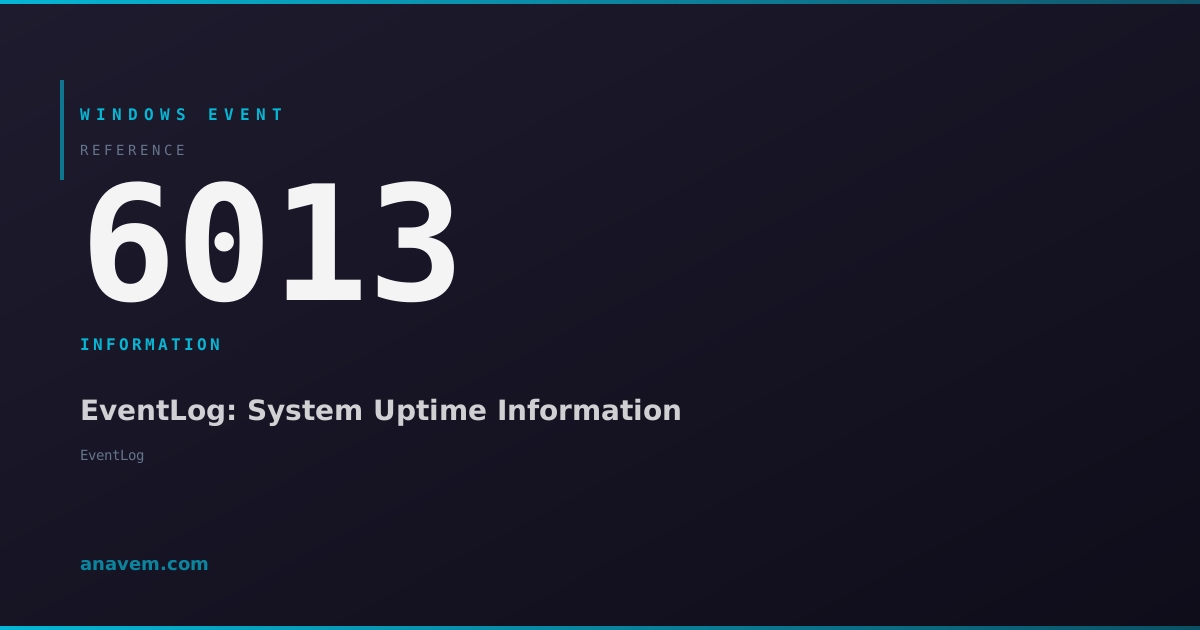
Windows Event ID 6013 – EventLog: System Uptime Information

Event ID 6013 records system uptime information in the System log, indicating how long Windows has been running since the last boot or restart.

Emanuel DE ALMEIDAEmanuel DE ALMEIDA
18 March 20268 min read 0
Event ID 6013EventLog 5 methods 8 min
Event Reference

What This Event Means

Event ID 6013 is generated by the Windows EventLog service as part of its routine system monitoring functions. The event records the current system uptime, typically measured in seconds since the last system boot. This information is logged to the System event log at regular intervals, providing a historical record of system availability and operational continuity.

The event contains specific data about system runtime, including the exact duration the system has been operational. This data is crucial for administrators who need to track system availability metrics, generate uptime reports for management, or investigate patterns related to system stability. The event helps distinguish between planned maintenance windows and unexpected system outages by providing precise timing information.

In Windows Server environments, Event ID 6013 becomes particularly important for monitoring critical infrastructure components. Database servers, domain controllers, and application servers that require high availability benefit from this systematic uptime tracking. The event data can be exported and analyzed to identify trends, such as whether systems are experiencing more frequent reboots than expected or if certain hardware configurations demonstrate superior stability.

Modern Windows versions in 2026 have enhanced the accuracy and frequency of Event ID 6013 logging, making it more reliable for automated monitoring systems and PowerShell-based reporting scripts. The event integrates well with System Center Operations Manager (SCOM), Azure Monitor, and third-party monitoring solutions that aggregate Windows event data for enterprise-wide visibility.

Applies to

Windows 10Windows 11Windows Server 2019/2022/2025
Analysis

Possible Causes

  • Normal system operation - EventLog service periodically logs uptime information
  • System boot completion - Initial uptime recording after Windows startup
  • EventLog service restart - Service generates uptime event when restarting
  • Scheduled uptime reporting - Automatic logging at configured intervals
  • Administrative queries - Manual requests for current system uptime status
  • Monitoring system integration - Third-party tools triggering uptime data collection
Resolution Methods

Troubleshooting Steps

01

View Event Details in Event Viewer

Access the Event Viewer to examine Event ID 6013 details and uptime information:

  1. Press Windows + R, type eventvwr.msc, and press Enter
  2. Navigate to Windows LogsSystem
  3. In the Actions pane, click Filter Current Log
  4. Enter 6013 in the Event ID field and click OK
  5. Double-click any Event ID 6013 entry to view detailed information
  6. Review the General tab for uptime data and the Details tab for raw event data
  7. Note the timestamp and uptime duration displayed in the event description
Pro tip: The event description typically shows uptime in seconds. Divide by 86400 to convert to days for easier interpretation.
02

Query Events Using PowerShell

Use PowerShell to retrieve and analyze Event ID 6013 data programmatically:

  1. Open PowerShell as Administrator
  2. Run the following command to get recent Event ID 6013 entries:
Get-WinEvent -FilterHashtable @{LogName='System'; Id=6013} -MaxEvents 10 | Format-Table TimeCreated, Id, LevelDisplayName, Message -Wrap
  1. For more detailed analysis, use this command to extract uptime information:
Get-WinEvent -FilterHashtable @{LogName='System'; Id=6013} -MaxEvents 5 | ForEach-Object {
    $uptimeSeconds = ($_.Message -split ' ')[4]
    $uptimeDays = [math]::Round($uptimeSeconds / 86400, 2)
    [PSCustomObject]@{
        TimeCreated = $_.TimeCreated
        UptimeSeconds = $uptimeSeconds
        UptimeDays = $uptimeDays
        Message = $_.Message
    }
} | Format-Table -AutoSize
  1. To export uptime data to CSV for reporting:
Get-WinEvent -FilterHashtable @{LogName='System'; Id=6013} | Select-Object TimeCreated, Message | Export-Csv -Path "C:\temp\uptime_report.csv" -NoTypeInformation
03

Configure Event Log Monitoring

Set up automated monitoring for Event ID 6013 to track system uptime trends:

  1. Open Task Scheduler by pressing Windows + R, typing taskschd.msc
  2. In the Actions pane, click Create Basic Task
  3. Name the task "Uptime Monitor" and provide a description
  4. Set the trigger to On an event
  5. Configure the event trigger:
    • Log: System
    • Source: EventLog
    • Event ID: 6013
  6. Set the action to Start a program
  7. Program: powershell.exe
  8. Arguments: -Command "Get-WinEvent -FilterHashtable @{LogName='System'; Id=6013} -MaxEvents 1 | Out-File -Append C:\logs\uptime.log"
  9. Complete the wizard and test the task
Warning: Ensure the C:\logs directory exists and has appropriate permissions before running the task.
04

Analyze Uptime Patterns and Generate Reports

Create comprehensive uptime analysis using PowerShell to identify patterns and generate management reports:

  1. Create a PowerShell script to analyze historical uptime data:
# Get all Event ID 6013 entries from the last 30 days
$events = Get-WinEvent -FilterHashtable @{LogName='System'; Id=6013; StartTime=(Get-Date).AddDays(-30)}

# Process events to extract uptime statistics
$uptimeData = $events | ForEach-Object {
    $message = $_.Message
    if ($message -match '(\d+) seconds') {
        $seconds = [int]$matches[1]
        $days = [math]::Round($seconds / 86400, 2)
        [PSCustomObject]@{
            Date = $_.TimeCreated.Date
            UptimeSeconds = $seconds
            UptimeDays = $days
            UptimeHours = [math]::Round($seconds / 3600, 2)
        }
    }
}

# Generate statistics
$stats = $uptimeData | Measure-Object UptimeDays -Average -Maximum -Minimum
Write-Host "Uptime Statistics (Last 30 Days):"
Write-Host "Average Uptime: $([math]::Round($stats.Average, 2)) days"
Write-Host "Maximum Uptime: $($stats.Maximum) days"
Write-Host "Minimum Uptime: $($stats.Minimum) days"

# Export detailed report
$uptimeData | Export-Csv -Path "C:\temp\detailed_uptime_report.csv" -NoTypeInformation
  1. Run the script monthly to track uptime trends
  2. Use the CSV output to create charts in Excel or Power BI
  3. Set up alerts for systems with unusually low uptime values
05

Integration with Enterprise Monitoring Solutions

Configure Event ID 6013 integration with enterprise monitoring platforms for centralized uptime tracking:

  1. For SCOM integration, create a custom rule:
    • Open Operations Manager Console
    • Navigate to AuthoringRules
    • Create a new Event Collection Rule
    • Target: Windows Computer
    • Event Log: System
    • Event ID: 6013
    • Event Source: EventLog
  2. For Azure Monitor integration, configure the Log Analytics agent:
# Configure Windows Event Log collection
$workspaceId = "your-workspace-id"
$workspaceKey = "your-workspace-key"

# Add System log with Event ID 6013 filter
Add-AzOperationalInsightsWindowsEventLog -ResourceGroupName "your-rg" -WorkspaceName "your-workspace" -EventLogName "System" -CollectErrors -CollectWarnings -CollectInformation
  1. Create custom KQL queries in Azure Monitor:
Event
| where EventLog == "System" and EventID == 6013
| extend UptimeSeconds = extract(@"(\d+) seconds", 1, RenderedDescription)
| extend UptimeDays = todouble(UptimeSeconds) / 86400
| summarize avg(UptimeDays), max(UptimeDays), min(UptimeDays) by Computer
| order by avg_UptimeDays desc
  1. Set up automated alerts for uptime thresholds
  2. Create dashboards showing uptime trends across your infrastructure
Pro tip: Combine Event ID 6013 data with Event ID 1074 (shutdown events) for complete availability analysis.

Overview

Event ID 6013 is an informational event generated by the Windows EventLog service that records system uptime statistics. This event fires periodically to document how long the system has been running since the last boot or restart. The event appears in the System log and provides valuable information for system administrators monitoring server availability, troubleshooting unexpected reboots, and tracking system stability metrics.

Unlike critical system events that indicate problems, Event ID 6013 represents normal system operation. It serves as a timestamp marker that helps administrators understand system availability patterns and identify periods of continuous operation. The event typically includes the total uptime in seconds, making it useful for calculating service level agreements (SLAs) and monitoring infrastructure reliability.

This event is particularly valuable in enterprise environments where tracking system availability is crucial for business operations. System administrators use Event ID 6013 data to generate uptime reports, identify systems that may need maintenance windows, and verify that critical servers maintain expected availability levels. The event also helps correlate system performance issues with uptime duration, as some problems may manifest after extended periods of continuous operation.

Frequently Asked Questions

What does Event ID 6013 mean and why does it appear in my System log?+
Event ID 6013 is an informational event generated by the Windows EventLog service that records system uptime information. It appears in the System log as part of normal Windows operation to document how long your system has been running since the last boot or restart. This event is not an error or warning - it's a routine logging mechanism that helps administrators track system availability and operational continuity. The event typically includes the uptime duration in seconds and serves as a valuable data point for monitoring system stability and generating uptime reports.
How often does Windows generate Event ID 6013 and can I control the frequency?+
Windows generates Event ID 6013 at regular intervals as part of the EventLog service's routine operations, typically every few hours during normal system operation. The exact frequency can vary based on system activity and EventLog service configuration. While you cannot directly control when this specific event is generated through standard Windows settings, the EventLog service behavior is influenced by overall system logging policies. In enterprise environments, you can use Group Policy to manage event log settings, though Event ID 6013 frequency is generally not user-configurable as it's part of core system monitoring functionality.
Can I use Event ID 6013 data to calculate system availability percentages for SLA reporting?+
Yes, Event ID 6013 data is excellent for calculating system availability percentages and generating SLA reports. The event provides precise uptime information in seconds, which you can use to determine availability metrics. To calculate availability, you'll need to combine Event ID 6013 data with shutdown/restart events (like Event ID 1074) to get complete uptime and downtime periods. Use PowerShell scripts to extract uptime values, convert them to meaningful time periods, and calculate availability percentages. For accurate SLA reporting, collect data over your reporting period (monthly, quarterly, or annually) and factor in planned maintenance windows versus unplanned outages.
Why am I seeing multiple Event ID 6013 entries with different uptime values on the same day?+
Multiple Event ID 6013 entries with different uptime values on the same day typically indicate that your system experienced restarts or reboots during that period. Each time Windows boots up, the uptime counter resets to zero and begins counting again. If you see an entry showing 50,000 seconds of uptime followed later by an entry showing 5,000 seconds, this suggests the system was restarted between those log entries. This pattern is normal and helps you identify when reboots occurred. To get a complete picture of system availability, correlate Event ID 6013 with shutdown events (Event ID 1074) and system startup events (Event ID 6005, 6006) to understand the full restart timeline.
How can I troubleshoot missing Event ID 6013 entries or gaps in uptime logging?+
Missing Event ID 6013 entries or gaps in uptime logging can indicate several issues with the EventLog service or system configuration. First, check if the EventLog service is running properly using 'Get-Service EventLog' in PowerShell. Verify that the System event log isn't full or corrupted by checking Event Viewer for any EventLog service errors. Review the event log size limits and retention policies in Event Viewer properties - if the log is set to overwrite events or has reached capacity, older entries may be missing. Check for any Group Policy settings that might be affecting event logging. If the EventLog service has been stopped or restarted, this could create gaps in logging. Use 'Get-WinEvent -ListLog System' to verify log health and consider clearing and restarting the EventLog service if corruption is suspected.
Documentation

References (2)

Emanuel DE ALMEIDA
Written by

Emanuel DE ALMEIDA

Senior IT Journalist & Cloud Architect

Microsoft MCSA-certified Cloud Architect | Fortinet-focused. I modernize cloud, hybrid & on-prem infrastructure for reliability, security, performance and cost control - sharing field-tested ops & troubleshooting.

Discussion

Share your thoughts and insights

You must be logged in to comment.

Loading comments...