ANAVEM
Languagefr
Windows Event Viewer showing system event logs on a monitoring dashboard
Event ID 6009InformationEventLogWindows

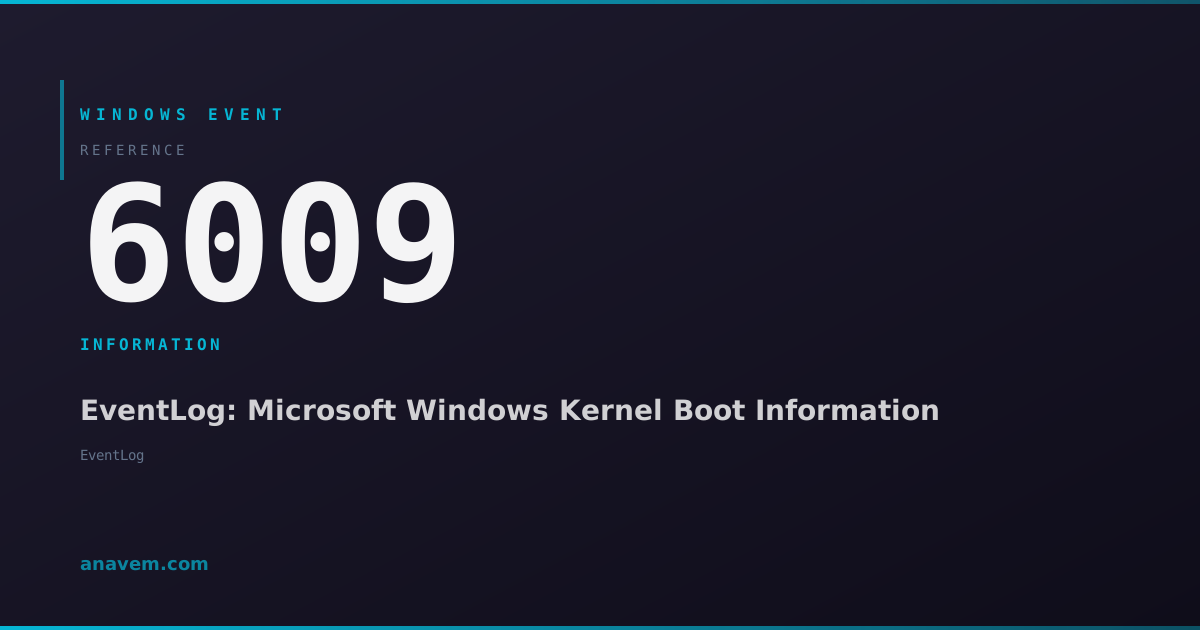
Windows Event ID 6009 – EventLog: Microsoft Windows Kernel Boot Information

Event ID 6009 records Windows kernel boot information including processor details, memory configuration, and system architecture during system startup.

Emanuel DE ALMEIDAEmanuel DE ALMEIDA
18 March 20268 min read 0
Event ID 6009EventLog 5 methods 8 min
Event Reference

What This Event Means

Windows Event ID 6009 represents one of the most fundamental system information events in the Windows Event Log infrastructure. Generated by the EventLog service during the early stages of system initialization, this event serves as a comprehensive hardware and system configuration snapshot that occurs with every successful Windows boot sequence.

The event captures critical system parameters including the total number of logical processors, total physical memory in bytes, system architecture designation, and Windows kernel version information. This data is extracted directly from the Windows kernel during the boot process, ensuring accuracy and consistency across different hardware platforms and Windows versions.

From a technical perspective, Event ID 6009 is triggered after the kernel successfully initializes core system components but before user-mode services begin loading. This timing makes it an excellent indicator of successful hardware detection and kernel initialization. The event data structure follows a standardized format that has remained consistent across Windows versions, making it reliable for long-term system monitoring and historical analysis.

System administrators frequently use this event for automated hardware inventory collection, boot sequence monitoring, and detecting changes in system configuration. The event's consistent appearance and structured data format make it ideal for PowerShell-based monitoring scripts and SIEM integration. Additionally, the timestamp associated with this event provides an accurate record of when each system boot completed the kernel initialization phase.

Applies to

Windows 10Windows 11Windows Server 2019/2022/2025
Analysis

Possible Causes

  • Normal Windows system startup and kernel initialization process
  • System restart initiated by user, application, or scheduled task
  • Recovery from system crash or unexpected shutdown
  • Hardware changes that trigger system reboot
  • Windows Update installations requiring system restart
  • Power cycle events following power outages or maintenance
  • Virtual machine startup in virtualized environments
Resolution Methods

Troubleshooting Steps

01

View Boot Information in Event Viewer

Access the Event Viewer to examine boot information and system configuration details captured by Event ID 6009.

  1. Press Windows + R, type eventvwr.msc, and press Enter
  2. Navigate to Windows LogsSystem
  3. In the Actions pane, click Filter Current Log
  4. Enter 6009 in the Event IDs field and click OK
  5. Double-click any Event ID 6009 entry to view detailed system information
  6. Review the General tab for processor count, memory size, and architecture details
  7. Check the Details tab for raw XML data containing additional system parameters
Pro tip: The event description contains human-readable hardware information, while the XML data provides structured values perfect for automated parsing.
02

Query Boot Events with PowerShell

Use PowerShell to retrieve and analyze Event ID 6009 entries for system monitoring and inventory purposes.

  1. Open PowerShell as Administrator
  2. Run the following command to get recent boot events:
    Get-WinEvent -FilterHashtable @{LogName='System'; Id=6009} -MaxEvents 10 | Format-Table TimeCreated, Id, LevelDisplayName, Message -Wrap
  3. For detailed hardware information extraction:
    $bootEvents = Get-WinEvent -FilterHashtable @{LogName='System'; Id=6009} -MaxEvents 5
    foreach ($event in $bootEvents) {
        Write-Host "Boot Time: $($event.TimeCreated)"
        Write-Host "Message: $($event.Message)"
        Write-Host "---"
    }
  4. To export boot information to CSV for inventory tracking:
    Get-WinEvent -FilterHashtable @{LogName='System'; Id=6009} -MaxEvents 50 | Select-Object TimeCreated, Message | Export-Csv -Path "C:\temp\boot_inventory.csv" -NoTypeInformation
Pro tip: Combine this with Get-ComputerInfo for comprehensive system documentation scripts.
03

Monitor Boot Patterns and System Changes

Implement monitoring to track boot frequency, detect hardware changes, and identify system stability issues.

  1. Create a PowerShell script to analyze boot patterns:
    $bootEvents = Get-WinEvent -FilterHashtable @{LogName='System'; Id=6009} -MaxEvents 100
    $bootTimes = $bootEvents | Select-Object TimeCreated
    $bootCount = $bootTimes.Count
    $daysSinceFirst = (Get-Date) - $bootTimes[-1].TimeCreated
    $avgBootsPerDay = [math]::Round($bootCount / $daysSinceFirst.TotalDays, 2)
    Write-Host "Total boots in period: $bootCount"
    Write-Host "Average boots per day: $avgBootsPerDay"
  2. Check for hardware configuration changes by comparing recent events:
    $recentBoots = Get-WinEvent -FilterHashtable @{LogName='System'; Id=6009} -MaxEvents 5
    $uniqueConfigs = $recentBoots | Group-Object Message
    if ($uniqueConfigs.Count -gt 1) {
        Write-Warning "Hardware configuration changes detected!"
        $uniqueConfigs | ForEach-Object { Write-Host $_.Name }
    }
  3. Set up a scheduled task to log boot information to a central location for enterprise monitoring
04

Extract Structured Hardware Data

Parse Event ID 6009 XML data to extract specific hardware parameters for automated inventory and compliance reporting.

  1. Use PowerShell to extract structured data from the event XML:
    $bootEvent = Get-WinEvent -FilterHashtable @{LogName='System'; Id=6009} -MaxEvents 1
    $xml = [xml]$bootEvent.ToXml()
    $eventData = $xml.Event.EventData.Data
    foreach ($data in $eventData) {
        Write-Host "$($data.Name): $($data.'#text')"
    }
  2. Create a comprehensive hardware inventory function:
    function Get-BootHardwareInfo {
        $bootEvent = Get-WinEvent -FilterHashtable @{LogName='System'; Id=6009} -MaxEvents 1
        $message = $bootEvent.Message
        
        # Parse processor and memory info from message
        if ($message -match 'processor\(s\), (\d+) MB') {
            $memory = $matches[1]
            Write-Host "Total Memory: $memory MB"
        }
        
        return @{
            BootTime = $bootEvent.TimeCreated
            ComputerName = $env:COMPUTERNAME
            Message = $message
        }
    }
  3. Integrate with enterprise monitoring systems by exporting to JSON or XML formats for SIEM consumption
05

Advanced Boot Analysis and Correlation

Perform advanced analysis by correlating Event ID 6009 with other boot-related events for comprehensive system health monitoring.

  1. Create a comprehensive boot analysis script:
    $startDate = (Get-Date).AddDays(-30)
    $bootEvents = Get-WinEvent -FilterHashtable @{LogName='System'; Id=6009; StartTime=$startDate}
    $shutdownEvents = Get-WinEvent -FilterHashtable @{LogName='System'; Id=1074; StartTime=$startDate} -ErrorAction SilentlyContinue
    
    Write-Host "Boot Analysis for last 30 days:"
    Write-Host "Total boots: $($bootEvents.Count)"
    Write-Host "Planned shutdowns: $($shutdownEvents.Count)"
    
    # Calculate average boot time by looking at time between shutdown and next boot
    for ($i = 0; $i -lt $shutdownEvents.Count; $i++) {
        $shutdown = $shutdownEvents[$i]
        $nextBoot = $bootEvents | Where-Object { $_.TimeCreated -gt $shutdown.TimeCreated } | Select-Object -First 1
        if ($nextBoot) {
            $downtime = $nextBoot.TimeCreated - $shutdown.TimeCreated
            Write-Host "Downtime: $($downtime.TotalMinutes) minutes"
        }
    }
  2. Set up automated alerting for unusual boot patterns:
    $recentBoots = Get-WinEvent -FilterHashtable @{LogName='System'; Id=6009} -MaxEvents 10
    $bootTimes = $recentBoots | ForEach-Object { $_.TimeCreated }
    $intervals = @()
    for ($i = 0; $i -lt $bootTimes.Count - 1; $i++) {
        $interval = ($bootTimes[$i] - $bootTimes[$i+1]).TotalHours
        $intervals += $interval
    }
    $avgInterval = ($intervals | Measure-Object -Average).Average
    if ($avgInterval -lt 1) {
        Write-Warning "Frequent reboots detected - possible system instability"
    }
  3. Configure Windows Event Forwarding to centralize Event ID 6009 collection across multiple systems for enterprise-wide boot monitoring
Warning: Frequent Event ID 6009 entries may indicate system instability, hardware issues, or unauthorized reboots that require investigation.

Overview

Event ID 6009 is a critical system information event that fires during Windows startup, immediately after the kernel initializes. This event captures essential hardware and system configuration details including processor count, memory size, system architecture, and kernel version information. The EventLog service generates this event as part of the standard boot logging process, providing administrators with a reliable timestamp and hardware snapshot for each system startup.

This event appears in the System log every time Windows boots successfully and serves as a valuable baseline for system monitoring, hardware inventory tracking, and boot sequence analysis. Unlike many other boot events, 6009 consistently provides structured hardware information that remains stable unless physical hardware changes occur. System administrators rely on this event for automated inventory scripts, boot time analysis, and detecting unauthorized hardware modifications.

The event data includes processor details, total physical memory, system architecture (x86/x64), and Windows version information. This makes it particularly useful for compliance reporting, asset management, and troubleshooting hardware-related issues that may affect system performance or stability.

Frequently Asked Questions

What does Event ID 6009 mean and when does it appear?+
Event ID 6009 is an informational event generated by the EventLog service during Windows startup. It appears every time Windows successfully boots and completes kernel initialization. The event captures essential system information including processor count, total physical memory, system architecture, and Windows version. This event serves as a reliable indicator that the system has completed the early boot process and provides a hardware configuration snapshot for each startup.
How can I use Event ID 6009 for system monitoring and inventory?+
Event ID 6009 is excellent for automated system monitoring and hardware inventory. You can use PowerShell to extract hardware information from the event message, track boot frequency patterns, and detect hardware configuration changes. The event's consistent format makes it ideal for creating inventory scripts that collect processor count, memory size, and architecture information across multiple systems. Many administrators use this event in scheduled tasks to maintain accurate hardware databases and monitor system stability through boot pattern analysis.
Why am I seeing multiple Event ID 6009 entries in a short time period?+
Multiple Event ID 6009 entries in a short timeframe typically indicate frequent system reboots, which could suggest several issues: system instability, hardware problems, automatic restart policies after crashes, Windows Update installations, or scheduled maintenance tasks. To investigate, check the time intervals between events and correlate with Event ID 1074 (shutdown events) and Event ID 6008 (unexpected shutdown events). Frequent reboots may indicate underlying hardware issues, driver problems, or system configuration issues that require attention.
Can Event ID 6009 help detect hardware changes or unauthorized modifications?+
Yes, Event ID 6009 is valuable for detecting hardware changes because it records processor count, memory size, and system architecture with each boot. By comparing the message content across multiple boot events, you can identify when hardware configurations change. This is particularly useful in enterprise environments for detecting unauthorized hardware modifications, memory upgrades, or processor changes. Automated scripts can parse the event data and alert administrators when hardware specifications differ from established baselines.
How do I extract specific hardware information from Event ID 6009 for reporting?+
To extract specific hardware information from Event ID 6009, use PowerShell to parse the event message or XML data. The event message contains human-readable processor and memory information that can be extracted using regular expressions. For structured data, access the event's XML format using the ToXml() method and parse the EventData elements. You can create automated reports by combining this data with Get-ComputerInfo cmdlet results and exporting to CSV, JSON, or XML formats for integration with asset management systems or compliance reporting tools.
Documentation

References (2)

Emanuel DE ALMEIDA
Written by

Emanuel DE ALMEIDA

Senior IT Journalist & Cloud Architect

Microsoft MCSA-certified Cloud Architect | Fortinet-focused. I modernize cloud, hybrid & on-prem infrastructure for reliability, security, performance and cost control - sharing field-tested ops & troubleshooting.

Discussion

Share your thoughts and insights

You must be logged in to comment.

Loading comments...